GNA – System Validation Tables

System Validation Tables

Overview

System Validation Tables are used throughout Govern to provide input for a variety of drop-down lists on the forms. Information on specific tables is provided in the documentation on the specific modules. They are similar to user validation tables, but all are maintained by Govern.

This page provides information on the general setup and features.

Documentation

To view this information in pdf format, click on the following link:
SystemValidationTableEditor.pdf

Accessing the System Validation Table Editor

Read More...

To access the System Validation Table Editor:

  1. Launch GNA.
  2. Select Editors > System Validation Table Editor.

System Validation Table Action Buttons

New
Click the New button to create a new System Validation Table. When you click New, the Cancel button is available.
Save
Click Save to save modifications to a table.
Note: The Save button is disabled for the System Validation Tables created by Govern.
Delete
When you click Delete, a confirmation message appears. If you click OK, you delete the table and the codes created for the table.
Note: The Delete button is disabled for the System Validation Tables created by Govern.
Codes
Click the Codes button to view or create

System Validation Table Parameters

Table Name
The table name is unique. Only alphabetical and underscore characters are used. All characters are in uppercase.
English / French Description
Enter a English and French descriptions for identifying the table.

System Validation Table Options

The section describes the options that are applicable to some tables.

Securable

Select this option to enable security on the validation codes for the selected table. The security is applied in the Govern Security Manager.
The following scenario illustrates how to apply security on the Permit Activities validation codes table.

Scenario: Setting Security on the Mailing Index

To enable security settings for the Mailing Index codes:

  1. Launch GNA.
  2. Select Editors > System Validation Table Editor.
  3. Select MAILTYPE – Mailing Index Type in the list of tables on the left.
  4. Select the Securable option.
  5. Click Save.

Follow the next procedure to set restriction on the Mailing Index Type Validation Codes, as required.
The Validation Codes are shown in the following screen shot:

Setting Security Permissions on the Validation Codes

To set security on the Mailing Index Codes:

  1. Launch the Govern Security Manager (GSM).
  2. Select Synchronize All.
  3. Select Applications > Validation Tables > System Validation Tables.
  4. Only the tables with the Securable option selected appear in the list.
  5. Double-click Mailing Index Type to expand the table and view the codes.
  6. Right click on the code on which you want to restrict permission.
  7. Select Exclusions.
  8. Select the users you want to exclude.
  9. Click Save.

For further details on the GSM, refer to the Govern Security Manager (GSM) documentation.

Generate Database View

Select this option to create a database view from the selected table. The view is saved under Views in the Govern database. The format is table name with the prefix V_.
To generate a Database View:

  1. Launch GNA.
  2. Select Editors > System Validation Table Editor.
  3. Select the applicable category.
  4. Select the applicable table in the list on the left.
  5. Select the Generate DB View option.
  6. Click Save.
  7. Select Utilities > Database Verification in the GNA ribbon.
  8. Run the Database Verification procedure.

Added Fields

Added fields are used for some validation tables. In this procedure, you create a new database column for the selected table.

To set up added fields for a user validation table:

  1. Launch GNA.
  2. Select Editors > System Validation Tables.
  3. Select the table.
  4. Select Add Field in the Added Fields tab.
  5. The Database Field Creation form appears.
  6. The existing columns are listed on the right.
  7. Enter the name of the new column in the New Column Name field.
  8. The Description field is automatically populated with the new column name. Modify this if required.
  9. Select a data type, such as currency, date / time, numeric, or text in the Column Type field.
  10. Click Save.

Used In

The Used In section, at the bottom of the form, lists the entities that contain the table.

Creating Validation System Codes

To create validation codes:

  1. Launch GNA.
  2. Select Editors > System Validation Tables.
  3. Select the table.
  4. Click the Codes button on the Validation Table Editor to create codes for the selected table.

The New, Save, and Delete buttons are disabled for the System Validation Codes.
Code
Enter a unique code for the validation user code. This is used for identification.
English and French Short and Long Descriptions
Enter a description to easily identify the validation code in lists and on reports.
English / French Full Description
Enter a longer description in this field. If the Use Rich Text option is selected, then character styles can be applied to the text.
Do not show the validation code on the screen.
Select this option to hide the selected validation code from view.
See Also
User Validation Table Editor


103-ED-009


0 votes, average: 0.00 out of 50 votes, average: 0.00 out of 50 votes, average: 0.00 out of 50 votes, average: 0.00 out of 50 votes, average: 0.00 out of 5 (0 votes, average: 0.00 out of 5)
You need to be a registered member to rate this.
Loading...

GNA – User Validation Tables

User Validation Tables

Overview

User Validation Tables are used throughout Govern to provide input for a variety of drop-down lists on the forms. Information on specific tables is provided in the documentation on the specific modules. This page provides information on the general setup and features.

Accessing the User Validation Table Editor

To access the User Validation Table Editor:

  1. Launch GNA.
  2. Select Editors > User Validation Table Editor.
  3. Select one of the following:
  • Regular
  • Accounts Receivable
  • Mass Appraisal
  • Workflow Management
  • Property Control
  • Tax Billing
  • Utility Billing
NOTE: Some tables that are specific to a module, such as Accounts Receivable, are found under Regular.

Read More...

Documentation

To view this information in pdf format, click on the following link:
UserValidationTableEditor.pdf

User Validation Table Action Buttons

New
Click the New button to create a new User Validation Table. The table is created under the selected menu; i.e., if you selected Accounts Receivable from the User Validation Table Editor menu, the new table is created under Accounts Receivable.
When you click New, the Cancel button is available.
Save
Click Save to save modifications to a table.
Delete
When you click Delete, a confirmation message appears. If you click OK, you delete the table and the codes created for the table.
Codes
Click the Codes button to view or create

User Validation Table Parameters

Table Name
Enter a unique name for the table. Only alphabetical and underscore characters can be saved. Characters are automatically entered in uppercase.
English / French Description
Enter a English and French descriptions for identifying the table.

User Validation Table Options

The section describes the options that are applicable to some tables.

Securable

Select this option to enable security on the validation codes for the selected table. The security is applied in the Govern Security Manager.
The following scenario illustrates how to apply security on the Permit Activities validation codes table.

Scenario: Setting Security on the Permit Activities Codes

To enable security settings for the Permit Activities codes:

  1. Launch GNA.
  2. Select Editors > User Validation Table Editor > Workflow Management.
  3. Select DEPPMACT – Permit Activities in the list of tables on the left.
  4. Select the Securable option.
  5. Click Save.
  6. Follow the next procedure to set restriction on the Permit Activities Codes, as required.

Setting Security Permissions on the Validation Codes

To set security on the Permit Activities Codes:

  1. Launch the Govern Security Manager (GSM).
  2. Select Synchronize All.
  3. Select Applications > Validation Tables > User Validation Tables
  4. Double-click Permit Activities to expand the table and view the codes.
  5. Right click on the code on which you want to restrict permission.
  6. Select Exclusions.
  7. Select the users you want to exclude.
  8. Click Save.

For further details on the GSM, refer to the Govern Security Manager (GSM) documentation.

Generate Database View

Select this option to create a database view from the selected table. The view is saved under Views in the Govern database. The format is table name with the prefix V_. You must run the Database Verification to complete the procedure.
To generate a Database View:

  1. Launch GNA.
  2. Select Editors > User Validation Table Editor.
  3. Select the applicable category.
  4. Select the applicable table in the list on the left.
  5. Select the Generate DB View option.
  6. Click Save.
  7. Select Utilities > Database Verification in the GNA ribbon.
  8. Run the Database Verification procedure.

Maintained By System

The Maintained By System option is selected for the user validation tables that are created and maintained by Govern.
This option cannot be modified from the User Validation Table Editor form.

Use Rich Text

You can now add Rich Text Format (RTF) to the full description of all user validation tables. This is particularly useful for Global Messages. With RTF, you can change the font and font size; add numbers or bullets; add character formatting, such as, bold, italics, or underline; change the alignment to left, center, or right; and add highlights and color to your messages.
Global messages are predefined in the Message Type User Validation Table under the Editors menu in GNA These messages can be modified in Govern, as required for the situation.
For details on adding rich text format, click on the following link:
Global Messaging

By Year

This option is selected for the user validation tables that are maintained by year. For example, many Mass Appraisal user validation tables are defined by year. These tables are defined in Govern and cannot be modified on this GNA form. However, you can create new tables By Year.

When the By Year option is selected, the Year ID column is added to the Validation Codes form for the table.

The Year parameter displays the year for the selected validation code.

You can set a validation code in one year to Is History, while maintaining the code in other years.

By Jurisdiction

This option is selected for the user validation tables that are defined for a specific jurisdiction. This tables are defined in Govern and cannot be modified on this GNA form. However, you can create new tables By Jurisdiction.
The Jurisdiction column is added to the table.

The Jurisdiction is listed by code in the column. It is listed by Code and Short Description in the Jurisdiction parameter at the bottom of the form.

By Department

This option is selected for the user validation tables that are set up by department. For example, the Workflow Management user validation tables are defined by department. This tables are defined in Govern and cannot be modified on this GNA form. However, you can create new tables By Department.

If the By Department option is selected, the Department column is added to the validation codes for the table. This is shown in the following screen shot of the Permit Activities table:

Note that the departments are listed by code in the Department column. However, the code and short description are provided in the Department parameter under the table.

Added Fields

Added fields are used for some validation tables. In this procedure, you create a new database column for the selected table.
To set up added fields for a user validation table:

  1. Launch GNA.
  2. Select Editors > User Validation Tables.
  3. Select the category, such as Regular or Mass Appraisal.
  4. Select the table.
  5. Select Add Field in the Added Fields tab.The Database Field Creation form appears.The existing columns are listed on the right.
  6. Enter the name of the new column in the New Column Name field.
  7. The Description field is automatically populated with the new column name. Modify this if required.
  8. Select a data type, such as currency, date / time, numeric, or text in the Column Type field.
  9. Click Save.

Used In

The Used In section, at the bottom of the form, lists the entities that contain the selected table.

Creating Validation User Codes

Click the Codes button on the Validation Table Editor to create codes for the selected table.

Code

Enter a unique code for the validation user code. This is used for identification.

English and French Short and Long Descriptions

Enter a description to easily identify the validation code in lists and on reports.

English / French Full Description

Enter a longer description in this field. If the Use Rich Text option is selected, then character styles can be applied to the text.

Is History

Select this option if the selected validation code is no longer required. This option is useful if the validation code is used in records from previous years that you are maintaining, but is not applicable for any current or future records.

To apply the Is History option:

  1. Launch GNA.
  2. Select Editors > User Validation Tables.
  3. Select the category, such as Regular or Mass Appraisal.
  4. Select Editors > User Validation Tables.
  5. Select the table.
  6. Click the Codes button to open the Validation Codes Editor for the table.
  7. Select the code that is no longer required.
  8. Select Is History.
  9. Click Save.

If you decide that you would like to reinstate the code, you can deselect this option at any time.

Scenario: The Is History Option on Property Records

The following scenario illustrates how the Is History option can be applied to property records.
In this scenario, one of the validation codes in the Mass Appraisal Value Change table is no longer needed. The Is History option is applied.
In the first screen shot, the Environmental Disaster option is selected for the Change Reason on a Mass Appraisal Property Information record for the last time.

To apply the Is History option to this code.

  1. Launch GNA.
  2. Select Editors > User Validation Tables > Mass Appraisal.
  3. Select the MA_CHNG – Appraisal Change reason table.
  4. Note that the entity that uses the table is displayed under Used In.
  5. Click the Codes button to open the Validation Codes Editor.
  6. Select the Environmental Disaster code.
  7. Select Is History.
  8. Click Save.

To view the change in Govern:

  1. Launch Govern.
  2. Select a Profile that contains the Mass Appraisal Property Information.
  3. Select the Property Information form.
  4. Expand the Value Change drop-down list.
  5. Note that the Environmental Disaster option is not there.
  6. Select a record on which this code was previously selected.
  7. Note that the code is still selected for the record, but that a dot appears it.

See Also

System Validation Table Editor



103-ed-010


0 votes, average: 0.00 out of 50 votes, average: 0.00 out of 50 votes, average: 0.00 out of 50 votes, average: 0.00 out of 50 votes, average: 0.00 out of 5 (0 votes, average: 0.00 out of 5)
You need to be a registered member to rate this.
Loading...

Style Editor (Technical Specification)

Style Editor – Technical Specification

Version 6.0 (In Development)

Overview

Examples of how the style editor can be used withing expressions.

Here are some examples of the expressions for the new Text Style property in the OFD:

  • In this case, the style with ‘Header’ is always applied:

‘Header’

  • This expression applies the Style ‘Recent’ for properties built after 2000, ‘Normal’ for properties built after 1980 and the style ‘Old’ in the rest of cases:

Case(True,
@ attrYear_Built > 2000, ‘Recent’,
@attrYear_Built > 1980, ‘Normal’,
‘Old’)

  • This expression applies the style ‘Level1’ when the attribute Level=1, and the style ‘Level2’ when the attribute Level=2.

‘Level’ + Str(@attrLevel)


101-std-fea-037-spec


0 votes, average: 0.00 out of 50 votes, average: 0.00 out of 50 votes, average: 0.00 out of 50 votes, average: 0.00 out of 50 votes, average: 0.00 out of 5 (0 votes, average: 0.00 out of 5)
You need to be a registered member to rate this.
Loading...

User Key Dynamic

User Key Dynamic

Version 6.0

Overview

This standard technology is a control that is used to generate unique keys in Govern.

Functionalities

Workflow Management

Like user key master, a workflow needs to generate ID’s for Application, Number and Certificates when creating workflows.
Unlike user key Master, though, the fields representing those keys are generated dynamically and are strings, not numerical values.
For the workflow. it creates unique keys for Application, Number and Certificates.

Generates 3 keys in USR_KEY_DYNAMIC table with the following key format: <key type>[<type>:<code>]

  • <key type> are APPLICATION, NUMBER and CERTIFICATE
  • <type> are KIND, CATEGORY, etc. Departments and Types will have their own <type> as well.
  • <code> is the record code like the kind and category code.

Related Topics

User Key Dynamics
System Data Dictionary


101-std-fea-040


0 votes, average: 0.00 out of 50 votes, average: 0.00 out of 50 votes, average: 0.00 out of 50 votes, average: 0.00 out of 50 votes, average: 0.00 out of 5 (0 votes, average: 0.00 out of 5)
You need to be a registered member to rate this.
Loading...

Govern Added Fields

Govern Added Fields

Version 6.0 | Version 6.1

Overview

It is possible to add user controlled fields in different Govern Application Modules including Mass Appraisal, Workflow Management, Self-Reported Business Tax, and so on. The following explains this functionality.

Added Fields Form

When adding a field, a form is presented and contains the following information.

Column Properties

New Column Name (Attribute)

  • Column Name that will be created in the Database Table

Description (Attribute)

  • Field description that will be recorded in the business entity and system dictionary

Column Type

  • Attribute type: Currency, Date and Time, Memo, Numeric (single), Numeric no decimals (integer), Text

Size

  • Attribute size: If Text is selected, you will need to specify the length of the field. The maximum text size for fields created automatically is 15 (v6.0) and 30 (v6.1).
  • Attribute size if Look-up table is used: The maximum text size for fields created is 15 if fields is used for user tables as the TABLE NAME is recorded as a CODE in the VT_USER and SYSTEM tables. – validate exceptions

Important Note

  • Once the added field is created, it is no longer possible to change its properties. Create with care!

Validation Rules

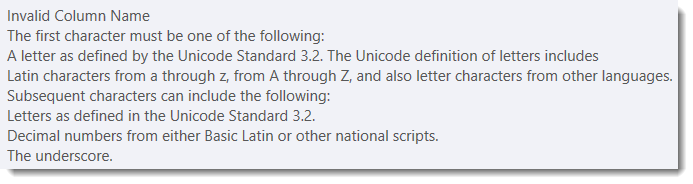
Column Name

  • Must be unique in the Table and Business Entity
  • Maximum length of Column Name
    • Version 6.0 = 15
    • Version 6.1+ = 30
  • Must Meet the Column Name Database constraints:
  • Maximum length of Column
  • Must start with a letter, can only contain letters, numbers and the special character underscore

101-std-fea-041-UI-Error Message.png

Column Size

  • Must be within the range of 1 to 8000

Column Description

  • Maximum length of Column Description = 50 — See Roadmap

System Dictionary

User added fields are recorded in the system dictionary table when creating Added Fields.
See 101-std-fea-040 for more information.

Workflow Added Fields

On save of KIND and CATEGORY, the fields are created in SY_DICT_DESC under table name = WM_KIND_(code) and WM_CATEGORY_(code)

User Added Fields Configuration

Once the field has been created, additional information can be setup in the Business Entity Designer system. See 104-all-bed for more information.

See Also

This section will contain related topics.


101-std-fea-041


0 votes, average: 0.00 out of 50 votes, average: 0.00 out of 50 votes, average: 0.00 out of 50 votes, average: 0.00 out of 50 votes, average: 0.00 out of 5 (0 votes, average: 0.00 out of 5)
You need to be a registered member to rate this.
Loading...

Save and Search Feature

Save and Search

Overview

This feature, when correctly configured, can be used to speed up data entry. By configuring an action button on an existing form. As soon as a Save is performed, the Save and Search feature will display a pop-up Search screen that will be ready to accept the next user entry.

NOTEThis “quick search action” is attached to the save completed event in the code. Whenever the user clicks Save, after the action is performed the Search is displayed again. This function allows the user to immediately begin their search for the next record instead of having to re-open the Dynamic Search panel.


NOTEAlthough some users refer to this feature as a “Quick Search”, it should in no way be confused with the Govern Quick Search feature [101-std-fea-004-quicksearch].

Setup

When setting up the action button in OpenForms Designer (OFD), the search style to use is specified.

NOTE: See the following product DEV documentation for configuration instructions.

101-st-fea-018-Self-Reported Tax Quick Search.pdf


101-std-fea-018


0 votes, average: 0.00 out of 50 votes, average: 0.00 out of 50 votes, average: 0.00 out of 50 votes, average: 0.00 out of 50 votes, average: 0.00 out of 5 (0 votes, average: 0.00 out of 5)
You need to be a registered member to rate this.
Loading...

Govern Advanced Search

Standard Feature – Advanced Search

Overview

The Advanced Search feature is designed to be a time saver when making multiple successive Self-Reported Business Tax filings. When enabled, Advanced Search will operate as follows. After the necessary entries are made, a click on Save will save the filing and launch the Search screen. When opened the screen will have auto-selected the first record found that matches the search criteria specified. If no record is found, the Advanced Search will stay open until a valid criteria is entered, or the screen is closed. Note that the Advanced Search is not to be confused with the Govern Quick Search.

Configuring Advanced Search

Refer to the following document to configure the Self-Reported Business Tax Quick Search.
101-all-SRT Advanced Search(extract)-(6.0).pdf

Viewing the Customization in GNA

In Govern the Advanced Search can be initiated for quick entry when multiple successive entries are required.

Related Topics

Govern Standard features.


101-std-fea-022


0 votes, average: 0.00 out of 50 votes, average: 0.00 out of 50 votes, average: 0.00 out of 50 votes, average: 0.00 out of 50 votes, average: 0.00 out of 5 (0 votes, average: 0.00 out of 5)
You need to be a registered member to rate this.
Loading...