
Personal Property General Parameters

Personal Property General Parameters

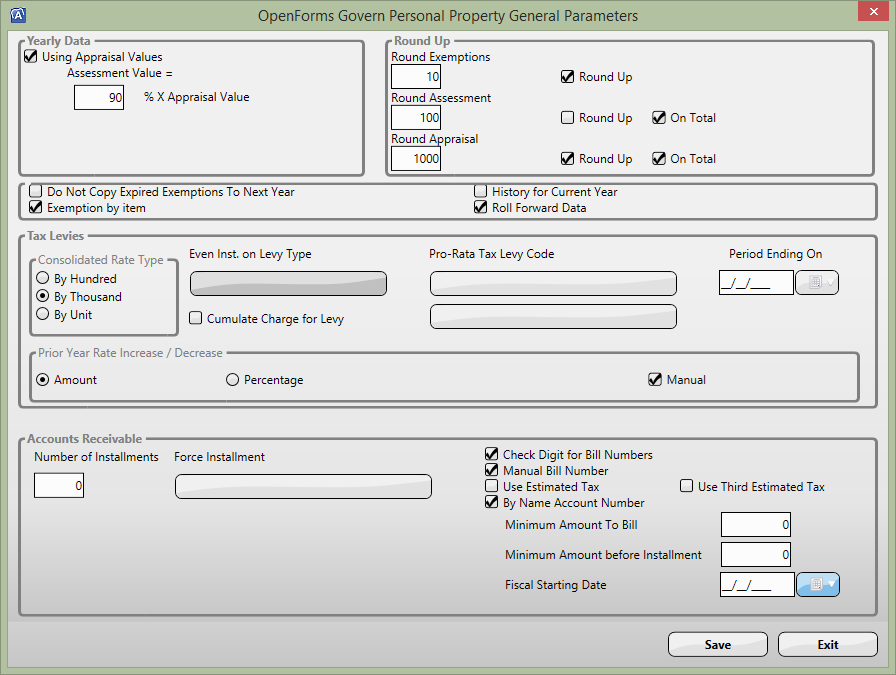
General Parameters
101_pp_ui_GenParm.png

Yearly Data
For value determination.
Use Appraisal Values: Note: in 10.8 if this was not checked the inventory tab was not available
Assessment Value = % of Appraised Value

Round Up

Exemptions (1,10,100…) – Round Up Yes/No

Assessment (1,10,100…) – Round Up Yes/No – On
Total Yes/No

Personal Property General Parameters

Appraisal (1,10,100…) – Round Up Yes/No – On Total Yes/No

Note: for examples on Rounding see page 7.

No Group Title
Do not Copy Expired Exemptions to Next Year

Tax Levies
Even Installment on Levy Type
Pro-Rata Tax Levy Code
Period Ending On
Cumulative Charge for Levy

Prior Year Rate Increase/Decrease
Amount or Percentage for automatic calculation of increase or decrease for the levies.
Manual will let you enter the amount or percentage manually when you define the levy codes.

Accounts Receivable
Accounts Receivable by Name Account Number
Check Digit for Bill numbers
Manual Bill Number
Use Estimated Tax (yes/no) Use Third Estimated Tax
By Name Account Number.


103-pp-parm-General


0 votes, average: 0.00 out of 50 votes, average: 0.00 out of 50 votes, average: 0.00 out of 50 votes, average: 0.00 out of 50 votes, average: 0.00 out of 5 (0 votes, average: 0.00 out of 5)
You need to be a registered member to rate this.
Loading...

MB – Initialize Year Data Batch Process

Miscellaneous Billing (MB) – Initialize Year Data Batch Process

Overview

Govern OpenForms Miscellaneous Billing module is year based and the purpose of this functionality is to create the recurring invoices in choosen year for the invoices that have not expired.
The system will check the END date with the Current Menu date to make this determination.

The Initialize Year functionality is a Batch Process and like any other batch process, it can be setup by profile with role and user security, scheduled, monitored, etc.

  • The batch process name is [mb_init_year] and it will be created when the Verify Database is run for the first time after having deployed a 6.1.1609 deployment.
  • The batch process definition [103-mb-bp-006] is available using the import/export. (to be verified)
  • The same batch process can be setup in multiple batch process definitions (with different schedules, notifications, etc.)
  • The batch process definition can be setup as an Action Button or a Link item that can be placed on a standard Form or on the user Cool Bar.
  • See Standard Batch Process details Batch Program Setup or Govern Scheduler for more details

This batch process can be accessed from:

  • Govern Administrator (GNA), select Application Configurations, Miscellaneous Billing,
  • Govern, open Profile Batch Process tool box window


Read More...


Batch User Interface

The following user criteria will impact what invoices will be processed.
Selection Criteria
You can select criteria to refine the process or leave these fields blank to process all transactions.Year

  • Select the year for to copy

Recurring Code (Batch Name)

  • Enter the batch name or number for the records you are processing, or
  • Leave this field blank to process all transactions.
  • Mandatory

Category Code

  • Enter a category code to limit the process to invoices setup with this category code.

Issuing Department

  • Enter a department to limit the process to invoices setup/issued for this department.

Override Invoice Date

  • Used to override the invoice date that will be created.
  • If left blank will use the current date

The selection criteria for the From year is user persistent and will appear the next time the batch process is executed.
However, the destination year is not persistent, so this field will be reinitialized each time the batch process is executed

Batch Processing

General Batch Processing

  • The process definition can be executed in SYNC mode only and this mode will be forced or overridden upon execution.
  • The batch transaction Mode = “Roll Back If One Transaction Failed” is not supported. It will be “Continue If One Transaction Failed” by default


Records to be Processed

Only the recurring invoices meeting these rules will be processed:

  • Recurring Invoices for the specified year
  • User Profile Current Date is superior to the Recurring Invoices Effective FROM Date and inferior to the Effective TO Date or end date.
    • If Effective TO Date is blank, it will be set internally to 12/31 of the recurring invoice year.
  • User Profile Current Date must be in the 1/1 and 12/31 range of the selected year.

On Warning and Error Reporting
During the execution, standard warning and error messages will be presented in the batch result grid.

  • On error, the MB ID will be displayed in the message text. Note: Double-click on the message to access and copy the full text


On completion

The following standard information will be displayed:

  • Parameters and Options used
  • Total number of records read
  • Total number of records processed

Log File

At the end of the batch process, a log will be created:

  • Log file called mbInitializeYear.log


Troubleshooting

The following is to help troubleshoot the batch process.

  • After changes, it is always best to compute for a single year and small dataset
  • The parcel id is listed in the error message
  • Turning on the Govern Diagnostic Tool
  • Turning on the SQL Profiler Tool (system administrator)


Related Topics


103-mb-bp-006


0 votes, average: 0.00 out of 50 votes, average: 0.00 out of 50 votes, average: 0.00 out of 50 votes, average: 0.00 out of 50 votes, average: 0.00 out of 5 (0 votes, average: 0.00 out of 5)
You need to be a registered member to rate this.
Loading...


103-mv-parm-CopytoYear

Copy Parameters to Year
Overview

Note: Functionality available in version 6.0.1505

Overview

The main purpose of this option is to copy all Year base parameter to another year. It will validate if the destination year exist, and if so, the user will have a warning message to override the data before executing the copy.

Furthermore, the copy will be refused if an Original Audit record is found in the AUDIT information (Entry_code = ‘original’)

103-ma-tables-permadjreason

103-ma-tables-permadjreason #103ma

Regular User Validation Table – Permanent Adjustment Reason
Mass Appraisal Overview, Configuration, Installation, Computation, OpenForms Reference, What’s New, wiki Module Map

Overview

This validation table is used in Mass Appraisal to identify the reason why a FINAL ADJUSTMENT (override) was made.
Examples include: Asbestos, Flood Damage, Fire Damage, Contamination, etc.

OpenForms Reference

This User Validation Table is used to identify why a permanent adjustment has been made to an Appraised Value.
It is used in the following Govern standard Openforms Business Entities:

  • MA_LAND
  • MA_MRA
  • MA_BSE
  • MA_MISC
  • MA_INCOME – to validate

Setup

To update this table, in Govern Administrator (GNA)
Select Editors > User Validation Table Editor > REGULAR tables
TABLE = PERMADJREASON

103-ma-parm-Tables-Resequence

103-ma-parm-Tables-Resequence #103ma

Mass Appraisal Table – Resequence Action Button
Module Specification Overview, Configuration, Installation, OpenForms Reference, What’s New, R&D wiki, wiki Module Map Last Update Feb 15th, 2015

Table of Contents

Overview
What are Sequence Numbers?
Changing the Sequence Number of an MA Table
Related Information

Overview

The Resequence action button is used for changing the Sequence Number of the following Mass Appraisal tables:

  • Building Structural Elements
  • Income Expense Table
  • Income Rental Detail Table
  • Income Subcategories Table
  • Land Adjustments Table
  • MRA Elements Table
  • Sites Table

What are Sequence Numbers?

Sequence Numbers serve the following purposes:

  • Display: Sequence numbers are used for display. The validation tables are listed in order of sequence number on the Govern user form.
  • Computation: Sequence numbers are also used for calculations, which are performed in order of sequence number; i.e., sequence number 2 is calculated before 3, sequence number 3 is calculated before number 4, etc. Therefore, if a table contains values that are dependent on the results of calculations performed in other tables, it must have a higher sequence number.

Sequence Numbers are automatically created. One (1) is added to the previous sequence number. The highest sequence number must be assigned to the table that is dependent on calculations performed in tables with lower sequence numbers. The sequence number of a table can be changed with the following procedure.

Changing the Sequence Number of an MA Table

The Sequence Number can be changed by:

  • Modifying the Sequence field before the table is saved.
  • Using the Resequence button after the table is saved.

To change the Sequence Number with the Resequence button:

  1. Launch GNA.
  2. Open the table with the Sequence Number that you want to change.
  3. Ensure that all required fields are filled in and saved; i.e, ensure that no fields are outlined in red.
  4. Click the Resequence button at the top of the form. The Resequence window opens.
  5. Enter a new sequence number in the Sequence field.
  6. Click OK.

Related Information

For details on Mass Appraisal tables, see MA Tables