103-gis-parm-General

GIS Parameters
[This Wiki is under development]

Overview

The GIS option contains the parameters that are required to configure the GIS server.
To access the GIS parameters in the Govern New Adminstration…

  1. Parameters tab (Ribbon) > System Parameters group > General Settings Editor.
  2. In the OpenForms General Settings form, select GIS from the Registry Filter combo box.

The current GIS parameters are as follows:

Section Name Key Name Year ID Key Value Description
GIS Auto-authenticate GIS Website
GIS GIS Default Department Code Select the department that will have default access to GIS integration; options are, one of the departments on the list, or All departments.
GIS Parcel Editor Govern for Windows Compatibility
Govern OpenForms Web GIS URL Enter the Web address (URL) for the Web GIS server.
Split Merge Replot GIS

See Also

Matix Integration
GIS Synchronization

103-gis-parm-Tooltip

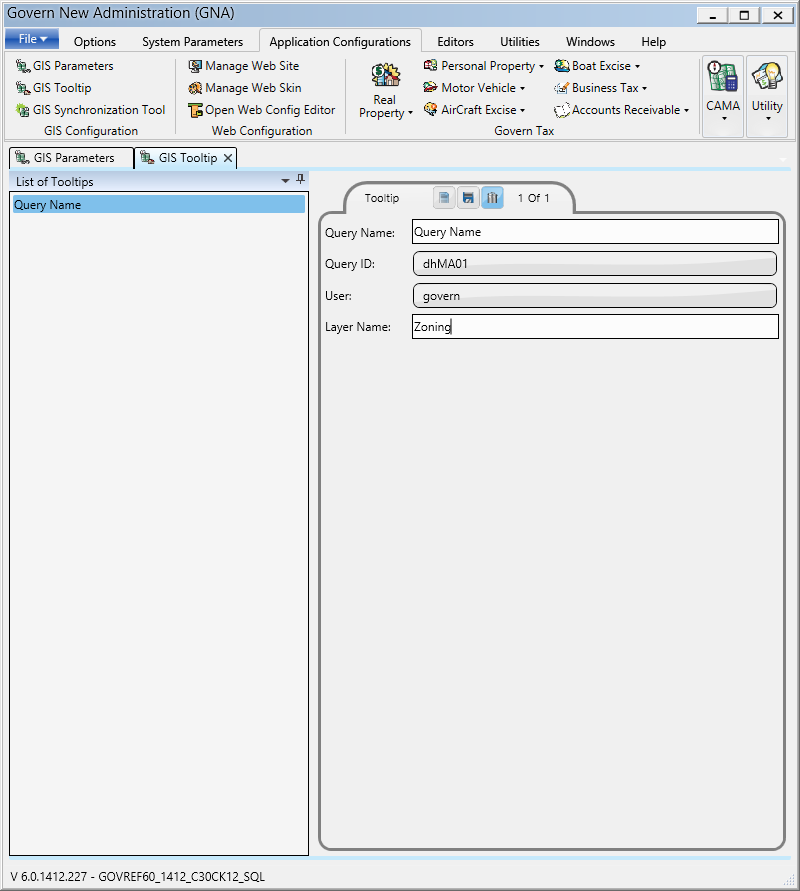
GIS Tool Tip

Overview

Note that this functionality is no longer available in Release 6.1.

103-gis-parm-GisTooltip.png

103-gis-parm-Tooltip

0 votes, average: 0.00 out of 50 votes, average: 0.00 out of 50 votes, average: 0.00 out of 50 votes, average: 0.00 out of 50 votes, average: 0.00 out of 5 (0 votes, average: 0.00 out of 5)
You need to be a registered member to rate this.
Loading...

201-ar-bp-034

201-ar-bp-034 #AccountsReceivable #arall #arbp #AR #egovmodule

Utility Billing eBilling Batch Process (Govern for Windows)
Module Specification Overview, Configuration, Installation, OpenForms Reference, What’s New, R&D wiki, wiki Map Last updated 2016-09-27

[see Roadmap 6.0] in Development

Overview

The eBilling Batch Process is designed for users of the Utility Billing module in Govern for Windows. It’s functionality is to generate bills in Adobe .pdf format.

NOTE: In Govern for Windows release 10.7, a new .NET component installer was introduced. The primary objective of this new installer was to consolidate the installation of all previous .NET installers under one common interface. One of the components used in the Utility Billing module is called Crystal Helper. Crystal Helper is used in the Utility Billing eBilling module which generates .PDF bills. Govern for Window users should ensure that they have used the most up to date version of this installer.

201-ar-bp-065

AR ACH Process for Web Payments
Under construction

eGov Admin Parameters

eGovern – Public Self Service Portal (Admin Parameters)

Overview

Configuration of the eGovern – Public Self Service Portal is carried out with the Govern New Administration (GNA) Release 6.0 or greater, and the Govern Admin release 10.8 in Govern for Windows.

eGovern Editors

The editors for configuration of the eGovern – Public Self Service Portal are listed below.

Manage Web Site

To access the configuration parameters in the GNA ribbon, click Application Configurations (tab) > Web Configuration (group) > Manage Web Site

NOTE: The following parameters are to be used for configuring release 4.0 and greater of the eGovern – Public Self Service Portal. Components that are prior to release 4.0 can be configured, with appropriate licensing, by the Govern for Windows Govern Admin release 10.6/10.7 application.

The main Web Configuration tab of the Web Site editor in GNA is used to access configuration parameters. Under the Web site tab are the sub-tabs used to configure the various eComponents. The grouping of the tabs are as follows:

Configuration tabs

General

Select the General tab to configure the Simple Mail Transport Protocol (SMTP) email parameters (Mail group), the default department that the Web site will be linked to.

eProfile
Select the eProfile tab to define default user permissions for the eProfile and the eComponents. The default permissions can be modified on a user-by-user basis through the Administration pages of the eProfile. In addition, Subscription and Password settings are maintained here. See eProfile tab (See Parameters)

ePayment

Under the ePayment tab are the configuration parameters for configuring online payment options, Credit/Debit cards and Automated Clearing House (ACH).

ePermit

The ePermit tab is used to manage the display characteristics of permits that are displayed through the eGovern.

eInspection

The eInspection tab is used to configure options for the online inspection module.

eRemittance (Self Reported Tax)

The Self Reported Tax tab contains the parameters and options for configuring the Self Reported Tax module.

Others

This tab is used to accommodate ad-hoc parameters. These parameters would be related to the eGovern. Currently there is a Misc. Billing Payment button which links to the Misc. Billing Receipt form.

Manage Web Skin

The Web Skins forms is used to define the look and feel of your Web site. To create your web skin, refer to the Create a WebSkin section in the guide.
To access the configuration parameters in the GNA ribbon, click Application Configurations (tab) > Web Configuration (group) > Manage Web Skin

Configuration tabs

Layout Type

Select the type of layout that is required.
Web Page Section
Click the Web Page Section tab to define general properties for the WebSkin.
Head Section
Click Head Section to define the information for the Head section of the Web page. The Head Section of a Web page contains keywords, meta tags, javascripts and references to CSS files. Meta Tags may be used by search engines, such as Google, Bing, and Yahoo, to categorize and rank your Web site in a search result.

Header / Footer / Left / Right Section(s)

Select these sections to define the properties for the borders of your Web pages.

Govern Section

Select the Govern Section tab to define the properties for the Govern section of your Web pages.

Open Web Config Editor…

The Govern Net Admin’s (GNA) Web Config File Editor is designed to manage Govern’s eComponents. With the Web Configuration File Editor, you are able to define configuration parameters, determine how errors and exceptions are managed by the system, and set auto login parameters. See Web Configuration File Editor for details.
To access the configuration parameters in the GNA ribbon, click Application Configurations (tab) > Web Configuration (group) > Open Web Config Editor.

Configuration tabs

Page 1 tab

In the Web Config File Editor form, select the Page 1 tab to define the configuration parameters.

eProfile

Select the eProfile tab to define default user permissions for the eProfile and the eComponents. The default permissions can be modified on user-by-user basis through the Administration pages of the eProfile. In addition, Subscription and Password settings are maintained here. See eProfile Tab Parameters

ePayment

Under the ePayment tab are the configuration parameters for configuring online payment options, Credit/Debit cards and Automated Clearing House (ACH). See ePayment – Setting the Web Parameters.

Documentation

For documentation explaining details of each parameter, refer to the eGovern – Public Self Service Portal user guides.

Related Topics

eGovernment (Public Web Portal)

In the GNA ribbon …
1. Select Application Configurations (tab) > Web Configuration (group) > Manage Web Site.
2. In the Manage Web Site form, click the General tab.
3. Locate the Mail group.
4. Complete the required fields.



201-egov-parms


0 votes, average: 0.00 out of 50 votes, average: 0.00 out of 50 votes, average: 0.00 out of 50 votes, average: 0.00 out of 50 votes, average: 0.00 out of 5 (0 votes, average: 0.00 out of 5)
You need to be a registered member to rate this.
Loading...

201-mb-fea-005

201-mb-fea-005 #egovmodule

Miscellaneous Billing Online Payments (ePayments)
Misc. Billing Module Overview, Configuration, OpenForms Reference, What’s New, Developer wiki, QC and Test wiki, wiki Module Map … Last updated Jul. 25, 2016 (under construction)

Overview

Table of Contents

Overview
Configuration
Required Configuration Steps
User Interface
Misc Billing Receipt command buttons
Misc Billing Receipt parameters

This is a feature that is designed for eGovern users that have a business need to make Miscellaneous Billing (MB) payments online.

Configuration

Required Configuration Steps

This feature is configured in the Govern New Administration (GNA) application. To configure…
On the GNA ribbon, select the Application Configurations tab.

  1. Click Web Configuration group > Manage Website.
  2. In the list column, select your web site.
  3. Under the Website tab, click the Others tab; click the Misc Billing Payment button.

User Interface

Misc Billing Receipt command buttons

Create New – Click to create a new MB payment type, i.e. School Tuition, Tax, and so on.
Cancel Changes – When no configuration information is required to be entered.

Save the current item – To save any changes, made to the configuration, click Save.

Misc Billing Receipt parameters

Active A/R Class Link Online – To make the option available online through eGovern, click Active A/R Class Link online. Until selected the settings remain in the configuration, but is not active.
A/R Class – Select the A/R Class that the payment will be transferred from the combo box.
Name ID – The NA_ID of the account requesting the ability to make an online payment.
Miscellaneous Billing ID – A required field.
User Custom Label Text – Enter the text string that is to appear as the label

Creating an Entry
To add an entry to the list…

  1. In the Filter group, select a year that the payments are made to
  2. Select an A/R Class in the A/R Class Link parameter that the payment will be entered into.
  3. They will need to specify an NA_ID for the account
  4. A required MB_ID is also entered for the account.
  5. The label that the user will see online.

Deleting an Entry
Remove the current item – To delete a payment type, where there multiple entries, click to select the type from the list on the left hand column; click the Trashcan icon.
NOTE: An entry must be made for each Misc. Billing payment type.