Standard Report – Batch Execution Audit

Standard Report – Batch Execution Audit

Overview

Details about the Batch Execution Audit – Standard Report will be posted here when it is available.


101-std-rpt-001-toreview


0 votes, average: 0.00 out of 50 votes, average: 0.00 out of 50 votes, average: 0.00 out of 50 votes, average: 0.00 out of 50 votes, average: 0.00 out of 5 (0 votes, average: 0.00 out of 5)
You need to be a registered member to rate this.
Loading...

GNA – Std. Report – Parameters Audit Report

Standard Report – Parameters Audit Report

Overview

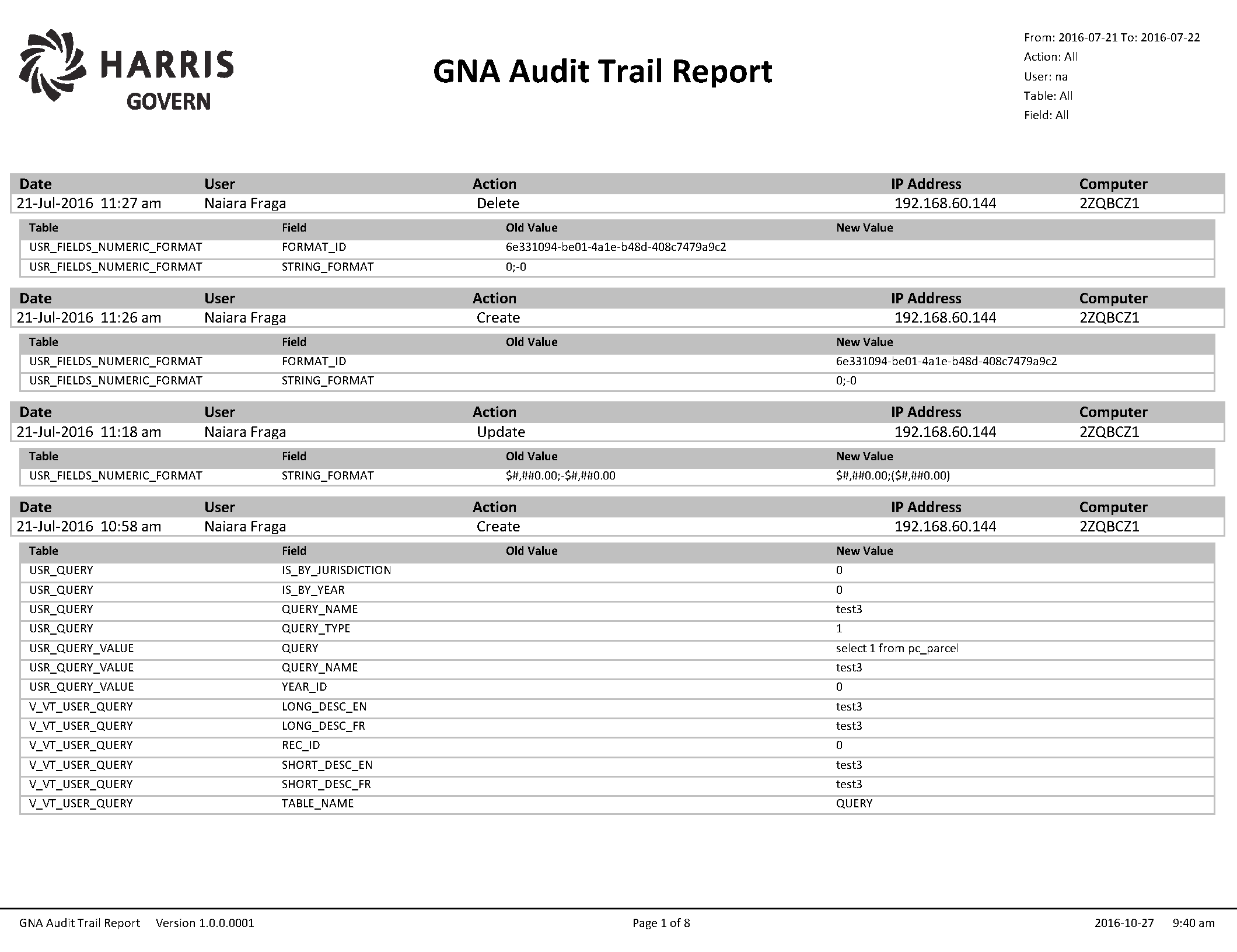
This report is available in 6.1 GA 1609.
It provides the audit information of the changes made in Configuration and Parameters.

GNA_Audit.png

GNA_Audit.pdf


101-std-rpt-003-GNAParametersAudit


0 votes, average: 0.00 out of 50 votes, average: 0.00 out of 50 votes, average: 0.00 out of 50 votes, average: 0.00 out of 50 votes, average: 0.00 out of 5 (0 votes, average: 0.00 out of 5)
You need to be a registered member to rate this.
Loading...

103-ac-parm-CopytoYear

Copy Parameters to Year
Overview

Note: Functionality available in version 6.0.1505

Overview

The main purpose of this option is to copy all Year base parameter to another year. It will validate if the destination year exist, and if so, the user will have a warning message to override the data before executing the copy.

Furthermore, the copy will be refused if an Original Audit record is found in the AUDIT information (Entry_code = ‘original’)

101-std-fea-042-ofr

Standard Feature – Form Action Button User Registry
Standard Features Overview, What’s New, wiki Map (Last Update 2016-01-06)

Overview

The following is a standard form action button that can be setup so that users can change USER REGISTRY parameters

Configuration

Action Button = UsrREGISTRYAction

irst you need to add the custom control object by dragging the control to the form (root entity) then click on the custom control object on the form to set the properties.

Element Property Setup
Misc. Action UserRegistry_Action
Name n/a – Maintain by System
Icon Select the icon to be displayed on the form header or leave blank to select the standard icon
Is enabled Standard OpenForms option to enabled the action button only on specific conditions.
Name Maintain by System
Properties
Misc. User Registry Select the User Registry Parameters that should be displayed

  • All
  • Cash Collection
  • Cash Collection Cashier
  • Lockbox
  • mGovern
  • Matix
  • OpenForms
  • Workflow Management
Tooltip Enter the tooltip that will be displayed on Mouse Over of the button
Misc En Enter the name that will be displayed for (to be verified if used)
Internal Element Instructions
Not applicable

101-std-fea-042

101-std-fea-042 #stdfea #std

Standard Feature Form Action Button – User Registry
Standard Features Overview, What’s New, wiki Map … Last Updated February 21st, 2017
Version 6.0 / 6.1

Overview

The following is a standard form action button that can be setup on most forms to allow users to change user registry parameters directly without leaving the form.
Currently applicable to:

  • All
  • Cash Collection
  • Cash Collection Cashiers
  • Lockbox
  • mGovern (Mobile)
  • Matix (GIS)
  • OpenForms
  • Workflow Management

To configure the action button on a form, click here.

See Also

System Registry Parameters
User Registry Parameters
Configuring the Action Button Control

Workload Manager Feature

Workload Manager

Version 6.1

Workload Management Overview

The Workload Manager Standard Module Feature is designed to track activities regarding the Building, Health, Code Enforcement, Planning and Zoning departments’ application as well as the issuance of permits within the organization. This system also allows for an unlimited number of departments to track activities relevant to a parcel of land or the property records. For different Kinds and Categories of workflow, you are able to define all required steps to complete the process. You can define activities that can query other databases in order to apply business rules, and schedule automatic inspections.

Table-driven, user-definable, the system provides for and improves communication and coordination within and between departments. All new construction, variances or zoning changes that have taken place on properties are stored in the system. A flexible database structure allows for the recording and retrieval of various land-related data that can differ for each type of permit or decision. Applications for permits and inspections for buildings, including review of the electrical or the plumbing system can be entered into the system.
Once the information is entered, the system will aid in the investigation or the issuance of a permit or any other activity for a particular property or name.

Documentation

Govern OpenForms v6.1

Click here to read the interim user guide. Note that this document is still in development.

Govern for Windows 10.8

Related Topics

Email Notifications in Govern OpenForms



101-std-fea-019-Workload Manager


0 votes, average: 0.00 out of 50 votes, average: 0.00 out of 50 votes, average: 0.00 out of 50 votes, average: 0.00 out of 50 votes, average: 0.00 out of 5 (0 votes, average: 0.00 out of 5)
You need to be a registered member to rate this.
Loading...


External Command Feature

 External Command Feature

Overview

External commands can be added the Govern Ribbon or to a user form. They are used for opening an external application from Govern to a specific location. Specific information is dent directly from Govern to the external application.
Some examples of how external commands are used include the following:

  • Opening Google Maps to a specific address from the Govern Ribbon in the Property Control Profile.
  • Opening a Real Estate application to a specific address from the Sales Information form in Govern.
  • Sending an e-mail to a property owner directly from the Tax Billing form in Govern.
  • Opening a saved map in Google Drive to a specific location from the Govern Ribbon in the Appraisal Profile.

Launching an External Command

Launching an External Command from the Govern Ribbon

If an external command is added to the Govern Ribbon.

  1. Launch Govern.
  2. Select the Profile to which the command is added.
  3. Open the form that is associated with the command.
  4. Open the property record that is associated with the command.
  5. Select the Tools menu on the Govern Ribbon.
  6. Select the command in the External Commands section of the Tools menu.

Read More...

For example, if there was a command to open Google Maps to a specific location.

  1. Launch Govern.
  2. Select the property that you want to view in Google Maps, in the required form and Profile.
  3. Click the external command for Google Maps in the Ribbon.
  4. Google Maps open directly to that property.

Launching an External Command from a Govern User Form

If an external command is added to a user form:

  1. Launch Govern.
  2. Select the Profile to which the command is added.
  3. Open the form.
  4. Select the property.
  5. Click the hyperlink or action button for the command.

The external application opens to show the required information about the property. For example, if there was a command to open Google Maps to a specific location.

  1. Launch Govern.
  2. Select the required Profile, form, and property record.
  3. Click the link for the external command on the form.
  4. Google Maps open directly to that property.


101-std-fea-020


0 votes, average: 0.00 out of 50 votes, average: 0.00 out of 50 votes, average: 0.00 out of 50 votes, average: 0.00 out of 50 votes, average: 0.00 out of 5 (0 votes, average: 0.00 out of 5)
You need to be a registered member to rate this.
Loading...