
101-std-fea-005

101-std-fea-005 #101 #fea005 #fea #stdfea #std

Dataset Treeview
Overview | Populating the Dataset Treeview | The Treeview Explorer | Record Edit Confirmation | System Architecture | What’s New | Related Topics
| …Last Modified June 5, 2018

Table of Contents

Overview
Populating the Dataset Treeview
The Treeview Explorer
Record Edit Confirmation
System Architecture
What’s New
Context Menu in Dataset Treeview
Reposition
Hibernate Mode
Load to Treeview and Add (Append)
Hibernate
Enabling “Synchronize Dataset Treeview”
Location of Data
Business Rules
When Parameters Change:
When Opening Govern (Before opening Profiles):
When monitoring Dataset tree view changes:
Related Topics

Overview

Datasets that appear in the Dataset Treeview are populated with the results of searches made through the Search form. Records that are loaded into the Dataset Treeview may be appended to through the Saved Dataset pane, or deleted directly in the Treeview pane.

Populating the Dataset Treeview

To populate the Dataset Treeview with search results…

  1. When the Predefined Searches pane is in its default position, place your mouse pointer over the tab to display the search form (A).
  2. In the form perform a search type; for this example we will perform a property search by P_ID.
  3. Click Search for Result.
  4. Search results will be displayed in the lower portion of the search form.
  5. Click Load to the search result to transfer the search result records to the Dataset Treeview pane.
  6. If the Dataset Treeview pane is not displayed, click its tab at the bottom of the pane.

The Treeview Explorer

The Treeview Explorer displays record information in a hierarchical arrangement. In the Treeview panel, you are able to expand or contract a record by clicking on the arrowhead icons.
For example, on a search that retrieves tax map records, when you double-click on the tax map, it lists name information at the next level. Each item can be expanded to show specific data on the property, such as owner and occupant names, parcel information and location, permits, utility billing and accounts receivable records.
As you select each level of information, the data is displayed in the appropriate OpenForm when it is displayed on the right hand side.

Record Edit Confirmation

When a dataset has been loaded, it is easy to select and begin to edit a record. This ease of selection may at times be a detriment as at times the wrong record may be selected, and the user immediately begins to edit in error. It has been determined that if a secondary confirmation is introduced during the record selection process, there is less chance of erroneously editing the wrong record.

Through the Govern New Administration (GNA), the Record Edit Confirmation option can be enabled to add a secondary confirmation. When Record Edit Confirmation is enabled, after the user selects a record, they are obliged to click on a secondary icon (A), to fully unlock the record for editing.

To enable Record Edit Confirmation…

  1. In GNA, select System Parameters (tab) > General Connection Parameters.
  2. In the General Connection Parameters form, locate the Organization Parameters group and select The user must explicitly enable editing for each parcel option.
  3. Click Save to save the option.
  4. To close the form, click Exit.

When this option is enabled, after loading a dataset, users may still select a record for editing, but the selected record will have an icon beside it. The user must click the icon in order to fully unlock the record for editing.

System Architecture

For all details regarding the Govern Treeview Architecture, refer to 101-std-fea-005-Treeview_Architecture.

What’s New

Context Menu in Dataset Treeview

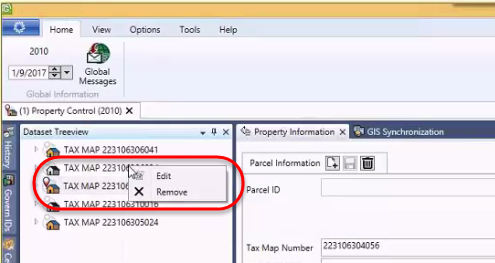
NEW! Users of the Dataset Treeview will note that when it is populated with one or more records, there is a description for each record. This description can be a Parcel ID, an Account Number, and so on. A quick method of deleting individual records is to hover the mouse pointer over a record. When the width of the Dataset Treeview pane is wide enough, placing the mouse cursor over the description will display an “x” that can be used to remove the record. Unfortunately when there is insufficient space, i.e. the space is not wide enough to display the full description, the “x” is not visible. To address this situation a context based menu has been added to the interface.
TreeviewContextMenu00.png
To display this menu…

  1. Right click on the record of interest in the Dataset Treeview.
  2. In the floating menu, you now have option for additional functions that appear beside the record when the entire line is visible.

By default, there will be an option to “[x] Remove”. When there are other options, e.g. Edit, they will also be presented in the menu.
This feature is available in the following releases: 6.0.1611.0067 / 6.0.1702.0080 / 6.1.1611.0060 / 6.1.1702.0121

Reposition

Previously, when performing a search of records with the same NA_ID but multiple ST Account numbers, when you copy the record to the Treeview, the system would only select the first account. Now the selected record will be sent to the Treeview. (Available in release 6.0.1503)

Hibernate Mode

This behavior of selecting only the first account also applies to the Hibernate process. As Govern is restored from a hibernation if a second or third account is selected before hibernation, when the application is restored, although the NA_ID is correct, only the first account will be displayed.

Load to Treeview and Add (Append)

As data is loaded or appended to the Treeview from the Search, or the Saved Datasets form, the following rules apply:

  • When a record is selected for append, only new files will be loaded. If previously loaded, the file will not be reloaded into the Treeview.
  • If no search result is selected, the Add to Search Results button will be disabled.

Hibernate

Previously the Hibernate would store the NA_ID of the records displayed in the various panes that are opened in the interface. Now to maintain the fidelity of the hibernated user environment, all Govern ID’s are used; i.e. NA_ID, P_ID, ST_ID, and so on.

NOTE: User Hibernate information is stored by user in (Table: USR_HIBERNATE). The following query will display the hibernation information for “userName”

SELECT *
FROM USR_HIBERNATE
WHERE USR_ID = ‘userName’;

Treeview Synch
In Govern for VB6, external tables (PC_EXTERNAL, NA_EXTERNAL, and PM_EXTERNAL), were used by external applications and reports to automatically know the current recordset and currently viewed parcel. In Govern release 6.0 and upwards, these external tables are being phased out and the functionality provided by them will need to be reproduced.

NEW! The Treeview sync. feature saves the contents of the current profile in (Table: USR_SAVED_DATASETS) with a “Saved Dataset” name of “AUTOSAVE” under (Column: USR_SAVED_DATASETS.SAVED_SET_NAME). Should a profile be changed, the dataset loaded in the Treeview will be automatically synchronized to (Table: USR_SAVED_DATASETS).
This feature recreates the functionality provided by the three (3) external tables that were used in Govern for Windows, (Tables: PC_EXTERNAL, NA_EXTERNAL, and PM_EXTERNAL). For example users could run a batch process on a saved external dataset as opposed to a set range.

NOTE: In release 6.0 a simultaneous save will be made to (Table: PC_EXTERNAL) and (Table: USR_SAVED_DATASETS), Tables NA_EXTERNAL and PM_EXTERNAL are no longer supported.
In release 6.1, all three (3) tables PC_EXTERNAL, NA_EXTERNAL, and PM_EXTERNAL will not be supported.

  • PC_EXTERNAL (Supported in release 6.0; not supported in release 6.1)
  • NA_EXTERNAL (Not not supported in release 6.0 and 6.1)
  • PM_EXTERNAL (Not not supported in release 6.0 and 6.1)

Enabling “Synchronize Dataset Treeview”

This feature is enabled in the User Registry through the User Registry Manager. The Options button is located below the Govern suite button in the Govern User Interface.

  1. Click the Options button; click Options.
  2. In the Registry Manager form, verify that the Registry Filter is set to User ID.
  3. Under the Section Name column, locate Synchronize Dataset Treeview; click to select the option under the Key Value column.
  4. Click Save to save your changes.

When you return to the Govern interface, the Treeview Sync. icon will be enabled. This is a toggle, i.e. ON/OFF button that will enable or disable the feature.

Location of Data

As indicated above, all data will saved in (Table: USR_SAVED_DATASET). Associated columns are as follows:

COLUMN DESCRIPTION
USR_ID User ID
SAVED_SET_NAME By default will be AUTOSAVE
REF_TYPE “P_ID”, “NA_ID”, etc. Based on the profile Key Type
SORT_SEQ Order in the Treeview
IS_CURRENT TRUE if the current item in the Treeview

NOTE: All data will be saved based on the Key Type of the profile. This is done so as to support multiple Key Types at the same time.

  • The data is not saved by profile, so the synchronization for a Key Type will be done on the last active profile using that key type.

The desired behavior when there is more than one Treeview dataset for the same ID Type is to perform a reload when the user switches from one instance to another.

Business Rules

Programmers should note the following Business Rules.

When Parameters Change:

  • From TRUE to FALSE – Delete all SAVED_SET_NAME that have a status of “AUTOSAVE” and replace the value with the current USR_ID
  • From FALSE to TRUE – Delete All SAVED_SET_NAME equal to “AUTOSAVE” and replace with the current USR_ID and current REF_TYPE
    – Insert Into USR_SAVED_DATASET based on the tree view data
    – Starts monitoring Dataset tree view changes

When Opening Govern (Before opening Profiles):

  • Starts monitoring Dataset tree view changes if Flag is on

When monitoring Dataset tree view changes:

  • If Active profile changes – Delete All SAVED_SET_NAME equal to “AUTOSAVE” and replace with current USR_ID and current REF_TYPE
    – Insert Into USR_SAVED_DATASET based on the tree view data
  • If Treeview is replaced (By eSearch / QueryTool / Matix/…); i.e. a Load
    – Delete All SAVED_SET_NAME equal to “AUTOSAVE” for current USR_ID and current REF_TYPE
    – Insert Into USR_SAVED_DATASET based on the Treeview data
  • If an item is added into the Treeview (By eSearch / QueryTool / Matix /…); i.e. Add Or AddAndReposition
    – Insert the new item into USR_SAVED_DATASET
  • If an item is removed from the Treeview (using the X button); i.e. Remove
    – Delete the new item into USR_SAVED_DATASET
  • If the active item changes in the Treeview; i.e. Reposition()
    – Update IS_CURRENT in USR_SAVED_DATASET
    NOTE: This is done by setting the current id to -1 and setting the prior id to 0

NOTE: Always hide AutoSave SAVED_SET_NAME from saved dataset functions

  • V6.0 (only) – PC_EXTERNAL will need to be maintained at the same time
  • V6.1 – All three (3) tables, PC_EXTERNAL, PM_EXTERNAL, and NA_EXTERNAL are to be removed.

Related Topics

Forms Explorer
Reports Explorer

Standard Feature – Saved Datasets

Saved Datasets

Overview

Govern Saved DatasetsThe Govern Saved Dataset pane is standard in release 6.0 and higher. This pane will allow users to load, save, and delete saved datasets. All saved datasets for the current user, excluding datasets that are present prior to the hibernate process.
In addition, users are able to create new datasets from a search result, append to an existing dataset, load, edit, or delete one or multiple datasets.

What’s New

When applicable, new features, or new ways of performing an old function in Govern will be listed below. Version Numbers and sections will be indicated in the list.

Saved Datasets Interface

The interface is an auto-hide pane. This pane appears with a click on the Saved Datasets icon on the Ribbon, or by hovering the mouse pointer over the tab.

Saved Dataset Grid Behavior

The Saved Dataset grid allows for creation and maintenance of user saved datasets.

Select all saved datasets in the list…

Click on the check box of the first header column to select all items in the grid.

Sort Grid by Headers…

As is standard with Govern grids, a click on a column header will sort the list in ascending or descending order. Ascending or Descending order is determined by the direction of the triangle that appears in the column heading. Typically the list is sorted by the name or the date.

Restoring the default Sort Order

Click the header until the arrowhead indicating the direction of the sort disappears.

Quickly Load a Saved Dataset to the Treeview…

When you want to quickly load a dataset to the treeview pane, double click on a row to clear the Dataset Treeview and load all selected dataset to the tree view.

Grouping by Columns…

The Governs interface drag and drop features allow for additional possibilities in the grid. The space above the columns is referred to as the Grouping Area. When possible, this space expands to accommodate column names when they can be added.
To group according to a column…

  1. Click and drag the column head to the space marked “Drag a column header here to group by that column“.
  2. Release the Column header in the area.
  3. Repeat the drag and drop action for additional required columns.

Removing Column Groupings…

To remove column groupings…

  1. With the mouse pointer, click and drag the column heading from the grouping area.
  2. When your cursor is outside the grouping area, the cursor will change to a large “X”.
  3. Release the cursor; the grouping will be removed.

Command Buttons

The Saved Datasets pane can be displayed by hovering over the auto-hide tab. When you want the pane to display permanently without sliding back, click the Auto-Hide pin icon. The pane will remained fixed in the interface until the Auto-Hide button is re-selected.

Load to Treeview

Click Load to Treeview to load a dataset to the Treeview. The feature is enabled only if at least one item is checked. When clicked, the action will clear the dataset treeview and load all selected datasets to the treeview.

Append to TreeView

To append to the records that are in the treeview, click Append to Treeview. This button will only be active when one or more datasets have been selected in the Saved Datasets grid. When the append action is performed, all records from the selected datasets will be appended to the treeview.

Add / Replace Dataset

Toggle button between add and replace dataset. If at least one item is selected, replace the items in the selected dataset, otherwise create new dataset by showing the Save dataset window.
This button is always visible. When the user selects the Add a New Dataset button, they will be prompted with the Create New Dataset screen. Enter a name and click Save.

Append Dataset

Append Dataset will append all items from the tree view to any selected datasets in the list of saved datasets. This button is only active when one or more saved datasets has been selected in the list.

Delete Dataset

This button is used to delete saved datasets. To delete one or more dataset from the list, select the datasets that are to be deleted, and click Delete Dataset.

Share Dataset

Users that are members of other roles may share their Saved Datasets. This is done through Share Dataset feature.
To share saved datasets…

  1. Select the check box for the dataset that you would like to share.
  2. Click Share Dataset.
  3. In the Share Dataset window, enter a name for the shared dataset.
  4. Select the Roles and or Users that you are a member of, and would like to share the dataset with.
  5. Save the change with a click on the Share button.
NOTES: Saved Dataset names can be up to 50 characters including spaces. The datasets that are displayed are only for current ID’s, as an example if the open profile is based upon a P_ID, then only saved datasets that have a Reference Type of P_ID are displayed.

Video

NOTE: There are no Training Videos available


101-std-fea-006


0 votes, average: 0.00 out of 50 votes, average: 0.00 out of 50 votes, average: 0.00 out of 50 votes, average: 0.00 out of 50 votes, average: 0.00 out of 5 (0 votes, average: 0.00 out of 5)
You need to be a registered member to rate this.
Loading...

History Toolbox

History Toolbox

Overview

The History pane, or panel, allows for quick navigation of historical data records (Years and Frozen ID’s) that are associated with the currently selected record (Table: MA_MASTER, TX_RE_ASSESSMENT). Historical data allows you to view data from previous years, however, you cannot modify or delete the data. For Property Control, this can include Split/Merge/Remap data, as well as CAMA and Tax data. This pane can be displayed with a click on its icon under the View tab on the Govern Application Ribbon.
Alternatively, as an auto-hide pane, it is displayed by placing the mouse pointer over the tab on the default left hand side (LHS) of the interface. In the auto-hide pane, users will see the following:

  • Parcel ID (P_ID) – A numerical value.
  • Parcel Description – A Description of the parcel, e.g. Tax Map number.
  • Parcel Location – An address.

Below the above is a data grid displaying columns containing information from (Table: MA_MASTER), and (Table: TX_RE_ASSESSMENT).

NOTEUsers will have access based upon the alternate ALT security settings that have been established for viewing alternate data in the GSM rel. 6.0. If specific settings are required, Administrators should ensure that they are configured in the Govern Security Manager (GSM). Refer to the Access to Alternate or Historical Data section of the GSM Release 6.0 for details about setting access rights to Historical data.

Read More...

Change Fiscal Year

Change the Current Year

Unlike previous releases, the Fiscal Year can no longer be changed in the govern Ribbon. The Fiscal Year can be changed in the History Panel.
To change the Fiscal Year in Release 6.0 and greater,

  1. Perform a query; for example, in the Property Control profile perform a search based on P_ID and copy the results to the Dataset Treeview.
  2. Click to select the Dataset Treeview pane at the bottom of the interface.
  3. In the Ribbon, click the current year; the Auto-Hide History pane will slide out.
  4. In the year column, double click on the desired year in the Year column.

Command Buttons

The following are the History Pane Command Buttons.

Set History Year & Frozen ID

Click this button to set the Year and Frozen ID to that of the record that is selected in the grid.
To set the Year and Frozen ID to the Current Record…

  1. In the History Pane grid, click to select a record.
  2. Click Set Year and Frozen ID.

The Role Year and Frozen ID will now be set to that of the selected record. Alternatively, a double click on the record in the History pane, will also set the Year and Frozen ID.

Reset Default History Year & Frozen ID

Click to reset the profile and the fiscal year to the default current. Use this option to quickly return back to the original state of the interface.

Refresh History

Click to refresh/update the data in the history grid.

History Pane Columns

The columns in the History pane grid are as follows:

Year

This column will display all historical years of the record.

Frozen ID

The frozen ID status of the record. Refer to the Frozen ID Data Type grid below.

Data Type

The data type of the record, e.g. Current, Audit, Sales, etc.

CAMA

Information that is taken from the (Table: MA_MASTER). When there is no Mass Appraisal history data, there will be no check mark in the column.

TAX

The Tax column will contain information that has been taken from the (Table: TX_RE_ASSESSMENT). If the system does not contain any Tax history data, there will be no check mark in the column.

Frozen ID Data Types

Frozen ID Data Type
0 Current record
1, 2, 3, 4… Sales Information (Property Control or
Mass Appraisal Sales)
-1 Original certified record
-32 766 Split Merge data (Inactive)
32 767 Simulation Data
-2 or less, i.e. -3, -4, -5, etc.. Audit Record (Tax or Mass Appraisal)
1 or greater, i.e. 2, 3, 4, etc. Sales


History Results

Applying Filters to History Records

The results displayed in the History pane can be filtered, i.e. selectively control the information that is displayed in each column. For example to filter out all other Frozen ID’s and display only records with a -2 Frozen ID.

  1. With your cursor, click the column heading. Beside the heading, an arrowhead will appear (1).
  2. Click the arrowhead to display a list of all records within the column; in the case of Frozen ID’s, e.g. -2, -1, 0, 1
  3. Select the Frozen ID types that you would like to display (2).
  4. Once you have chosen items to filter for, click outside of the selection area to automatically apply the filter.

The filters will remain in place, until they have been manually altered or cleared, or the session has ended and the application is restarted.

Clearing History Record filtersFiltered data in the History pane can be cleared in the same manner that they were enabled.
To clear filters…

  1. Click the column heading, beside the arrowhead used to display filter options is a filter icon.
  2. Click the (Clear Filter) button (2).

Any filters set for the column will be cleared. If additional filters exist for other columns, they will remain until they are also cleared in the same manner.

Grouping by Column Headings

As with other specialized grids in the Govern suite of applications there is the drag and drop feature that allows for grouping of the results in the grid. The space above the columns is referred to as the Grouping Area (B). This space expands to accommodate column names as they are added.
In order to Group by Columns in a pane that is set to Auto-Hide, click the Pin icon in the upper right hand corner (A) to temporarily disable the Auto-Hide mode.

Grouping History Pane Columns by Headings

History data can be grouped to obtain different perspectives about the data. For example a grouping by year will allow you to see the number of records that are available within each year. History Pane columns can be grouped by any of the following, Year, Frozen ID, Data Type, CAMA, and TAX. For example, to group by Year, we would do the following:

  1. Click and drag the Year column into the Grouping Area above the columns; when empty this area is marked” Drag a column header here to group by that column”. Drop the column heading on the Grouping Area.
  2. You will observe that the data has now been grouped according to the Year column. You will see a heading that indicates the column grouping, the item that it is being displayed under, and the total number of items under that grouping. Click on the “^” beside the column grouping (C) to expand or contract the content listed.

Multiple columns or attributes can be grouped by dragging and dropping them into the Grouping Area. Additional columns will appear as subgroups within the original group.

Removing Column Groupings

To remove column groupings from the Grouping Area:

  1. Click and drag the grouped or title to an area outside of the Grouping Area.
  2. When an ‘X’ appears, release the mouse button to drop the object. The grouping or sub-grouping will be removed.


Related Topics

Standard Navigation & User Interface


101-std-fea-007


0 votes, average: 0.00 out of 50 votes, average: 0.00 out of 50 votes, average: 0.00 out of 50 votes, average: 0.00 out of 50 votes, average: 0.00 out of 5 (0 votes, average: 0.00 out of 5)
You need to be a registered member to rate this.
Loading...


Govern – Global Messaging

Global Messaging

Overview

The Global Messages group allows the creation of Global or Department messages that will be displayed when a selected record is accessed. Previously the messaging system was based upon a PARCEL ID (P_ID). This current implementation of the messaging system is based upon both the USERID and the Parcel ID (P_ID) for greater flexibility. For example in the Self Reported Tax (ST) module, a notice of delinquency message can now be sent to the account holder by associating the message with the USERID.

NOTE: This functionality replaces the Global or Department Flag.

Creating a Global Message

As described later on this page, you can create a Global Message for a group of parcels within a dataset

To create a Global Message:

  1. Launch Govern.
  2. Open the Profile that contains the forms to which the message is applicable..
  3. Select Home > Global Messages.
  4. Select the criteria for applying the message in the Link To section.
  5. Select a message type from the Message Type drop-down list.
  6. Compose the message.
  7. Click OK.

Details about the message including the User ID of the user who created the message and date the message was created are added to the USR_MESSAGE table.

Global Messages

  1. Click Global Messages to create and attach a message to a current record or dataset.

The message is created in the Global Message form. These messages can be assigned a priority and made private to a department or a primary key.

The Global Message form appears un-initialized, i.e. required fields have a red box around them (A).
As soon as an association is made with the message to a record or dataset, the red outlines disappear.

Adding Rich Text Format to Global Messages

You can now add Rich Text Format (RTF) to Global Messages. With RTF, you can change the font and font size; add numbers or bullets; add character formatting, such as, bold, italics, or underline; change the alignment to left, center, or right; and add highlights and color to your messages.

Global messages are predefined in the Message Type User Validation Table in GNA They can be updated or modified, as required for the situation, in Govern.

For details on adding rich text format, read the document available in the following link:

RichTextFormat.pdf

Global Message form parameters

Link to … group

NOTE: The title for this group will be dependent upon the Primary key that is selected for the message to be based upon; see Primary Keys below.

Active Dataset (pid)

Select this option to attach the message to the activedataset, i.e. the dataset obtained from the result of a search.

Saved Dataset

When a datset is saved, it can be accessed by selecting it from the drop down menu. The message will then be attached to the selected dataset.

Primary Keys

This option when selected will allow you to attach the message to one of the following Govern primary keys:

  • Parcel ID (P_ID) – Parcel identification number for the property
  • Name ID (NA_ID) – The Unique identification number of the current Name
  • Building ID (BLDG_ID) – Unique identification number of the current building.
  • User Key ID – This is the unique user key identification.
  • Year ID (YEAR_ID) – Year identification of the current record.

Private To…<department>

This option is used to specify that the current message is private to the selected department. Note that “<department>” is a variable that corresponds to the department that the user is registered to.

Global Message Viewer group and Priorities

Priority

Select from one of three (3) priority levels that can be assigned to the messages. Priority levels are as follows:

  • Low – Use this priority setting for low level messages that do not require immediate attention.
  • Normal – These are the day to day administrative notices that are not so critical that they would be assigned a high priority, but attention is required. An example of a normal priority message might be a note to inform users of a parcel that was recently split through a Split/Merge/Remap process.
  • High – These are the high priority/critical messages that require immediate attention. Examples might be a “Boil tap water notification”, or a “High heat notification”.

Message Types

This is an informational, user-definable field that is populated from the VT_USER.MSGTYPE table. Users can define options like, For Your Eyes Only, Immediate Attention Required, etc.

Options that are displayed in Message Type field will need to be defined by the user in (Table: VT_USER), MSGTYPE column.

Expiration Date

Enter the last day and time to display the message if required. This is useful for messages that need to be displayed for a set period of time only. Use the Date / Time Picker to specify the expiration date. With an expiration date, it will not be necessary to remove the messages manually.

Global Message – Message Composition Interface

The Global Message composition interface provides several formatting tools to add embellishments to the message. The message body supports Rich Text Format (RTF), as a result system typefaces and formats can be used on a message. In addition, images may be pasted in to the message through the Windows clipboard. This can be done by copying, Ctrl-C, the image from a graphics utility or program, and pasting, Ctrl-V, the image at the insertion point. The insertion point would be the location of the pointer.

Word Processing features

Users with Microsoft Word installed will have the advantage of the Real-time spelling checker available. As with Microsoft Word, a Red underline is used to highlight suspect words. Suspect words can be corrected with a right-click on the word to display suggestions.

Command Buttons

  • OK – Click OK to save or update the current message.
  • Cancel – Click Cancel to exit the form without saving your modifications.


Set Global or Department Messages

To set a Global or Department message…

  1. Perform a search for a record or dataset.
  2. Click Global Message on the Govern ribbon.
  3. At the appearance of the Global Message form, make a selection of the required options; select the Active Dataset option to apply the message to the current dataset.
  4. When a dataset has been saved, it can be selected from the Saved Dataset drop down menu.
  5. Select a Primary Key from the Primary Keys drop down menu. See Primary Keys.
  6. If the message is to be private to a department, select the Private To… option.
NOTE: The PrivateTo <Department>, displays the <Department> that the user is set up for

  1. In the Global Message Viewer group, specify the message Priority, the Message Type, and if required, an Expiration Date.
  2. In the message body area, enter the message and format with the available tools. Note that images can be inserted through the Windows Clipboard.
  3. Click OK to accept the message.


Global Message Behavior

Records or datasets that have messages attached to them, when accessed and depending on set options, will display a Global Messages screen containing a preview of any messages that are related to the record or dataset. The system provides indicators that inform users of messages, i.e. Global Messages form (A), and Notification Flags (B). The Govern status bar along the bottom of the application window displays a notification icon in the lower right hand corner. In addition notifications are also temporarily displayed in the Lower right hand side of the Govern application window. The following two Message Notification (2) icons can be displayed in the status bar:

NOTE: When messages are displayed, depending on the number of messages, it is recommended that the
Status Bar Message Indicator Icons
  • No Message(s) – This indicator when displayed in the tray is an indication that there are no messages attached to the currently active record or dataset. A right click on this icon in the tray will display the following menu option:
  • Create a New Message – Use this option to create a new message.
  • Message(s) waiting – This indicator when displayed in the tray is an indication that there are messages attached to the currently active record or dataset. Depending on the setting of the behavior setting of the User Registry A right click on this icon in the tray will give two menu options:
  • Create a New Message – Use this option to create a new message.
  • Tell Me Again – Select this option to repeat the display of the messages.
NOTE: Messages will not be displayed again if notifications have been disabled in the User Registry form. See Global Messages and the User Registry below.

The manner in which the messages are displayed are user definable through the User Registry form.

TIP: A double click on the Message indicator icon will force the display of the Global Messages form and all related messages. Use the Filter by Priority options to control the messages that are displayed.

User Registry Settings

As indicated above, the behavior of Global Message notifications can be controlled in the User Registry. The Registry Manager form, offers users the ability to control how notifications are presented.

Registry Manager Options for Global Messages

The following user registry keys are the options that are used to control the presentation of notifications. The User Registry Manager form is accessed through the Govern application interface.

To access the User Registry Manager…

  1. In the Govern interface select the Govern Suite button (1) > Options (2).
  2. In the Registry Manager form, make the required selections.

Displaying Notifications

Notifications are displayed in the form of flags that are displayed in the lower right hand corner of the Govern application window. These flags are displayed briefly, i.e. 2-3 seconds, and fade away. This method of display is to catch the users attention. If a notification is missed, they can be displayed again through the Tell Me Again option in the status bar notification icon. See Status Bar Message Indicator Icons.

Notification Flag for High priority Messages

Select this option to display only High Priority messages as notification flags.

Notification Flag for Normal priority Messages

This option should be selected to display Normal or higher Priority messages as notification flags.

Notification Flag for Low priority Messages

When selected, this option will display Low or higher Priority messages as notification flags.

NOTE: Selecting this option is the same as selecting an option to display notification flags of messages of all priorities in the Global Messages form.

Flag to automatically open High priority Messages
This option, when selected, will display only High Priority messages in the Global Messages form.

Flag to automatically open Normal priority Messages

This option, when selected, will display only Normal or higher Priority messages in the Global Messages form.

Flag to automatically open Low priority Messages

This option, when selected, will display Low or higher Priority messages in the Global Messages form.

NOTE: Selecting this option is the same as selecting an option to display messages of all priorities in the Global Messages form.

For a better understanding of how priorities associated with messages are displayed, refer to Global Message Viewer group and Priorities.

Global Messages form

Selecting a record with a message attached to it will invoke the Global Messages window. This window is divided into two (2) principal sections, the Filter by Priority group (A), and the Active Messages area (B).

NOTE: When there are multiple messages, they will be displayed sequentially below the Filter by Priority group; it may be necessary to scroll through a list of messages.

Filter by Priority
The Filter by Priority group allows users to control which messages are displayed based upon the message priority setting.

  • High Priority – When this option is selected, only messages set with a High Priority are displayed.
  • Normal Priority – Select this option to display only messages with a priority of Normal Priority or higher, i.e. Normal and High Priority messages.
  • Low Priority – If this option is selected, all messages with a priority of Low or higher will be displayed; select this option to display all messages

Message Preview

Messages that are displayed in the Global Messages windows are displayed in a preview mode that displays the first two lines of the message that is appended with the words [Double-Click to see more] (A).
To display the expanded message…

  1. Place you mouse pointer over the message area and double-click in the area to expand the message.
  2. A second double-click on the message will return it to the two line preview mode.

Editing an existing message

When a message is displayed, with sufficient permissions, the message can be edited.

To edit an existing message…

  1. In the Global Messages preview form, there is an Edit Message button; click Edit Message to display the full Global Message form.
  2. Make any required changes to the message; e.g. Priority, Expiration Date, etc.
  3. Click Save to accept the change(s).

Securing Global Messages with the GSM

As with similar Govern features, the Global Message system has a component that is administered through the Govern Security Manager (GSM).

Security Rules

The Global Message (A) system is secured at two (2) levels:

  • System-wide, i.e. messages that are directed to all users of the Govern system.
  • By Department; these are messages that are localized to a specific department.

Each of the above levels has an additional level of security that is associated with it. These message types can be further qualified as Global, or Private.

  • Global – A Global Message…
  • Private – Messages that are specified as Private…

For details regarding the configuring of these options, refer to the Govern Security Manager (GSM).


101-std-fea-008


0 votes, average: 0.00 out of 50 votes, average: 0.00 out of 50 votes, average: 0.00 out of 50 votes, average: 0.00 out of 50 votes, average: 0.00 out of 5 (0 votes, average: 0.00 out of 5)
You need to be a registered member to rate this.
Loading...

101-std-fea-010

Freeze and Audit Business Rules

Overview

This information will be provided when available.


101-std-fea-010


0 votes, average: 0.00 out of 50 votes, average: 0.00 out of 50 votes, average: 0.00 out of 50 votes, average: 0.00 out of 50 votes, average: 0.00 out of 5 (0 votes, average: 0.00 out of 5)
You need to be a registered member to rate this.
Loading...


Roll Forward Business Rules

Roll Forward

Overview

Frozen ID

For property base information, the system works internally with a PARCEL ID (parcel number), YEAR ID and FROZEN ID. Frozen ID is used in the MASS APPRAISAL as well as in the TAX ASSESSMENT.

The FROZEN ID coding system:


FROZEN ID Description
0 This is the CURRENT record for the year id
1, 2, 3, 4, 5, 6, etc. Frozen Sale information. Each time a sale is entered in a year, the ID will increment by 1
-1 This is to protect the ORIGINAL CERTIFIED value prior to any changes made in the year
-2, -3, -4, -5, -6, etc. These records are created when an audit is finalized
-32766 These records are properties that were cancelled / inactivated through the split merge function
-32765 These records are What If data
32767 These records are simulation data


NOTE: No frozen ID record -1 will be created for a year where a split merge is created and not finalized. No message is displayed. However, the Roll forward will apply.


Value Computation

ONLY the characteristic changes of properties are rolled forward. Since it is likely that these changes would contribute to valuation changes, all records for all years affected by the roll forward are sent to the Daemon for value computation.

Audit

Frozen ID’s are used in Appraisal and Tax to freeze a record after a change. It is then possible to see what has changed during a specific time in a year. The first audit will create frozen id -2 and will be incremented by -1 for the subsequent changes.
Please note that prior to any changes made, once the YEAR has been CLOSED (History = -1 in MA _ MASTER) a record of -1 will be created to record the original state before saving any changes.
The entry date will also play a role in the process.

Sale

Frozen ID’s are used to freeze information when there is a sale, so that it is possible to view and modify the property characteristics as they were at the time of the sale. For each year (fiscal year or role year, the Frozen id will start at 1 and increment by 1 for each sale.
In order to record what the Tax information was at the time of the sale, the same FROZEN ID will be used for Mass Appraisal and Tax as well as PC Area and Legal Information.

Roll Forward

The Roll Forward feature (parameter) is used to duplicate the creation of records, deletion of records and changes made to existing records for future years that are already initialized…

The best example is a situation where the current year is 2012 and 2013 year data has been initialized to start preparing for next year assessment or tax roll. In the event of an appeal in 2012, any changed made will be rolled forward to 2013 if answered yes when prompted by the system to roll forward this change. It is important to know that only the CHANGE will be brought forward.

Roll Forward Business Rules

If an organization has Property Control, Mass Appraisal and Tax Billing and a change is made to Mass Appraisal, roll forward of all MA tables and PC tables will occur up to the last year recorded in MA MASTER (Property Info). If a change is made to Real Estate, the roll forward will occur for RE and PC up to the last year recorded in RE_MASTER (Tax Master). If a change occurs only in PC, there will be no roll forward as Property Control is not year based.

Roll forward by type of record (Regular, Sale and Audit)

Regular mode

In this example, the property was created in 2009, adjusted mid-year 2009, and sold in 2009.
The sale has created a frozen id of 1, changes to the property characteristics created minus 1 (-1) records and audits created -2.

If the user makes a change in 2009 Frozen Id 0, it will roll forward to current year records (frozen 0) ONLY. If the change should be applied to sales (frozen 1,2,3 and on), the user should make the change in Sale Mode.

Year and (Frozen Id)

2009 (-1) 2009 (-2) 2009 (0) 2009 (1) 2010(-1) 2010(0) 2011(-2) 2011(-1) 2011(0)
X No update No update à No update No Update à

Update future years where frozen_id = 0

Sale mode
In this example, the property sold in 2007, 2009, and 2012. This has created a frozen id of 1 for each year there was a sale. If the user makes a change in 2009 Frozen Id 1, it will roll forward to 2009 current (frozen 0), 2010, 2011, 2012 Frozen ID 1 and 2012 current record.

Year and (Frozen Id)

2007 (1) 2007(0) 2009(1) 2009 (2) 2009 (0) 2010(-2) 2011 (-1) 2010 (0) 2012 (0)
X à à No update No update à à

Update future years where frozen_id > = 0
Update current years all frozen_Id > the current frozen sale
Update current year Frozen_id = 0

Audit mode

This option is mostly used to correct USER ENTRY errors. The Roll Forward is used to bring forth the correction made in an historical year. Creating an Audit record will not generate frozen ID records.
Example
In this example, there are 2 audit record in 2011 and 1 audit record in 2012. Note that the (-1) is not created by the audit record, but prior to making a change in different functions impacted by the roll forward. Also, the Frozen Audits are recorded only after the Audit record has been finalized and saved.
Please note that in some cases, the Entry date of MA and TX AUDIT will be used to see if the data should be rolled forward.

In this example, the land value had to be modified because of a change made for an appeal and recorded under 2011 frozen (-2).

2011(-1) 2011(-2) 2011(-3) 2011(0) 2012(-2) 2012(-3) 2012(0)
X à à à à à à à à à à à à à à

Update future years only where frozen_id >= 0 (Regular data and Frozen sales)
Update future years only where frozen_id < -1 and (Audit Data) MA_AUDIT_INFO.ENTRY_DATE (CAMA) or TX_AUDIT_INFO.ENTRY_DATE (Tax) >= the one for the current frozen_id

Update all sales for the current year , frozen_id > 0 (Sales Record)

Roll forward to current year data, frozen_id = 0

Note: In addition to the ROLL FORWARD message, you will be asked if you want to roll forward to the sales information for the current year. If you click YES, the change is added to all sales records in the current year as well as to all sales in future years if they exist.

The current year could include sales records that were created before the change was made as well as after. The change is applied to all records.

Roll forward versus Certified Original (Frozen -1)

In the event there was no FROZEN -1 for a year, because no change had been made after the Close MA Year Batch Certification that sets the flag HISTORY_ONLY to yes in MA_MASTER and/or in TX_RE_ASSESSMENT, a FROZEN -1 will be created prior to Rolling (updating) current information.
Note: At this time, only the Close MA Year process is available.

The General Tables Impacted by the Roll Forward

The following tables are impacted by the roll forward on SAVE, MODIFY and DELETE.

Data Tables
Property Area PC_AREA
Legal Information PC_LEGAL_INFO
Tax Real Estate Assessment TX_RE_ASSESSMENT
Tax MV-PP-BT-AC Assessment AC_ASSESSMENT, BT, PP, MV …
Tax Exemptions TX_EXEMPTIONS
Tax Levy Master TX_LEVY_MASTER
Appraisal Property Information
Appraisal data
MA_MASTER
Building Drawing MA_DRAWING (new)
Building Area MA_BLDG_AREA
Building Structural Elements MA_BUILDINGS ….
Income MA_INCOME
Land MA_LAND
MRA MA_MRA
Site Information MA_SITE
Miscellaneous Structures MA_MISC_STRUCTURES
Condo Appraisal Linking MA_LINKS_PERCENT


NOTE: Please note that for the table MA_DRAWING (Building Drawing), the whole command line will be rolled forward as it is impossible to add just the change.

Detail Table

Mass Appraisal
MA Land MA_LAND
MA_LAND_1 to MA_LAND_9
MA_LD_INFO
MA Property Info MA_MASTER
MA Value Override MA_VALUES_TABLE
MA Override MA_OVERRIDE
MA Building Structural Element MA_BUILDINGS
MA_BUILDINGS_1 to MA_BUILDINGS_9
MA_BLDG_DRAWING
MA_BLDG_INFO
MA_BLDG_AREA
MA Building Drawing MA_BLDG_AREA
MA Misc Structure MA_MISC_STRUCTURES
MA Site MA_SITE
MA MRA MA_MRA
MA_MRA_1 to MA_MRA_9
MA Income MA_INCOME
MA_INCOME_1 to MA_INCOME_9
MA_LK_INC_FIELD
MA_INC_INFO
MA_INC_SIMULATIONOnly Create and delete mode MA_INCOME_DETAIL
MA Link Percent MA_LINKS_PERCENT


PROPERTY CONTROL
PC Legal Info PC_LEGAL_INFO
PC Area PC_AREA


TAX REAL ESTATE
TX Assessment TX_RE_ASSESSMENT
TX_LEVY_MASTER
TX_EXEMPTIONS
TX_LK_LEVY_EXEMPT
TX Levy TX_LEVY_MASTER
TX_LK_LEVY_EXEMPT
TX Exemption TX_EXEMPTIONS
TX_LK_LEVY_EXEMPT


TAX – Aircraft and Personal Property
Replace XX with SUB SYSTEM
AC & PP Assessment XX_RE_ASSESSMENT
XX_LEVY_MASTER
XX_EXEMPTIONS
XX_LK_LEVY_EXEMPT
XX_ASSESSMENT_DET
AC & PP Levy XX_LEVY_MASTER
XX_LK_LEVY_EXEMPT
AC & PP Exemption XX_EXEMPTIONS
XX_LK_LEVY_EXEMPT

How to access history records

You can either use the HISTORY PANEL available as a side panel or though the View Menu.
Double-Click on a Year and Frozen ID entry; right click on the entry, and select Set Year and Frozen ID; or click the first button (Set year and Frozen ID) to select the frozen mode.
To return to the regular mode, use the second button (Reset).

Alternate Security

Once in frozen mode, the alternate security will be used. For more information refer to the Govern Security Manager (GSM) guide.

SPECIAL CONSIDERATIONS

Mass Appraisal Building Area

  • Roll Forward if Allow override or not
  • ex: If year 1 (override yes) if year 2 (override no) if year 3 (override yes)

BASIC ROLL FORWARD RULES SUMMARY

When you save a change, create or delete a record with Frozen ID = 0 (Regular data)

  • Roll forward will update future years only where frozen_id >= 0 (Regular data and Frozen sales)

When you save a change, create or delete a record with Frozen ID < -1 (Audit Data)

  • Roll forward will update future years only where frozen_id >= 0 (Regular data and Frozen sales)
  • Roll forward will update future years only where frozen_id < -1 and (Audit Data) MA_AUDIT_INFO.ENTRY_DATE (CAMA) or TX_AUDIT_INFO.ENTRY_DATE (Tax) >= the one for the current frozen_id
  • Roll forward to all sales record for the current year , frozen_id > 0 (Sales Record)
  • Roll forward to current year data, frozen_id = 0

When you save a change, create or delete a record with Frozen_id > 0 (Frozen Data)

  • Roll forward to future year only where frozen_id >= 0 (Current Data and Frozen Sales Data)
  • Roll forward sales data in current year with frozen_id > the current frozen ID
  • Roll forward to current year data, frozen_id = 0

No changes will be made to Frozen ID -1 / No Roll forward (This is the Original Certified Record.)
Note: This is the default setting. If you want to change the Frozen ID -1 record, you can change the security setting in the Govern Security Manager (GSM).

Document Audit

v 1.0 2013-04-14 Original Document (Author Michelle Gagné Q&A)
V1.2 2015-09-16 Moved to the wiki (Approx. Date)
v1.3 2016-06-05 Added Document Audit
v1.4 2016-09-28 Added the What IF frozen code
v1.5 2017-11-30 Change the What IF frozen code to a negative


Trace Utility Feature

Trace Utility

Overview

The functionality of the GNA trace utility was expanded in Release 6.0. In previous releases, trace logs were generated by setting individual keys for sections that a log was required for; e.g. General, DAB, GIS, Mobile, and so on. In the current Release 6.0 and greater, all trace activities are managed through the Configuration Diagnosis console.

Default Trace Log Settings

Read More...

By default, when enabled, a trace process will immediately begin to generate data that is written to a Comma Separated Value (.csv) log file in the Trace directory of the deployment folder. The trace file will use the following naming convention:

userName_serverName_ckName_appName.csv
where…

  • userName = users login name
  • serverName = name of the server that the application is installed
  • ckName = the connection key name
  • appName = the application that is being monitored

Ex.: hsolo_JNMTL2_GOVDB_60_JNMTL2_SQL_GovernNetAdmin.csv

NOTE: The trace log file is self maintaining in that it will be deleted when it is older than 30 days. Alternatively, users may opt to delete the file manually, it will be regenerated the next time it is enabled.

Modules option

Target: The Target options allow the selection of how the trace information will be presented. The options are as follows:

  • File – The File option will generate the trace information as a log file. This .csv file can be opened with any application that supports the format, e.g. Microsoft Excel.
  • Console – When Console is selected, a console (output window) titled NLog is launched. The trace information is logged in the NLog window.
  • Console and File – Selecting the Console and File option will display the trace information using both of the above means, the NLog console window will be displayed and the .CSV log file will also be generated.

When the Text option is selected, A text field is displayed. The intent is that any debugging information is pasted into the field.

Min Level

Selecting a minimum level will determine what details are logged.

  • Info – Select the Info option to log general information about the application. This can include a list of the calls that are made by the application
  • Warn – The Warn minimum level will log error messages that are of type Warnings.
  • Error – When a minimum level of Error is selected, the system will log all error messages, that are categorized as type Error. These are errors that will cause the application to halt its current process, but will not cause it to fail. In this situation data loss may occur.
  • Fatal – This option will log all errors that are categorized as Fatal. These are errors that will cause the application to fail, i.e. a crash without the chance of a recovery. In this situation data loss may occur.

Supported Modules

The list of supported modules are presented below the Min Level: option and pertain to the list of installed Govern modules

  • AppXTender – Will log errors generated by the AppXTender application
  • DAB – Selecting the DAB option will log the activities that access the Govern Data Access Block (DAB)
NOTE: When the DAB option is selected, a new field called Trace commands where execution time is longer than X milliseconds will be displayed. See details below.
  • Trace commands where execution time is longer than X milliseconds – Enter a value in milliseconds that will be used a threshold. Any actions or calls that take longer than this value will be recorded in the log file. The default value for this field is 30 milliseconds

Tracing Govern Applications

  • General – When selected will trace the errors generated by installed Govern suite applications; e.g. MSGovern, GovernNetAdmin, BEDesigner, GovernSoftware.Security.UI.Manager, MSGovern.OFD, and so on.
  • GIS – When troubleshooting GIS integrations, select this option to provide related trace information.
  • HummingBird – Use this option to obtain a trace log for Hummingbird Document Management System integrations.
  • Mobile – Selecting this option will provide trace information that is related to the mGovern mobile application
  • Reports – When there are issues with reports, select this option to trace information related to reports.
  • Valcura – Use this option to obtain log information related to the Valcura appraisal system integration.

Text option

The text option is reserved for entering debugging information that is generated by the system. When errors are generated by the system, the debug code can be copied and reviewed for insight into the issue. To further assist, when the “Load configuration from” Text option (A) is selected, the debug code can be copied and pasted into the text field that is displayed. If there is an incompatibility, an error window will be displayed.


101-std-fea-013


0 votes, average: 0.00 out of 50 votes, average: 0.00 out of 50 votes, average: 0.00 out of 50 votes, average: 0.00 out of 50 votes, average: 0.00 out of 5 (0 votes, average: 0.00 out of 5)
You need to be a registered member to rate this.
Loading...