
Text Style Editor
Version 6.1
Overview
Adding Text and Foreground / Background Styles to User Forms
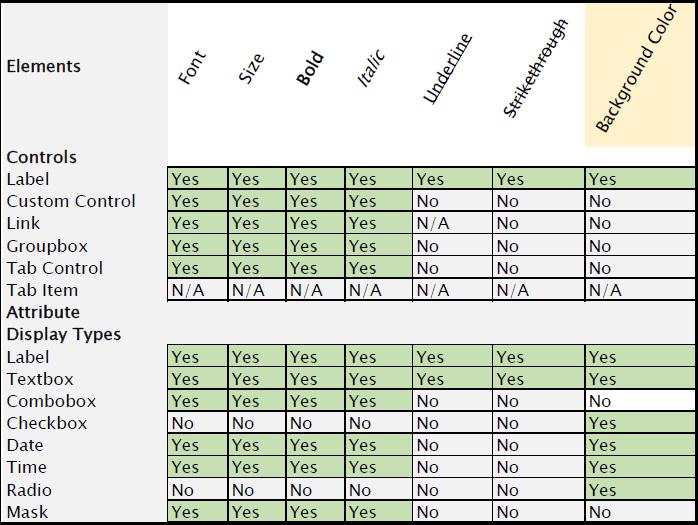
Use the Text Style Editor in GNA to create styles for the text that appears on your forms as headings or labels, and to create foreground and background colors. These are applied to the elements on the user form in the OpenForms Designer (OFD). The following chart lists the elements and the corresponding styles they support:
Read More... To read or download this information as a pdf, cick on the following link: To access the Text Style Editor: The styles that are already created are listed in the tree view on the left. To create a new Text Style: To apply a Text Style, add an expression to the Text Property in the Open Forms Designer, as described in the following procedure. You can apply a Text Style in order to create a Heading that stand out above a groupbox or gird. The same procedure can be used to add a text style to any item on the form. You can add a Text Style to any expression in order to apply a text style under a condition. For example, you could use a text style to highlight a group box that contains fields that need to be filled only under certain conditions. This scenario is the same as the previous one, except that different text styles are applied according to the method selected. This expression applies the following backgrounds, or highlights, to items in a groupbox according to the method selected: In the OpenForms Designer (OFD), you can work in Preview Mode to see how styles are applied on the user form, as you work.Documentation
101-std-fea-037-TestStyleEditor.pdfAccessing the Text Style Editor
Creating a New Text Style
The Code is required in the expression that you use to apply the style.
The descriptions make it easier for users to search through existing styles.
The foreground color is applied as follows.
The background color is applied as follows.
Note:Background color can be applied to attributes separately.Applying the Text Styles
To apply a Text Style:
The simplest expression is the code for the text style within single quotation marks, such as ‘Header’ to apply the Text Style identified by the Code Header. You can make the expression more complex in order to apply a text style only under a certain condition.
For example, you could highlight parameters that a user needs to update based on the current data input.Scenario: Applying a Text Style to a Heading
To apply a text style to a heading:
‘BoldHeading’Scenario: Applying a Text Style Based on a Condition
In the following example, the Correlated Values group box is highlighted when the Correlated Values method is selected on the CAMA Property Information form.
To apply a text style under a condition:
If(@attrMETHOD_IN_USE=5, ‘YellowBack’, ‘’)’
The code for the text style is enclosed in single quotation marks.
It is applied if the Correlated Values method, Code 5, is selected.Scenario: Applying Different Text Styles Under Different Conditions
The expression for this is as follows:
Case(True,@attrMETHOD_IN_USE=1,’BlueBackground’,@attrMETHOD_IN_USE=2,’RedBackground’,@attrMETHOD_IN_USE=3,’GreenBackground’)
What’s New
101-std-fea-037
 (0 votes, average: 0.00 out of 5)
You need to be a registered member to rate this.
 Loading...