103-wm-parm-Action11-LinkInspectionType

Workflow Management ACTION – Link Activity to Inspection Type

Version 6.1 (In Development)

Overview

The function of the Link Activity to an Inspection type action is to bring the ability to link an Activity action with an Inspection. This is an action that creates an Inspection Action. When used in the context of Workflows, users can create actions that are related to steps. Configuration is set in the Govern New Administration (GNA).

Configuration

Configuration steps are the same as those used for a standard action. There are three (3) parameters to complete after selecting the Action. In the Options group there are options for:

  • Department – Set the department for the action.
  • Scheduled Inspection – Specify the default as a scheduled inspection
  • Allow user to override the Types – Select this option to allow the user to override the selected inspection types when they are presented with the action when it is executed. When this option is selected, an inspection type is not required to be selected.

In the list of inspection types, users may select one or more inspection types with a check box in the list.
To configure the action select from the GNA ribbon…

  1. Select Application Configuration (tab) > Workflow (group) > Workflow Management > Departments.
  2. Select a department from the list of departments on the LHS.
  3. Click the Types tab.
  4. Under the Types tab, select a type from the grid; click Steps.
  5. Select a step from the list.
  6. Add a new action that will be associated with the step.
  7. In the Add a new action form select Create Inspection in the Action combo box.
  8. Set the required parameters; click Save.
  9. You will be returned to the Steps form.

Multiple Actions

It is possible to have multiple actions on an Activity. For example you can set a Completion Status 2 – Set the Permit on hold, and Completion Status 1 – Generate the permit number.

Saving Actions

Saves are made with the Save icon at the top of the interface.
After configuring multiple actions, when a save is made, the results that are presented in the Actions grid will be sorted on the contents of the Trigger column.

Presentation in Govern

Open Govern to view the presentation of the action when configured. Note that this action is executed in the context of a workflow. For our example, an action is executed on initiation of a step.
When the action is triggered, e.g. at initiation or at whatever step the activity is set to be executed, the user can be presented with the option of overriding the Types; note that this option must be selected during the configuration of the action.
Upon the save the following tables are updated:

  • WM_INSPECTION.IN_ID and WM_INSPECTION.STATUS
  • WM_INSPECTION_INSPECTION_TYPE.INSPECTION_TYPE
  • WM_INSPECTION_INSPECTION_LINKED_IDS.IN_ID (Entry key point for the inspection will be the same as that of the workflow, e.g. P_ID).


Tables

The following table(s) were implicated in the implementation of this feature:

  • WM_INSPECTION
  • WM_INSPECTION_TYPE
  • WM_INSPECTION_LINKED_IDS


Other Action Options

To view available Workflow Actions, click here for the complete Workflow Actions list.

See Also


103-wm-parm-Action11-LinkInspectionType


0 votes, average: 0.00 out of 50 votes, average: 0.00 out of 50 votes, average: 0.00 out of 50 votes, average: 0.00 out of 50 votes, average: 0.00 out of 5 (0 votes, average: 0.00 out of 5)
You need to be a registered member to rate this.
Loading...

WM – Action – Display a Form

Workflow Management ACTION – Display a Form

Version 6.1 (In Development)

Overview

This is an action trigger intended for use with the Govern Workflow. This action trigger will allow a user to display a form in a modal window, or in a tab item within Govern. The form that can be displayed by this action is either an existing form, or one that has been created in the OpenForm Designer (OFD).

Action form parameters

The following parameters appear in the Add a new action form:
Trigger – This is the status point at which the action is triggered, e.g. At Initialization, All Status, and so on; this field is not modifiable at this point.
Action – This is the list of available actions that are available to be configured; select Display a Form.
Label – This appearance of this parameter is conditional. It will only appear if the trigger point that the action is being configured in is On Request.

Action form – Options group

When the Display a Form action is selected, the following option(s) are displayed:

NOTE: Ensure that the form that is being configured is, both present in the profile that is being referenced, and is accessible to the user, i.e. security access has been given.

Form – Click to select the form that will be displayed from the combo box.
Display the form in a Modal Window – Select this option to display the form in a modal window. See When to use a Modal Window below.

NOTE: Ensure that the user has access to the form or they will be presented with the Security Lock screen.

Configuration

NOTE: Users will note that actions that are added to the ‘On Request’ section in the Options group will have a Label parameter to name the link that will invoke the action. Any actions that are executed On Request require a link.

As this is a standard action that is used in the context of a Workflow, it is configured through the Govern New Administration (GNA).
Prior to configuring the action in the GNA, you will need to create a new form in the OFD, or verify that you have access to an existing form that is to be displayed. Configure a workflow to display a form. Refer to current documentation for details about setting up a Workflow in the GNA.

To configure the action in the GNA…

  1. From the GNA ribbon select Application Configurations > Workflow (group) > Workflow Management > Departments.
  2. In the pane on the left hand side (LHS), select a department, e.g. W1-Permitting.
  3. Click the Types tab.
  4. Select a Type from the list.
  5. Click the Steps button.

Steps form – Options group

At Initialization – All actions that are configured in this section are automatically executed at the initialization of this step. When there are two or more actions, the order of initialization may be changed with a click and drag action.

Changing the order of initialization

  1. Click the vertical ellipsis symbol that appears in front of the step number.
  2. Drag to reposition above or below another action within the group.

All Status – The actions that are configured in this section are automatically executed after the completion of any available statuses, e.g. Initialization, Completion, and so on.
On RequestSee On Request Actions below.

On Request Actions

(Available in release 6.1.1702)
Typically an action is called automatically on Initiation or on Completion, actions may also be added to the On Request section. The actions in this section are executed manually; i.e. users will have to click on the button link that will trigger the action.

Adding the Action

To add the Action in the Steps form…

  1. On the Steps form select a step on the LHS and select a step.
  2. On the Right Hand Side (RHS), add an action.
  3. On the Add a new action form, add an action through the Action combo box; select the Display a form option.
  4. In the Options group, select the form that is to be displayed from the combo box.
  5. Indicate whether the form is to be displayed in a modal window. See When to use a Modal Window below.

Add a new action Form parameters (On Request trigger)

Label – On the Add a new action form there is a mandatory 25 character alphanumeric label that is used for the action link. Completion of the Label parameter is mandatory; this will be the name of the link that will invoke the action.

User Interface

Presentation in Govern

When correctly configured, the actions will be executed based upon their configuration in the GNA.
The Display a Form action will display the form in Govern as a new tab. If the modal window option is configured, the form will be presented in a modal; closing the window will close the form.

On Request triggers

Triggers that were configured to be executed as “On Request” will be presented as links on the right hand side (RHS) Available Actions group under the Activity tab. These links will be presented in the Available Actions group, in the order that the actions were entered. Available Actions that correspond to each step can be viewed with a click on the step; they will be presented in the group. With the group, to change the order, they will need to be rearranged in the options group, saved, and refreshed in the GNA.

When to use a Modal Window in Govern

A modal window is a graphical control element that disables the main window and keeps whatever window that is displayed visible. The users must complete the actions required by the modal window before they are allowed to return to main application. Use this option when you want the user to address the requirements of the window before moving on.


NOTE: Always ensure that the user will have security access to the form that is to be displayed.

Tables

The following table(s) were implicated in the implementation of this feature:

  • USR_TRIGGER_ACTION.

Other Action Options

To view available Workflow Actions, click here for the complete Workflow Actions list.

See Also


103-wm-parm-Action20-DisplayForm


0 votes, average: 0.00 out of 50 votes, average: 0.00 out of 50 votes, average: 0.00 out of 50 votes, average: 0.00 out of 50 votes, average: 0.00 out of 5 (0 votes, average: 0.00 out of 5)
You need to be a registered member to rate this.
Loading...

101-wm-f03-user

Workflow Management Feature – Forms (User Interface)

Version 6.1 Module (In Development)

Overview

When designing a Workflow, a methodology should be followed. Following set steps will ensure that requirements for the workflow are identified prior to configuration. Once the requirements for a Workflow have been identified, the next step is to design the workflow. It is during the design process that you go through the exercise of detailing workflow steps. It is often during this design stage that missing steps are uncovered; any missing steps are then defined and added to the overall workflow. Governs’ Workflow Manager forms are used to define and configure the components of a workflow. The forms are used to define the various Kinds and Categories of the designed workflow. Within the forms, steps and actions are also added.

Content

Getting Started…

  • Define the Kind, Category and Type (Business Entity Model)
  • Added Fields
  • Set up the Business Entities
  • OpenForms Workflow Forms Examples
  • Designing the Workflow Form

Configuration

  • Profile, User and Roles
  • Kind and Category Configuration

Workflow Maintenance

  • Creating, Deleting and Modifying Workflow Records
  • Workflow Reference Number and Overrides
  • Workflow Linking
    • A/R Name
    • Owner
    • Applicants
    • Other Links
  • Workflow Multimedia
  • Workflow Inspections

Administration

  • Changing Fee Amounts
  • Year End Processes

See Also


101-wm-f03-user


0 votes, average: 0.00 out of 50 votes, average: 0.00 out of 50 votes, average: 0.00 out of 50 votes, average: 0.00 out of 50 votes, average: 0.00 out of 5 (0 votes, average: 0.00 out of 5)
You need to be a registered member to rate this.
Loading...

101-wm-fea-004-pid

Workflow Management Dynamic Searches (PID)

Version 6.1 (In Development)

Overview

This information will be updated when it becomes available.

Search Options

This information will be updated when it becomes available.

Search Criteria

This information will be updated when it becomes available.

See Also

Profile Treeview


101-wm-fea-004-pid


0 votes, average: 0.00 out of 50 votes, average: 0.00 out of 50 votes, average: 0.00 out of 50 votes, average: 0.00 out of 50 votes, average: 0.00 out of 5 (0 votes, average: 0.00 out of 5)
You need to be a registered member to rate this.
Loading...

WM – Dynamic Searches

Workflow Management Dynamic Searches

Version 6.1 (In Development)

Overview

Workflow Dynamic Search

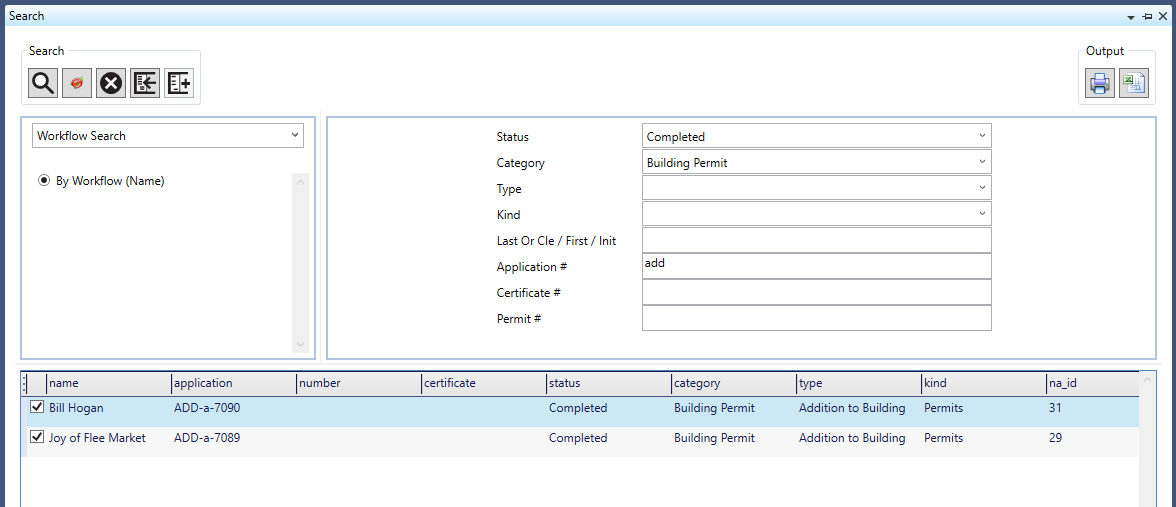
A Dynamic Search has been created for the Govern Workflow module that will allow users to perform searches for all workflows that have been created in the system. Users will be able to search based upon criteria that apply to a Workflow, e.g. Application/Permit/Certificate number, Status, and so on. As with standard Govern searches, results are displayed in a grid that allows users to select all results, or a combination of results. Search results can then be copied to the Dataset Treeview for further use.

Functionality

When the Search is invoked, the form will determine the dataset type specified for the profile, i.e. the Profile ID. This profile ID will determine the type of Search that will be available to the user. As with standard Govern query searches, the results displayed in the grid are dependent upon the requested search criteria. For example a profile configured for a P_ID dataset will display the options for a Workflow Parcel search. Alternatively a NA_ID based profile will display options for a Workflow Name search.

Workflow Quick Search Option

  • The Quick Search is designed to allow you to perform searches without switching from a currently open property record.

User Interface

Workflow Name Search parameters

Include Void Permits – When this option is selected, permits that have a status of VOID are also included in the search results.
Reference Number – Enter an applicable reference number for the required Workflow record(s).
Reference Type – If known, select a reference type of Application, Certificate, or Permit.
Last / First / Company Name / Initials – As with Govern name searches, enter a Last, First, Company, or Initial for the required Workflow record.
Status – If required select one of the following:

  • Closed
  • Completed
  • On Hold
  • Open
  • Received
  • Transferred to Other Department
  • Void

Category – Select from the list of available categories. (Table: WM_PARM_CATEGORY.CATEGORY_CODE)
Type / Kind – Choose one of the options that you have access to from the list displayed. (Table: WM_PARM_KIND.KIND_CODE) or (Table: WM_PARM_TYPE.KIND_CODE)
Expiration Date (From / To) – Specify a date range that will be used to narrow your search.

NOTE: The Expiration Date (From / To) are fields that REQUIRED for the Search to function.
A From and To default date value of 01/01/1900 and 12/31/2099 are entered respectively. If no specific range is required or known, ensure that From and To values are present in their parameters.

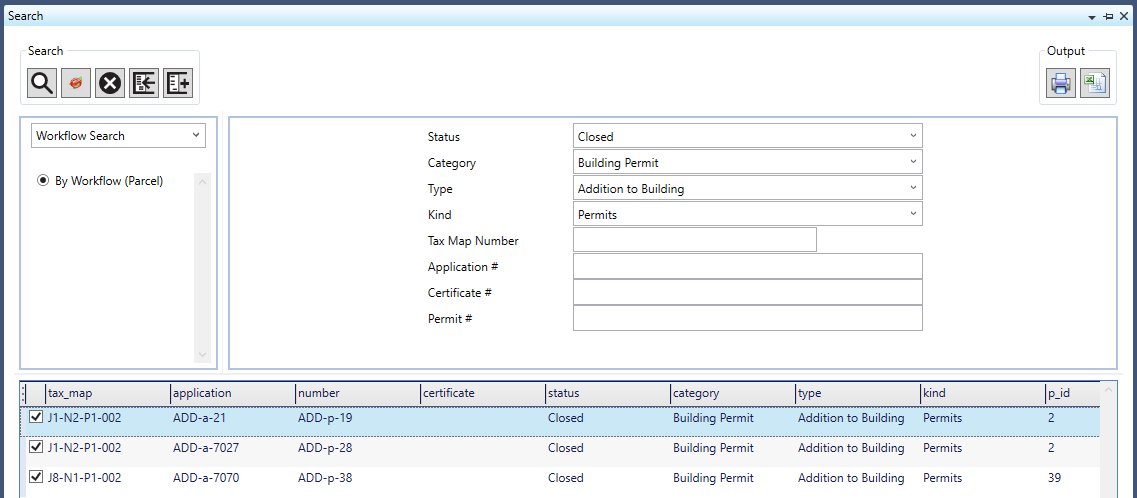
By Workflow (Parcel)

Reference Number – Enter an applicable reference number for the required Workflow record(s).
Reference Type – If known, select a reference type of Application, Certificate, or Permit.
Tax Map Number – In the field, enter an exact or partial tax map number.
Status – If required select one of the following:

  • Closed
  • Completed
  • On Hold
  • Open
  • Received
  • Transferred to Other Department
  • Void

Category – Select from the list of available categories. (Table: WM_PARM_CATEGORY.CATEGORY_CODE)
Type / Kind – Choose one of the options that you have access to from the list displayed. (Table: WM_PARM_KIND.KIND_CODE) or (Table: WM_PARM_TYPE.KIND_CODE).
Expiration Date (From / To) – Specify a date range that will be used to narrow your search.

NOTE: The dates are set to a default From and To value of 01/01//1900, and 12/31/2099, respectively.

Result Grid

The result grid that is located in the lower part of the search pane is populated with the results of the search query.

Sorting Result Grid columns

The results displayed in the grid, can be sorted by column. The sort can be in ascending or descending order. In addition the results in the Result grid can also be filtered based upon the search result.
To sort, display, or clear filters, hover your pointer over the end of the column heading.

NOTE: When a new search is performed, all set filters are automatically cleared.


Result Grid columns – Name search

WMSearchName.png
NA_ID – Name ID for the record. (Table: NA_NAMES.NA_ID)
Name – The record name from (Table: NA_NAMES.FREE_LINE_1).
Reference # – This column will contain the following:

  • (Table: WM_MASTER.APPLICATION) for an Application.
  • (Table: WM_MASTER.CERTIFICATE) for a Certificate.
  • (Table: WM_MASTER.NUMBER) for a Permit.

Date – The expiration date is taken from:

  • (Table: WM_MASTER.APPLICATION_DATE) for an Application.
  • (Table: WM_MASTER.CERTIFICATE_DATE) for a Certificate.
  • (Table: WM_MASTER.NUMBER_DATE) for a Permit.

Status – This the record status. (Table: WM_MASTER.STATUS)
Category – The category column is populated from (Table: WM_MASTER.CATEGORY_CODE)
Type – This column will display the record type that is specified in (Table: WM_PARM_TYPE.TYPE_CODE)
Kind – Displays the kind specified in (Table: WM_PARM_KIND.KIND_CODE)
Expiration_Date – The expiration date is taken from (Table: WM_MASTER.EXPIRATION_DATE)
WM_ID – This is the record workflow ID taken from (Table: WM_MASTER.WM_ID)

Result Grid columns – Parcel search

WMSearchParcel.png
P_ID – This is the result parcel ID taken from (Table: PC_PARCEL.P_ID)
Tax_Map – The tax map is the result found in (Table: PC_PARCEL.TAX_MAP)
Reference # – This column will contain the following:

  • (Table: WM_MASTER.APPLICATION) for an Application.
  • (Table: WM_MASTER.CERTIFICATE) for a Certificate.
  • (Table: WM_MASTER.NUMBER) for a Permit.

Date – The expiration date is taken from:

  • (Table: WM_MASTER.APPLICATION_DATE) for an Application.
  • (Table: WM_MASTER.CERTIFICATE_DATE) for a Certificate.
  • (Table: WM_MASTER.NUMBER_DATE) for a Permit.

Status – This the record status. (Table: WM_MASTER.STATUS)
Category – The category column is populated from (Table: WM_MASTER.CATEGORY_CODE)
Type – This column will display the record type that is specified in (Table: WM_PARM_TYPE.TYPE_CODE)
Kind – Displays the kind specified in (Table: WM_PARM_KIND.KIND_CODE)
Expiration_Date – The expiration date is taken from (Table: WM_MASTER.EXPIRATION_DATE)
WM_ID – This is the record workflow ID taken from (Table: WM_MASTER.WM_ID)

Documentation

Click below to view or download the documentation for this feature.
101-wm-fea-004 Workflow Management Dynamic Searches.pdf

Related Topics
OpenForms Reference (OFR) – System Queries
OpenForms Reference (OFR) – System Dynamic Searches


101-wm-fea-004


0 votes, average: 0.00 out of 50 votes, average: 0.00 out of 50 votes, average: 0.00 out of 50 votes, average: 0.00 out of 50 votes, average: 0.00 out of 5 (0 votes, average: 0.00 out of 5)
You need to be a registered member to rate this.
Loading...

Govern Installation

Govern Installation

This page contains links to installation and setup resources, and documentation.

Setup

Database and Connections

  • Install MS SQL SERVER (399-Installation)
  • Create Databases and Connections (ODBC)
  • Execute Admin One-Time Script Execution
    • As of 6.0, a one-time script needs to be executed by a DB SYS ADMIN to setup a Table Change Event required by the application. The first time a Verify Database is run, the script will be executed.
      • If the Govern user does not have the required access, an error will be displayed and it will be MANDATORY to have the Database Administrator (DBA) executed it manually.
      • Click here to access the CreateCleanupJobForRecentTableChanges script commands that can be copy and pasted in a MS SQL SERVER Query windows

Deployment Server

Deployment Client

Configuration

API/Services

  • Batch Scheduler Service (106-installation) see also (106-all-sc)
  • AR / CC Web Service
  • PC / GIS Web Service
  • eGov Web Service

System Options

  • Mobile Installation
  • e-Government Installation
  • GIS

3rd Party Tools

  • For testing email notifications SMTP4Dev

Other Systems

Upgrades

From Govern for Windows 10.8

From a Previous Version of OpenForms


Troubleshooting

Cannot Start Application Error

Application cannot be started. Contact the application vendor.
If you are having problems to open the shortcuts directly from the server you need to delete the folder [2.0] under the path below.
C:Usersuser_idAppDataLocalApps.
100-Installation-ShortcutError.pdf

Users do not have access to Govern Security Manager
Only users setup as Administrator or Super User in the User definition table can access GSM. (USR_USERFILE)


100-Installation

Govern for OpenForms

  Govern for OpenForms

Overview

Govern OpenForms incorporates the functionality of the Govern for Windows application with the added security and performance of the Microsoft .NET Framework.
Before successfully using Govern to access and manipulate your data, the data must be migrated. This involves the use of other OpenForms™ applications – principally the Govern New Administration (GNA). Other applications can include the Business Entity Designer (BED) for the design of database elements like Business Entities and Business Models that will, by their design, begin to provide the security required to protect your data. Once the database elements have been created, they will then need to be configured as OpenForms™, and Profiles. The final stage of preparation is enabling the securities or user access rights, surrounding the Govern application. When completed, the Govern application can then be used to manipulate your data.


Read More...


Module Applications

Govern module applications includes:

For more information, click on one of the following links:

System Requirements

For system requirements for Govern’s eGovernment solutions and Microsoft .NET applications, refer to the documents listed on the System Requirements page. When referring to these documents, ensure that you are viewing the one that corresponds to your required release.

Video Resources

Govern 6.0 What’s New Training (Govern 6.0 Suite release 1503.303)

NOTEWhen viewing the video, click the Table of Contents (TOC) icon in the lower right hand side of your screen to display a list of the highlights. These are shortcuts to specific video topics. The TOC list can also be hidden with a click on the same button. (CURRENTLY VIDEO RESOURCES ARE NOT AVAILABLE)
  • Video of Day 1 of 2
  • Video of Day 2 of 2


What’s New!

When applicable, new features, or new ways of performing an old function in Govern will be listed below. Version Numbers and sections will be indicated in the list.

Glossary (List of Govern Terms and Definitions)

The Glossary page (kb.harrisgovern.com/glossary/) contains a list of Govern related terms.


Hide Search Toolbox (Govern 6.0 Suite release 1503.341)

This is a new User Interface feature that will disable the default behaviour of a persistent Search Toolbox. Typically, after performing a search followed by a Load action, you have to click on a form, or Tree view pane to hide the Search Toolbox. Now a Load from a Search or a Load from a Saved Dataset will immediately hide the Search toolbox. Exceptions that override this feature are, if after performing a search, you Append to the Tree view, the Search pane will not hide. This feature is enabled through a “toggle”, i.e. ON/OFF, button. Options (tab) > Hide Search Toolbox.

NOTE: This feature has no impact when the Search Toolbox pane is docked, i.e. fixed with the pin icon.


101-all-govern


0 votes, average: 0.00 out of 50 votes, average: 0.00 out of 50 votes, average: 0.00 out of 50 votes, average: 0.00 out of 50 votes, average: 0.00 out of 5 (0 votes, average: 0.00 out of 5)
You need to be a registered member to rate this.
Loading...