Standard Module (Features & Functions)

Govern Standard Module (Features and Functions)

Version 6.1 (Ongoing Development)

Overview

The standard (std) module consists of features, forms, form controls & action buttons, batch programs, etc. that are used throughout the system or that are shared by multiple application modules.
Features (fea) include:

  • (System) UI, Help, Navigation, Treeview, Datasets, External Commands, Cool Bars, Hibernate mode…
  • (Module) Central Notes, User Audit Trail, Global Messaging, Snapshots and Roll Forward of data…
  • (Form Controls) Record Descriptors, Browsing, Generic Links, Special Action Buttons …

Forms (frm) include:

  • Multimedia, Workflow, Activities, Web and Application browsers…

Batch Programs include:

  • Evaluate Expressions…

Click here for the * STANDARD MODULE FEATURE and FUNCTION LIST *

See Also

What’s New

6.1 brings lots of new standard features, see What’s New.


101-std


0 votes, average: 0.00 out of 50 votes, average: 0.00 out of 50 votes, average: 0.00 out of 50 votes, average: 0.00 out of 50 votes, average: 0.00 out of 5 (0 votes, average: 0.00 out of 5)
You need to be a registered member to rate this.
Loading...

101-std-fea-043

Standard Module (STD) – Form Action Button Send Email
Govern Standard Module Overview, Configuration, Installation, OpenForms Reference, What’s New, wiki Module Map … Last modified July 21st, 2017
Version 6.1 (1706)

Table of Contents

Overview

Overview

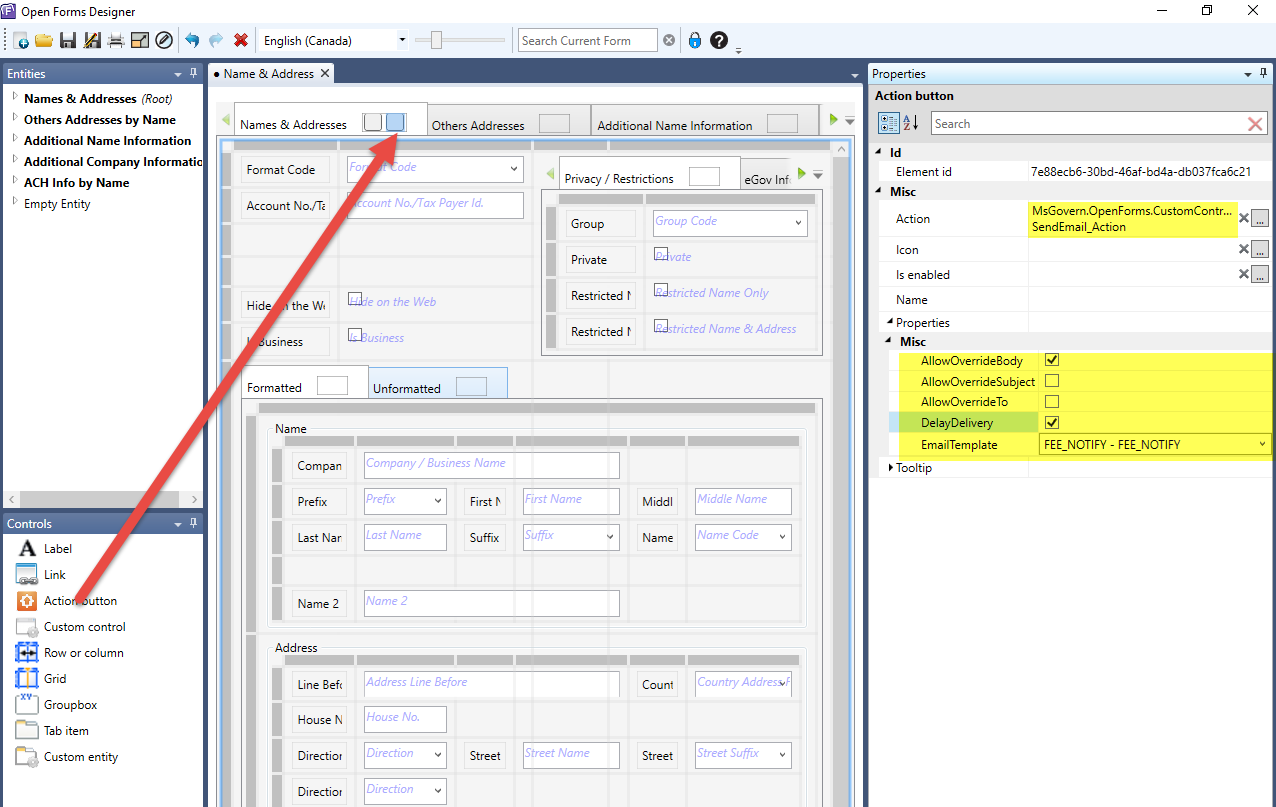
New standard Action Button feature allows the users of a form to send an email based on a given email template with predefined parameters.
Custom Control Name: SendEmail_Action

  • This action button is securable in OFD
  • There are 5 properties that can be set:
    • AllowOverrideBody: Allows the user to override the body of the message
    • AllowOverrideSubject: Allows the user to override the subject of the message.
    • AllowOverrideTo: Allows the user to override the To of the message.
    • DelayDelivery. If checked, the email will not be sent immediately. It will be marked to be delivered later. Currently NOT AVAILABLE (roadmap)
  • Email Template

For technical details, see Sending emails from a template Technical information

101-std-fea-043-ui-setup.png
Action Button Setup (OpenForms Designer)

101-std-fea-044

Standard Module (STD) – Form Action Button Print a Generic Report
Govern Standard Module Overview, Configuration, Installation, OpenForms Reference, What’s New, wiki Module MapLast modified May 2, 2018
Version 6.1 (1706)

Overview

This Action button when configured will allow users to export reports using Crystal Reports and Word templates.

Configuration

Configuring in the OpenForms Designer (OFD)

Technical Documentation for this feature can be obtained at the following URL. Note that you must have access to the Confluence document server to view this document. https://harrisgovern.atlassian.net/wiki/spaces/govrd/pages/83656866/Govern+OpenForms+Word+Integration+-+Action+Button+-+Export+Report+Action

This button can be configured as a standard action button, i.e. useable in most modules, and can be launched from a form tab in the profile. Configuration is through the OFD
NOTE: The Action button cannot be added to the tab of a custom entity.

To configure the action button in the OFD…

  1. Select a profile that the Action button will be added to.
  2. Click the tab to activate it.
  3. From the Controls group, drag an Action button to the tab.
  4. Click the newly added action button to display Properties on the right hand side (RHS).
  5. Configure the properties as in the grid below.
  6. Click Save to save the configuration.
  7. Close the OFD.
PROPERTIES Information
Action Button
Id
ElementID System Generated
Misc
Action MsGovern.OpenForms.CustomControls.dll
ExportReport_Action
Select the Assembly and Class
Icon Navigate to an icon for the form.
Is Enabled
Name
Properties
PrinterName
ReportCode reportName.rpt – Sample Report Select a report from the list of available reports.
ReportExportFormat Select the report export format.
Tooltip Optional
En
Fr

Govern New Administration (GNA)

Ensure that the form that was modified in the OFD has been configured in the GNA. This is done in the GNA Profile Editor. Once verified, no additional configuration is required in the GNA.

User Interface

Presentation in Govern

The action button will display in the tab that it was configured under in the OFD. For our example, the Action button has been added to the Name and Address form (NA001).

Security

Security of the action button is managed from the OFD Designer. Refer to OpenForms Designer User Guide for details about security.

Documentation

Click on link to view or download the document.
101-std-fea-044_Action_Button-Print_Report.pdf

See Also

Govern Standard Map

101-std-fea-023

101-std-fea-023 #stdfea #std

Standard Feature – Form Generic View Query Custom Control

General Overview, Configuration, Installation, What’s New, R&D only – wiki under construction

Overview

This standard custom control can be added to any form to provide a list with links to open forms.
The Custom Control Name is ViewQueryCustomControl.
For more information on how this custom control can be used, see:
101-std-fea-0

Custom Control Properties

The following properties can be set in OpenForms Designer (OFD). Once added to a form, double-click on the controller to access the properties.

Miscellaneous

Action Query Name

  • ViewQueryCustomControl

Is enabled
An expression can control if the custom control is enabled on a form.

Is tab stop

If selected, enter the Tab Sequence Number

Is visible

An expression can control if the custom control is visible or not on a form.

Properties Miscellaneous
Chart
Data Grid

Copy to Next Year Feature

Standard Feature – Copy to Next Year

Overview

The Copy to Next Year batch process is used to copy data from one year to the next. For example in the case of the Utility Billing (UB) module, the system will create the new Utility Billing Services and all related Codes from the current year displayed at the bottom of your screen to the year entered. Recent modifications expand the scope of the data that is copied from a source to a destination year.

Functionality

There are two (2) main modifications that have been made to the Copy to Year batch process. First for each Copy to Year Batch Process, the Govern system now copies the Constants, Shared Expressions, Queries, and the VT_USER from regular Workflows and Property Control. Secondly, in the Real Property Tax module; the Copy to Year functionality has been brought in line to match the same functionality that is found in the Mass Appraisal or Miscellaneous Billing, in order to be able to use the same batch process.
This batch process will duplicate data from the selected year to the target year, for the following tables:

  • All tables that are prefixed by TX_PARM_ and have the “YEAR_ID” column name
  • TX_MODIF_STAMP

In addition the process as of release 6.1.1803.0034 / 6.1.1804.0054, will copy data from the following…

  • (Table: VT_USER) of type Regular, Workflow and Property Control
  • (Table: USR_CONSTANT)
  • (Table: USR_QUERY)
  • (Table: USR_EXPRESSION)

User Interface

Selection Criteria group

From – Select the year that contains the data you want to copy in the From combo-box.
To – Enter the year to which you want to copy the data in the To text box.

NOTE: The To year must be greater than the From year.

Tables Not Related to Subsystems group

Delete destination data before copy – When the Delete destination data before the copy check box is selected, the batch will delete existing records for the target year. If this option is not selected, copied data will be appended to existing ones.

Deleting Data in the Destination Year

When selected, a confirmation window will be displayed, requesting whether you would like to delete the data in the destination year.

NOTE: Selecting Yes will not result in the immediate deletion of the destination year data. The data is only deleted upon initiation of the batch process.

Tax group

Delete destination data before copy – Select Delete destination data before the copy check box to delete existing records for the target year.

NOTE: This is a preexisting option; the functionality has not been modified.

Configuration

Govern New Administration (GNA)

In GNA this batch process is configured through the Batch Process Definition Editor form. Configuration parameters are standard for Govern batch processes.
For parameter details, refer to the Govern Batch Process Definition Editor documentation.

Documentation

103-tx-bp-105_Copy_Constant_to_Next_Year.pdf



101-std-fea-026


0 votes, average: 0.00 out of 50 votes, average: 0.00 out of 50 votes, average: 0.00 out of 50 votes, average: 0.00 out of 50 votes, average: 0.00 out of 5 (0 votes, average: 0.00 out of 5)
You need to be a registered member to rate this.
Loading...


Govern Knowledge Base Help

Govern Help

Overview

What is Govern Help

The Govern Help is the term used to describe one or more technologies that are available for users of the Govern suite of applications. The Help system is an alternate implementation of the end-user Online Help found with Govern for Windows. In prior releases, Help came in the form of PDF files that required the installation of the Adobe AcrobatTM Reader.

Govern Help is invoked with the standard F1 key. This keystroke will invoke Govern Web Help. Web Help will display the contextual help information related to the feature or form within the Govern application. Govern Web Help displays help information through a Web browser. This browser must have access to the Govern Knowledge Base web site located at (http://kb.harrisgovern.com).

User Customized Help

In some instances, as in the case of the Govern application, there is a user configured Help feature. User configured help is initiated through the Ctrl + F1 key combination. When properly configured by the user, depending on the Govern application, Ctrl + F1 invokes the help document that has been configured by the user.

Availability

Unless otherwise stated, Govern Help is available in Release 6.0.1509 and Release 6.1.1509; the level of detail that will be provided to the user is found in the following grid.

NOTE: If Help information for the specific area of the application is not available, the top level information will be displayed by default.

Read More...

Govern Application Location Level of information
provide to user
Command Key
DeployEZ Help button (upper right hand side) or command key Top level – General application information F1
Govern New Administration (GNA) Help icon (in the ribbon under Help tab) Top level and select utilities and tools F1
Govern Security Manager (GSM) Ribbon (in the Help group) Top level – General application information F1
OpenForms Designer (OFD) Help button on ribbon Top level – General application information F1
Business Entity Designer (BED) Help button (upper right hand side) or command key Top level and application panes F1
Govern Help button under Help tab in the ribbon Top level – General application information Ctrl + F1 (F1 invokes PDF Help)
Govern Scheduler (GS) Help Menu (Help > Show Help) Top level – General application information F1
Query Tool (QT) Button on ribbon Top level – General application information F1

Troubleshooting

Although the requirements for Governs’ Web Help are basic, i.e. the installed Govern application and any one of the supported Web browsers, occasionally issues may arise. Resolution to some Web Help related issues will be listed below.

Access to the Knowledge Base

The most common error that is encountered with Govern Web Help is to ensure that you have an account to access the Govern Knowledge Base. If you do not have an access account, contact Govern Support.

Related Topics

R&D Developers – How to set-up new codes PRODUCT_RD 101-std-fea-027


101-std-fea-027


0 votes, average: 0.00 out of 50 votes, average: 0.00 out of 50 votes, average: 0.00 out of 50 votes, average: 0.00 out of 50 votes, average: 0.00 out of 5 (0 votes, average: 0.00 out of 5)
You need to be a registered member to rate this.
Loading...

Record Selector Feature

Standard Feature – Record Selector (aka ‘Mini Browse’)

Overview

When a sales tax record has multiple accounts, users can browse these accounts with navigation arrows located on the tab, or the drop down menu of the Record Selector.
By default additional accounts with the record are numbered, but we can further customize this dropdown menu with information that is relevant to the account. This is done through the OpenForms Designer (OFD). The Record Selector can be looked upon as a sort of “Mini Browser” to quickly view the individual accounts with a Self-Reported Business Tax record. Browsing can be enhanced with customization of the record information that is displayed.

Customization

In the OFD the Record Selector is customized with the “Record description” property. To customize the information displayed in the Record Selector display…

  1. Open the OFD.
  2. Click the icon to open the form to be modified; e.g. Business Tax (ST007).
  3. Select the tab that contains the Record Selector; for ST the Tax Account tab.
  4. On the Right-Hand Side (RHS), locate the Record description property.
  5. Click the ellipses button to display the Expression Selector form.
  6. In the Expression Selector form enter you statements in SQL format.
NOTE: The parameters that are to be displayed in the Record Selector, as in SQL, are concatenated with a “+“. Requested attributes are preceded with “@attr“. As there is real-time validation in this editor. Only valid attributes are displayed, any errors with your statements are displayed.

In the Expression Selector, the Evaluate group can be used to preview your result.
To test your statements…

  1. In the Evaluate group, enter values for the requested attributes in the fields that are displayed; these fields correspond with those requested in your SQL statement.
  2. Click Execute to display a preview of the results. If any errors are displayed, review your statements for correctness.
  3. After testing, click OK.
  4. Back in the OFD, click Save to save your changes.

Viewing a Customization in GNA

To view the results of a customization, click Options (tab) > Refresh.
Ensure that you are viewing the Record Selector on the tab that you have modified. Each tab with a Record Selector must be modified individually.

Related Topics

Govern Standard features.


101-std-fea-028


0 votes, average: 0.00 out of 50 votes, average: 0.00 out of 50 votes, average: 0.00 out of 50 votes, average: 0.00 out of 50 votes, average: 0.00 out of 5 (0 votes, average: 0.00 out of 5)
You need to be a registered member to rate this.
Loading...