Standard Feature – Record Selector (aka ‘Mini Browse’)
Overview
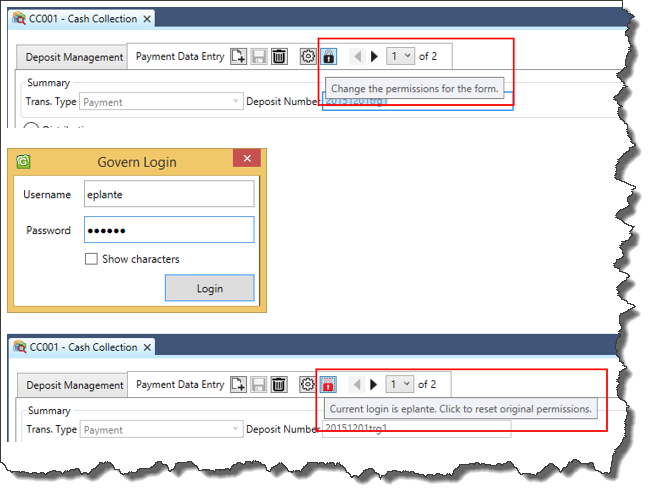
When a sales tax record has multiple accounts, users can browse these accounts with navigation arrows located on the tab, or the drop down menu of the Record Selector.
By default additional accounts with the record are numbered, but we can further customize this dropdown menu with information that is relevant to the account. This is done through the OpenForms Designer (OFD). The Record Selector can be looked upon as a sort of “Mini Browser” to quickly view the individual accounts with a Self-Reported Business Tax record. Browsing can be enhanced with customization of the record information that is displayed.
Customization
In the OFD the Record Selector is customized with the “Record description” property. To customize the information displayed in the Record Selector display…
- Open the OFD.
- Click the icon to open the form to be modified; e.g. Business Tax (ST007).
- Select the tab that contains the Record Selector; for ST the Tax Account tab.
- On the Right-Hand Side (RHS), locate the Record description property.
- Click the ellipses button to display the Expression Selector form.
- In the Expression Selector form enter you statements in SQL format.
| NOTE: The parameters that are to be displayed in the Record Selector, as in SQL, are concatenated with a “+“. Requested attributes are preceded with “@attr“. As there is real-time validation in this editor. Only valid attributes are displayed, any errors with your statements are displayed. |
In the Expression Selector, the Evaluate group can be used to preview your result.
To test your statements…
- In the Evaluate group, enter values for the requested attributes in the fields that are displayed; these fields correspond with those requested in your SQL statement.
- Click Execute to display a preview of the results. If any errors are displayed, review your statements for correctness.
- After testing, click OK.
- Back in the OFD, click Save to save your changes.
Viewing a Customization in GNA
To view the results of a customization, click Options (tab) > Refresh.
Ensure that you are viewing the Record Selector on the tab that you have modified. Each tab with a Record Selector must be modified individually.
Related Topics
101-std-fea-028
 (0 votes, average: 0.00 out of 5)
You need to be a registered member to rate this.
 Loading...