101-cc-rpt-060-CheckValidation

Cash Collection (CC) Check Validation Report

Version 6.0 | Version 6.1

Overview

This is the standard report used to print the check endorsement when using Cash Collection.
Available in GA 1609.

Process Name

cc-rpt-060

Sample Report

– To be provided when available –


101-cc-rpt-060-CheckValidation


0 votes, average: 0.00 out of 50 votes, average: 0.00 out of 50 votes, average: 0.00 out of 50 votes, average: 0.00 out of 50 votes, average: 0.00 out of 5 (0 votes, average: 0.00 out of 5)
You need to be a registered member to rate this.
Loading...


Govern Search

Govern Search

Overview

In Govern, basic searches are preset queries that are submitted to the database. The search process is one of the key functions in Govern. The search function allows you to retrieve datasets from the database. Further actions such as creating permits, attaching messages, generating licenses, generating mailing lists, etc. can then be performed on the records in these datasets. The Predefined Searches pane is the main user interface for performing searches on the database. In addition other search methods and tools have been added to Govern to enhance the user experience. See Advanced Search, Quick Search and Saved Datasets, and Ribbon Search.

Predefined Searches

Predefined Searches are queries that have been preset for the user. When a search is performed, you are querying the database based upon your specified criteria. For example, a search by Parcel ID (P_ID) will return all records with a P_ID or a P_ID that matches a specified parameter. As searches can produce numerous results, these results can be controlled with the value specified in the Max. Records parameter in the User Registry. For example when the Max. Records parameter is used, i.e. a value of 25 is specified, only the first 25 records are used. If there are more records, they are discarded. Additional sorting can occur, but only on the records obtained. See Sorting Search Results by Column Heading below for details.

Search Pane Command Buttons

Begin the Search

Click this icon to perform your search based upon your selected criteria.

Select / Deselect All

When search results are obtained, they are listed in the search pane. By default the results are all selected. Click the Deselect All icon to deselect all results; this will allow you to select only select records.

NOTE: The Select All and Deselect All icons alternate depending on whether all search results are selected, or deselected.

Clear

Click Clear to clear the Search Results pane of all records.

Load Selected Parcel(s)

When this icon is selected, the search results records are transferred to the Dataset Treeview pane.

TIP: When you enter information into any of the search parameters, clicking Enter will start the search and automatically load results to the Treeview.

Clear and Save to External Tables

Click to save the search results to one of the three (3) External tables (i.e. PM_EXTERNAL, NA_EXTERNAL, and PC_EXTERNAL).

Append to External Tables

To add or append the currently listed search results to the results that are listed in the Dataset Treeview pane, click this icon.

Print

Click Print to display the Print dialog box and print out the results of your query to your default Windows printer.

Export to Excel

Click to export the results of your query to a Microsoft Excel file that has not been formatted. See Export Search Query Results to a Microsoft Excel File below for details.

NOTE: This feature will only work when Microsoft Excel is installed on the system that Govern for Windows is installed on. Users must have a valid license for Microsoft Excel.

To restore the search form…

  1. Click the View tab in the Ribbon.
  2. Under the predefined Searches section select one of the Groups or Styles searches.
  3. When the search form appears, it will not be in auto-hide mode. Click the Auto Hide (Pin) icon to restore the form to auto-hide mode.

Export Search Query Results to a Microsoft Excel File

After performing a search query, you may want to perform further analysis on the records that were retrieved, e.g. review the tax map numbers or certificate numbers, etc.

To save search query results to a Microsoft™ Excel file…

  1. Move your pointer over the Predefined Searches auto-hide pane.
  2. Complete the necessary parameters and click the Search icon to perform a search.
  3. Click the Export to Excel button.
  4. When the save dialog box appears; specify the name of the Excel file and the location that it will be saved in.
  5. Once a name has been given, click Save to save the file.
  6. Next you will be given the option to open the file immediately in Excel; click Yes to open the file in Excel.

The records that are exported to Excel will not be formatted, i.e. only default fonts and alignments will be used.

NOTE: This feature requires that a version of Microsoft Excel must be installed on the same system that Govern for Windows is installed on. Users must obtain a valid license for Microsoft Excel.

Search Command button grouping

The Search Pane command buttons are grouped for clarity and to accommodate the command buttons for functionality that is related to the mobile version of Govern. There are two (2) groups of command buttons; Search-related, and Output-related buttons.

How to Search

The search process is one of the key functions in Govern. The search function allows you to retrieve datasets from the database.
To perform a search…
1. Click Pre-defined Searches in the Ribbon.
2. In the drop-down menu, click Groups search or Styles search.
3. In the Predefined Searches form, click Property Search to view the drop down menu.
4. Select Property Search (A).
5. Under Property Search are options to select a search criteria; select By Tax Map.

TIP: When using Predefined Searches press the Tab key to quickly move your cursor from field to field for quick entry.


NOTE: Users Accessing Govern Remotely
should note that parameters with field masks that are designed to accept hyphen separated entries entries, e.g. Telephone Numbers, Tax Maps, will display in OpenForms as a parameter with individual fields. These individual fields can be accessed with the Tab key.
The Field Mask for the above would look like the following “XXX-”XXX-XXX-X”, each of the grouped X’s are separated. Users that are accessing Govern over a Remote Link, e.g. VPN should pay attention to the tab sequence when pressing the Tab key to jump to the next parameter. Over a remote connection, in the Tax Map parameter, the tab key will not move the cursor to the next field of the Tax Map number, rather it will jump to Include the Inactive parameter. This behavior only applies to remote connections to Govern.

7. When the search is complete, the results are displayed in the Search Results pane.6. Click the Search icon.

NOTE: When you enter information into any of the search parameters, click Enter to start the search; search results will be automatically transferred to the Treeview.


NOTE: Only a maximum of 25 search results are displayed; this can be modified under Options > Max. Records.

Search Criteria

8. Click the option for Load to the Search Result. The results are loaded into the Dataset Treeview pane; you can also populate the Dataset Treeview automatically by selecting any parameter and clicking on Enter on your keyboard.
The Search Criteria will display the search parameters that have been configured with the Search Type.

Search Result Pane

When a search is performed, the Search Results pane displays the results in a grid below the Search and Search Criteria areas.

TIP: When you enter information into any of the search parameters, clicking Enter will start the search and force search results to automatically transfer to the Treeview.

Transfer Individual Files to the Treeview

At times you may require a single file to be loaded / displayed in the Dataset Treeview. This situation can arise when you have multiple results in your Search Query Results dataset. and the requirement is to look at each record one at a time.

To load a single record into the Dataset Treeview…

  1. Place your mouse pointer over the Pre-defined Searches auto-hide tab; complete the parameters to perform a search.
  2. Click the Search icon (A).
  3. In the Search Result pane (A), double-click on the individual record that you would like transferred to the Dataset Treeview pane (B).

When an individual file is transferred to the treeview, any previous dataset will be overwritten and replaced with the single file that was selected.

Sorting Search Results by Column Heading

Search results can be sorted based upon column headings, and in ascending and descending order.
To sort search results based on the column headings…

  1. Display the Predefined Searches pane.
  2. Perform a search; the results will be presented in the Search Results pane.
  3. Note the column that you would like to sort your results on; click on the column heading (A) to sort in ascending or descending order.

The direction of the arrowhead in the column head will indicate the direction of the sort. When the arrowhead is pointing upward, the sort is ascending, when the arrowhead is pointing downwards, the sort is descending. A click on the column heading will switch between ascending and descending.

The result will be sorted based on the column heading that you are using. When there are empty grids, i.e. NULL characters, those records are presented first when the sort is ascending, last if they are descending.

What’s New

Quick Search (Govern 6.0 Suite release 6.0.1707 / 6.1.1707)

As of release 6.0.1707 / 6.1 1707, an alternate search interface is available to the Govern user. The Quick Search differs from the traditional search interface in the sense that it bears a closer similarity to the search interface that is often associated with search engines. When correctly configured, this search interface is available through the Govern ribbon. In addition to the Quick Search feature is a new GNA editor. The Quick Search Index Configuration Editor is for configuring the Search Indexes that are used by the Quick Search. Click for Details on the Quick Search or the Quick Search Index Configuration Editor.

Hide Search Toolbox (Govern 6.0 Suite release 1503.341)

This is a User Interface feature that will disable the default behavior of a persistent Search Toolbox. Typically, after performing a search followed by a Load action, you have to click on a form, or Tree view pane to hide the Search Toolbox. Now a Load from a Search or a Load from a Saved Data set will immediately hide the Search toolbox. Exceptions that override this feature are, if after performing a search, you Append to the Tree view, the Search pane will not hide. This feature is enabled through a “toggle”, i.e. ON/OFF, button. Options (tab) > Hide Search Toolbox.

NOTE: This feature has no impact when the Search Toolbox pane is docked, i.e. fixed with the pin icon.

Related Topics


101-std-fea-004


0 votes, average: 0.00 out of 50 votes, average: 0.00 out of 50 votes, average: 0.00 out of 50 votes, average: 0.00 out of 50 votes, average: 0.00 out of 5 (0 votes, average: 0.00 out of 5)
You need to be a registered member to rate this.
Loading...

Dataset Treeview

Dataset Treeview

Overview

Datasets that appear in the Dataset Treeview are populated with the results of searches made through the Search form. Records that are loaded into the Dataset Treeview may be appended to through the Saved Dataset pane, or deleted directly in the Treeview pane.

Populating the Dataset Treeview

To populate the Dataset Treeview with search results…

  1. When the Predefined Searches pane is in its default position, place your mouse pointer over the tab to display the search form (A).
  2. In the form perform a search type; for this example we will perform a property search by P_ID.
  3. Click Search for Result.
  4. Search results will be displayed in the lower portion of the search form.
  5. Click Load to the search result to transfer the search result records to the Dataset Treeview pane.
  6. If the Dataset Treeview pane is not displayed, click its tab at the bottom of the pane.


The Treeview Explorer

The Treeview Explorer displays record information in a hierarchical arrangement. In the Treeview panel, you are able to expand or contract a record by clicking on the arrowhead icons.
For example, on a search that retrieves tax map records, when you double-click on the tax map, it lists name information at the next level. Each item can be expanded to show specific data on the property, such as owner and occupant names, parcel information and location, permits, utility billing and accounts receivable records.
As you select each level of information, the data is displayed in the appropriate OpenForm when it is displayed on the right hand side.

Record Edit Confirmation

When a dataset has been loaded, it is easy to select and begin to edit a record. This ease of selection may at times be a detriment as at times the wrong record may be selected, and the user immediately begins to edit in error. It has been determined that if a secondary confirmation is introduced during the record selection process, there is less chance of erroneously editing the wrong record.

Through the Govern New Administration (GNA), the Record Edit Confirmation option can be enabled to add a secondary confirmation. When Record Edit Confirmation is enabled, after the user selects a record, they are obliged to click on a secondary icon (A), to fully unlock the record for editing.

To enable Record Edit Confirmation…

  1. In GNA, select System Parameters (tab) > General Connection Parameters.
  2. In the General Connection Parameters form, locate the Organization Parameters group and select The user must explicitly enable editing for each parcel option.
  3. Click Save to save the option.
  4. To close the form, click Exit.

When this option is enabled, after loading a dataset, users may still select a record for editing, but the selected record will have an icon beside it. The user must click the icon in order to fully unlock the record for editing.

System Architecture

For all details regarding the Govern Treeview Architecture, refer to 101-std-fea-005-Treeview_Architecture.

What’s New

Context Menu in Dataset Treeview

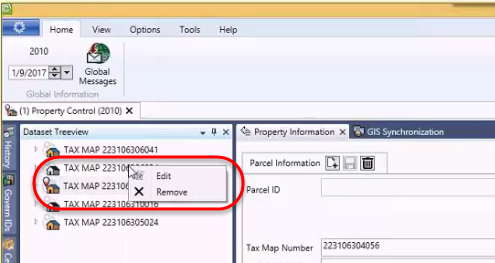
NEW! Users of the Dataset Treeview will note that when it is populated with one or more records, there is a description for each record. This description can be a Parcel ID, an Account Number, and so on. A quick method of deleting individual records is to hover the mouse pointer over a record. When the width of the Dataset Treeview pane is wide enough, placing the mouse cursor over the description will display an “x” that can be used to remove the record. Unfortunately when there is insufficient space, i.e. the space is not wide enough to display the full description, the “x” is not visible. To address this situation a context based menu has been added to the interface.
TreeviewContextMenu00.png
To display this menu…

  1. Right click on the record of interest in the Dataset Treeview.
  2. In the floating menu, you now have option for additional functions that appear beside the record when the entire line is visible.

By default, there will be an option to “[x] Remove”. When there are other options, e.g. Edit, they will also be presented in the menu.
This feature is available in the following releases: 6.0.1611.0067 / 6.0.1702.0080 / 6.1.1611.0060 / 6.1.1702.0121

Reposition

Previously, when performing a search of records with the same NA_ID but multiple ST Account numbers, when you copy the record to the Treeview, the system would only select the first account. Now the selected record will be sent to the Treeview. (Available in release 6.0.1503)

Hibernate Mode

This behavior of selecting only the first account also applies to the Hibernate process. As Govern is restored from a hibernation if a second or third account is selected before hibernation, when the application is restored, although the NA_ID is correct, only the first account will be displayed.

Load to Treeview and Add (Append)

As data is loaded or appended to the Treeview from the Search, or the Saved Datasets form, the following rules apply:

  • When a record is selected for append, only new files will be loaded. If previously loaded, the file will not be reloaded into the Treeview.
  • If no search result is selected, the Add to Search Results button will be disabled.

Hibernate

Previously the Hibernate would store the NA_ID of the records displayed in the various panes that are opened in the interface. Now to maintain the fidelity of the hibernated user environment, all Govern ID’s are used; i.e. NA_ID, P_ID, ST_ID, and so on.

NOTE: User Hibernate information is stored by user in (Table: USR_HIBERNATE). The following query will display the hibernation information for “userName”

SELECT *
FROM USR_HIBERNATE
WHERE USR_ID = ‘userName’;

Treeview Synch
In Govern for VB6, external tables (PC_EXTERNAL, NA_EXTERNAL, and PM_EXTERNAL), were used by external applications and reports to automatically know the current recordset and currently viewed parcel. In Govern release 6.0 and upwards, these external tables are being phased out and the functionality provided by them will need to be reproduced.

NEW! The Treeview sync. feature saves the contents of the current profile in (Table: USR_SAVED_DATASETS) with a “Saved Dataset” name of “AUTOSAVE” under (Column: USR_SAVED_DATASETS.SAVED_SET_NAME). Should a profile be changed, the dataset loaded in the Treeview will be automatically synchronized to (Table: USR_SAVED_DATASETS).
This feature recreates the functionality provided by the three (3) external tables that were used in Govern for Windows, (Tables: PC_EXTERNAL, NA_EXTERNAL, and PM_EXTERNAL). For example users could run a batch process on a saved external dataset as opposed to a set range.

NOTE: In release 6.0 a simultaneous save will be made to (Table: PC_EXTERNAL) and (Table: USR_SAVED_DATASETS), Tables NA_EXTERNAL and PM_EXTERNAL are no longer supported.
In release 6.1, all three (3) tables PC_EXTERNAL, NA_EXTERNAL, and PM_EXTERNAL will not be supported.

  • PC_EXTERNAL (Supported in release 6.0; not supported in release 6.1)
  • NA_EXTERNAL (Not not supported in release 6.0 and 6.1)
  • PM_EXTERNAL (Not not supported in release 6.0 and 6.1)

Enabling “Synchronize Dataset Treeview”

This feature is enabled in the User Registry through the User Registry Manager. The Options button is located below the Govern suite button in the Govern User Interface.

  1. Click the Options button; click Options.
  2. In the Registry Manager form, verify that the Registry Filter is set to User ID.
  3. Under the Section Name column, locate Synchronize Dataset Treeview; click to select the option under the Key Value column.
  4. Click Save to save your changes.

When you return to the Govern interface, the Treeview Sync. icon will be enabled. This is a toggle, i.e. ON/OFF button that will enable or disable the feature.

Location of Data

As indicated above, all data will saved in (Table: USR_SAVED_DATASET). Associated columns are as follows:

COLUMN DESCRIPTION
USR_ID User ID
SAVED_SET_NAME By default will be AUTOSAVE
REF_TYPE “P_ID”, “NA_ID”, etc. Based on the profile Key Type
SORT_SEQ Order in the Treeview
IS_CURRENT TRUE if the current item in the Treeview

NOTE: All data will be saved based on the Key Type of the profile. This is done so as to support multiple Key Types at the same time.

  • The data is not saved by profile, so the synchronization for a Key Type will be done on the last active profile using that key type.

The desired behavior when there is more than one Treeview dataset for the same ID Type is to perform a reload when the user switches from one instance to another.

Business Rules

Programmers should note the following Business Rules.

When Parameters Change:

  • From TRUE to FALSE – Delete all SAVED_SET_NAME that have a status of “AUTOSAVE” and replace the value with the current USR_ID
  • From FALSE to TRUE – Delete All SAVED_SET_NAME equal to “AUTOSAVE” and replace with the current USR_ID and current REF_TYPE
    – Insert Into USR_SAVED_DATASET based on the tree view data
    – Starts monitoring Dataset tree view changes

When Opening Govern (Before opening Profiles):

  • Starts monitoring Dataset tree view changes if Flag is on

When monitoring Dataset tree view changes:

  • If Active profile changes – Delete All SAVED_SET_NAME equal to “AUTOSAVE” and replace with current USR_ID and current REF_TYPE
    – Insert Into USR_SAVED_DATASET based on the tree view data
  • If Treeview is replaced (By eSearch / QueryTool / Matix/…); i.e. a Load
    – Delete All SAVED_SET_NAME equal to “AUTOSAVE” for current USR_ID and current REF_TYPE
    – Insert Into USR_SAVED_DATASET based on the Treeview datazzz
  • If an item is added into the Treeview (By eSearch / QueryTool / Matix /…); i.e. Add Or AddAndReposition
    – Insert the new item into USR_SAVED_DATASET
  • If an item is removed from the Treeview (using the X button); i.e. Remove
    – Delete the new item into USR_SAVED_DATASET
  • If the active item changes in the Treeview; i.e. Reposition()
    – Update IS_CURRENT in USR_SAVED_DATASET
NOTE: This is done by setting the current id to -1 and setting the prior id to 0


NOTE: Always hide AutoSave SAVED_SET_NAME from saved dataset functions

  • V6.0 (only) – PC_EXTERNAL will need to be maintained at the same time
  • V6.1 – All three (3) tables, PC_EXTERNAL, PM_EXTERNAL, and NA_EXTERNAL are to be removed.

Related Topics

Dataset Treeview Temporary Records

Forms Explorer
Reports Explorer


101-std-fea-005


0 votes, average: 0.00 out of 50 votes, average: 0.00 out of 50 votes, average: 0.00 out of 50 votes, average: 0.00 out of 50 votes, average: 0.00 out of 5 (0 votes, average: 0.00 out of 5)
You need to be a registered member to rate this.
Loading...


Multimedia

Multimedia

Version 6.1 (In Development)

Overview

The Multimedia OpenForm is used for linking multimedia files to property, name, permit and sales records; for example, building drawings can be linked to a property record, photographs or video files to a complaint, building plans can be scanned and linked to a permit or the property deed to a sales record. PDF documents and unlimited text lines can used as annotations to the file. Each property control OpenForm can create and maintain customized multimedia links. The Multimedia tab can be configured with any number of different OpenForms in order to create a link to the following:

  • Parcel
  • Name
  • Inspection
  • Hearing
  • Permit
  • Workflow
  • Offense
  • License
  • Sale
  • Activity

Multimedia can be recorded by property, name or by a multitude of reference ID’s (Account Number, Sale, Building, Inspection, Split Merge Transaction, Permit, Complaint, and so on.)

For setup information, see Standard Feature Installation of the Multimedia control.


NOTE: The Multimedia tab can be found in numerous profiles as it is a general usage form that allows users to attach multimedia files to records as needed.


Multimedia Document Types

Govern can support a variety of Multimedia documents. These documents can range from image formats such as .BMP, .TIF, .JPG, to Adobe Acrobat .PDF, or Microsoft Word .DOC files, etc.

Displaying the Image

When a multimedia image document has been linked to the current record, the document will be displayed in the right hand pane when you open the form. Otherwise, click Open Document or doubleclick on the image the Preview pane to display the document. The document will be displayed with the application that is set as the default for viewing the file type that is selected. For example if you have
Microsoft Word installed and you preview a .doc file, Microsoft Word will be launched. Use the controls of the previewing application to close the window and return to the Multimedia tab.

Setup Options
Depending upon the business requirements, through the parameters, the same form controller can be configured with different keys and for different multimedia types.

Technical information

Below is the technical setup and configuration document for the Govern Multimedia Documents custom entity.
See – 101-std-frm-001 Govern 6.0 Multimedia Documents


101-std-frm-001


0 votes, average: 0.00 out of 50 votes, average: 0.00 out of 50 votes, average: 0.00 out of 50 votes, average: 0.00 out of 50 votes, average: 0.00 out of 5 (0 votes, average: 0.00 out of 5)
You need to be a registered member to rate this.
Loading...

WM Technical Specification and Information

Workflow Technical Specification and Information

(In Development)

Description

Generally, the workflow function can be imagined as a container with all the data related to a process (inspection, collection, verification) as well as a list of steps and tasks (activities) needed to complete this process.

What’s New

[to be validated] The same function is now used for all workflow types (kind). Prior to version 5.0, there was a different container for each kind (i.e. complaints, workflow, permits, licenses, hearings, etc.)
Workflow can be linked to a property, name, account, etc. (See key ?references? [to be validated] )

Database Modifications
The following modifications were made to the database in order to enable this feature.

  • Table PM_LK_MASTER: has been linked to Table PM_COMPLAINT in version [6.0]
  • Table PM_TYPE: 2 new fields ENTRY_KEY_TYPE and CATEGORY in version [5.1] and over [5.1 to be validated]


Setup Instructions

After the workflows have been created and setup, the administrator needs to MANUALLY set the following fields in the database.

TABLE = PM_TYPE

  • ENTRY_KEY_TYPE: The main KEY (root) database attribute name: p_id, na_id, account_id?, bldg_id?, user_id?, etc.
  • CATEGORY: Used to classify the workflow types. Used to populate the combo box custom control.

Use the Access Attach Table or SQL Manager to modify.

Database Diagrams

Govern for OpenForms Release 6.x – Database Diagrams

The following links to the page for Database Diagrams for Govern OpenForms modules.
Link to Land Management in the Land Management 6.1 section
PM_LK_PERMIT_TYPE

* The “KIND” field in the PM_MASTER table should determine what table to use:

KIND Description
b Building Permits (PM_BLDG_PERMIT)
bn Bonds
a Approvals (PM_APPROVAL)
bl Business License (PM_BUSINESS_LIC)
al Animal License (PM_ANIMAL_LICENSE)
e Electrical Permits (PM_ELECTRICAL)
d Decisions (PM_DECISION)
g General Permits (PM_GEN_PERMIT)
p Plumbing Permits (PM_PLUMBING)
pa Prosecution / Appeals (PM_PROSECUTION)
l License
lp License Parcel

** For license (l) there is no need to go through the PC_PARCEL and PC_LK_PARCEL_PM tables.

Product Specification

Workflow types

  • Unlimited number of workflow types can be defined
  • Unlimited user added fields can be tied to a workflow type
  • Up to 3 auto-generated unique workflow escalation numbers (Permit example: Application no. A0001, Permit no. P0001, Certificate no. C0001)
  • Steps in the processes (activities) can be auto-generated, initiated ?

Workflows can be linked to:

  • Unlimited properties (Not currently available in 6.0)
  • Unlimited names (Not currently available in 6.0)
  • Other related properties (if property base)
  • Other related names (if name base)

Activities can triggers multiple actions and interact with different groups

  • Generate inspections
  • Schedule meetings, hearings, inspections, etc.
  • Generate fees
  • Generate AR
  • Create multimedia documents
  • Run reports (Crystal Report / SSRS) – Send and Attach
  • Generate global messaging
  • Execute queries (update, validate, etc.)
  • Etc.

User actions:

  • Create, Update, Save and Delete
  • Override capabilities by security access type
  • Pre-defined information can be overridden on Create and Delete
    • ex: Link to Names, Standard emails, Fees, Inspections, etc.
  • AR and GL Accounts can be overridden on Create and Delete and also during fee override


101-std-frm-002-spec


0 votes, average: 0.00 out of 50 votes, average: 0.00 out of 50 votes, average: 0.00 out of 50 votes, average: 0.00 out of 50 votes, average: 0.00 out of 5 (0 votes, average: 0.00 out of 5)
You need to be a registered member to rate this.
Loading...

101-cc-fea-055

Cash Collection Workflow Wizard – Show Receipt Feature

Overview

This information will be updated when it becomes available.

See Also

This information will be updated when it becomes available.


101-cc-fea-055


0 votes, average: 0.00 out of 50 votes, average: 0.00 out of 50 votes, average: 0.00 out of 50 votes, average: 0.00 out of 50 votes, average: 0.00 out of 5 (0 votes, average: 0.00 out of 5)
You need to be a registered member to rate this.
Loading...