103-SY-001_SMTP

General Settings Parameters – SMTP Configuration

Overview

General SMTP configuration is carried out through the OpenForms General Settings Editor in GNA. Additional parameters are required to be completed when using the eGovern module.
Additional parameters are required to be completed for the eGov. See Configuration for eGovern – Public Self Service Portal below.

Configuring SMTP parameters

To configure the SMTP parameters, from the GNA ribbon…

  1. Select Parameters (tab) > System Parameters (group) > General Settings Editor.
  2. In the OpenForms General Settings form, set the Registry Filter to General.
  3. Under the Section Name column, locate the SMTP Keys.
  4. Complete the required parameters.

The required parameters are as follows:

  • Default Sender Address – Typically a no reply administrator address.
  • Host – This is the IP address of the host SMTP server
  • Password – Enter the password that is required to access the server
  • Port – Enter the port information specified by the System Administrator.
  • User – This is the username to access the server.

About Ports

Port information is best obtained from the system administrator that manages the communications requirements for the organization. By default, the following ports are used for the SMTP protocol:

For Unencrypted SMTP

Port 25 / 587 / 2525 – This is the default SMTP non-encrypted port but ISPs will deny its use because of spam and malware traffic. Alternate ports are 587, and 2525

SMTP with SSL

Port 465 – This is a deprecated port but may still be used.

Configuration for eGovern – Public Self Service Portal

Configuration of the eGovern – Public Self Service Portal is carried out within the Govern New Administration (GNA).
In the GNA ribbon …

  1. Select Application Configurations (tab) > Web Configuration (group) > Manage Web Site.
  2. In the Manage Web Site form, click the General tab.
  3. Locate the Mail group.
  4. Complete the required fields.

The required parameters are as follows:

  • Administrator Mail – This field should contain the email address of the system administrator that has been designated to receive error messages.
  • System Mail – The System Mail parameter is the address that will be used for the from field in the email message. These are system messages that will not require replies, e.g. confirmation of user payments.
  • SMTP Host – Enter the host name of your SMTP server in the SMTP Host parameter. Example: mailhost.domainName.com, or smtp.sparta.com.
  • SMTP Port – Specify the SMTP Port; the typical port is 25.
  • SMTP User – In the SMTP User field enter the username that is used to access the account.
  • SMTP Password – In the SMTP Password field enter the password used to access the account. Text entered into this field will appear “cloaked”, i.e. typed letters will appear as asterisks
    ” to hide the typed letters.
  • Activate email in HTML format – Select this option to send email messages in HTML format. As HTML text additional formatting can be added to the messages. The default format for sending messages is as plain text.
  • Include Administrator in Email Communication** – Select this option to send a copy of the email message to the administrator.

Change to Order of Precedence for Messaging

When messaging is required in Govern, e.g. the Activities function, messages were first relayed via SMTP. If this method was not successful, the system would then attempt to send using the Messaging Application Programming Interface (MAPI) Architecture. This methodology has changed. The system now uses only SMTP for messaging.

Related Topics

General Settings Parameter


103-SY-001_SMTP


0 votes, average: 0.00 out of 50 votes, average: 0.00 out of 50 votes, average: 0.00 out of 50 votes, average: 0.00 out of 50 votes, average: 0.00 out of 5 (0 votes, average: 0.00 out of 5)
You need to be a registered member to rate this.
Loading...

103-st-parm-General

General Parameters

VERSION 6.0 / VERSION 6.1 Last Updated April 21st, 2017

Overview

When configuring the Self Reported Business Tax module, the first form to configure is the Self-Reported Tax section of the OpenForms General Settings form.

SRT General Parameters tab

Controlling Account Number Increments

The ST General Parameters window automatically generates the first number for Self-Reported Tax accounts.

Next Account Number

The Next Account Number parameter is strictly informational and will display the current account number.

Increment

Entering a value into the Increment parameter will allow you to control the number that is added to generate each subsequent account.
For example, if your Next Account Number is 00000201 and you have entered an Increment of 100, the next account number to be automatically generated will be 00000301. This incrementing is observed with each new account generated.

Parameters related to the Missing Filer Process

The SRT Missing Filer process creates empty filing records (new entries into the following tables, (Table: ST_FILING_MASTER), (Table: ST_FILING_FIELDS) and (Table: ST_FILING_LEVY). The records created by this process will be flagged as UNFILED, (Table: ST_FILING_MASTER). (UNFILED = -1); no data is entered, therefore there is no computation or taxes calculated.
In the Govern New Administration (GNA), there are two (2) parameters available for this process:
Using the Check Link to Permits / Check Change Date options

Check Link to Permits

Select the Check Link to Permits (Create Missing Filing Process), if the Self-Reported Tax (ST) account is linked to PM, the process will take as Starting Date the PM_MASTER. START_DATE and only creates filing records back to that date.

Check Change Date

When the Check Change Date (Create Missing Filing Process) option is selected, the process will take the ST_MASTER. CHANGE_DATE as the Starting Date and only creates filing records back up to that date.

Add Weekend, Holidays to Due Date

Selecting the Add Weekend, Holidays to Due Date option will factor in weekends and holidays in due dates. This can impact the calculation of interest and other calculations

Apply Late Filing Penalty on Zero Tax

This option is used to apply a penalty on the Late Filing. When enabled, the minimum late filing penalty that is set in the Late Filing Penalty group of the Penalties and Interest sub-tab, will be applied. See the What’s New Section of the Zero Filers feature page for details.

Allow Creation of Negative Levies

NEW! When this option is selected, if a negative amount is entered in the Self Reported Tax Filing Information form, it will create a negative levy. When the return is posted to the A/R the levy will be created as a negative invoice which will credit the balance. See Allow Creation of Negative Levies for details.


103-st-parm-General


0 votes, average: 0.00 out of 50 votes, average: 0.00 out of 50 votes, average: 0.00 out of 50 votes, average: 0.00 out of 50 votes, average: 0.00 out of 5 (0 votes, average: 0.00 out of 5)
You need to be a registered member to rate this.
Loading...

103-st-parm-Category

Business Tax Categories Form

The Self-Reported Business Tax Categories form is used to create categories for self-reported tax. Penalties and discounts can be added to the categories that have been set up.

Reviewing Records

Existing or newly created records are viewed on the left-hand side in a list. Click to select a record; its properties will be displayed in the forms

Business Tax Categories command buttons

Create a New Item: Click to create a new Business Tax (ST) category.
Cancel Changes: After creating a new category or when making changes to an existing one, the Create a ne w item button will change to the Cancel Changes icon. Click to cancel changes to a newly created or existing category.
Save the Current Item: Click to save a category or changes.
Delete: Select and click Delete to remove a category.

Business Tax Categories tabs

General tab

The General tab contains the parameters required to configure Penalties and Interest, and Discounts. See General tab parameters for details.

Fields tab

Use the Business Tax Fields form to create data entry fields and computed fields that follow custom computation rules on the Business Tax function. See Business Tax parameters for details.

Levies tab

Click the Levies tab to create tax levies for Business Tax. You can define a levy type and computation method for each levy. In turn these Categories can have penalties and discounts added to them during a computation. There is a new Apply Levy Expression feature that enables users to apply Levies based upon a specified condition. Refer to the document attached below for details.
103-st-parm-Category-Levies-ApplyLevy.pdf

Late Filing Penalty

!NEW The Late Filing Penalty method is a new computation method for the Late Filing Levies and the Late Payment. This new method was introduced for the current 6.0.1706 and 6.1.1706, 6.1.1707 and greater releases. See 101-st-fea-010 for details about this new method.

Exemptions tab

To add exemptions by categories, click the Exemptions tab. See Business Tax Exemptions by Categories for details.
Exit: Click Exit to close the form; you will be prompted if there are unsaved changes.

What’s New!

NEW! Late Filing Penalty Method (101-st-fea-010)

Available in Release 6.0.1706 6.1.1706 6.1.1707
The Late Filing Penalty method is a new computation method for the Late Filing Levies and the Late Payment. Refer to the documentation below for full details about this computation method.

Apply Levies Conditionally

In the system users can define a levy type and computation method for each levy. In turn these Categories can have penalties and discounts added to them during a computation. There is a new Apply Levy Expression feature that enables users to apply Levies based upon a user specified condition.

Modify Width/Height fields in Business Tax Categories Form

Available in Release 6.0.1503.0524
Fields on forms can require varying amounts of information. At times the space that is provided by the system default may not be sufficient; e.g. address fields. Depending upon business requirements, it is possible to adjust the width and height of fields that are displayed to the end user. The control parameters required are entered in the Business Tax Categories form under the Fields tab. In the GNA, the following parameters are available to be modified:
Width: This is the width of the field in pixels. No unit should be specified. If no value is entered, the system default width will be used.
Height: The value entered will control the height of the field in pixels. No unit should be specified. If no value is entered, the system default height will be used.

NOTE: In order to implement this change in the Business Tax Categories form, two new columns are added to system tables (Table: ST_PARM_FIELDS.WIDTHST_PARM_FIELDS.HEIGHT). It is mandatory that the Verify Database process is run prior to accessing the form, otherwise the modification fields will not appear.


See Also

Self Reported Business Tax – What’s New
Self-Reported Business Tax Module Overview


103-st-parm-Category


0 votes, average: 0.00 out of 50 votes, average: 0.00 out of 50 votes, average: 0.00 out of 50 votes, average: 0.00 out of 50 votes, average: 0.00 out of 5 (0 votes, average: 0.00 out of 5)
You need to be a registered member to rate this.
Loading...

103-st-parm-Category_Detail

Self Reported Tax Categories

Module Overview, Configuration | Installation | What’s New | wiki Map Module release version 6.0.1503 (April 2015) – (Last Update – Oct 24, 2016)

Overview

Table of Contents

Overview
Reviewing Records
Self Reported Tax Categories command buttons
Self Reported Tax Categories tabs
General tab
Fields tab
Levies tab
Exemptions tab
Multimedia Codes tab
Setting up Self Reported Tax Categories
Self Reported Tax Category – General tab
Penalties and Interest tab
Discount tab
Penalties and Interest tab
Structure of ST_PARM_CATEG Table
Self-Reported Tax Exemptions by Categories
Late Payment Monthly Penalty Option
Table Modifications:
Structure of ST_PARM_CATEG Table
Self-Reported Tax Exemptions by Categories
Late Payment Monthly Penalty Option
Table Modifications:
Structure of ST_PARM_CATEG Table
Related Topics

Use the Self-Reported Tax Categories form to create categories for self reported tax. You can add penalties and discounts to the categories. Then, set up Fields and Levies for each category.

To access the Self Reported Tax Category form:
1. Launch the Govern New Administration (GNA).
2. Under the Application Configurations menu, select Business Tax > Categories…

Reviewing Records

Existing or newly created records are viewed on the left hand side in a list. Click to select a records, its properties will be displayed in the forms.

Self Reported Tax Categories command buttons

Create a New Item: Click to create a new Self Reported Tax (ST) category.
Cancel Changes: After creating a new category or when making changes to an existing one, the Create a ne w item button will change to the Cancel
Changes icon. Click to cancel changes to a newly created or existing category.
Save the Current Item: Click to save a category or changes.
Delete: Select and click Delete to remove a category.

Self Reported Tax Categories tabs

General tab

The General tab contains the parameters required to configure Penalties and Interest, and Discounts. See Self Reported Tax Category – General tabSelf Reported Tax Category – General tab.

Fields tab

Use the Self Reported Tax Fields form to create data entry fields and computed fields that follow custom computation rules on the Self Reported Tax function. See Modify fields of Self Reported Tax Categories Form.

Levies tab

Click the Levies tab to create tax levies for Business Tax. You can define a levy type and computation method for each levy. See Levies and Exemptions tabs.

Exemptions tab

To add exemptions by categories, click the Exemptions tab. See Levies and Exemptions tabs.

Exit: Click Exit to close the form; you will be prompted if there are unsaved changes.

Multimedia Codes tab

The Multimedia Codes tab is used to specify the Multimedia file types accepted by the system, and if a submission is mandatory (Is Required) with the record.
NOTE: The Multimedia file types that are supported by the system will vary depending upon administration setup.

Setting up Self Reported Tax Categories

To set up Self Reported Tax categories:
1. In the Categories form, click Create a New Item to clear the form.
2. Enter a Category Code.
3. Enter a Short Description and Long Description. This information is saved to VT_USR_ST_CATEG.
4. Select a Department.
NOTE: Self Reported Tax information is saved by Department.

5. When the category is not to be made available on the Web for the eGov Web Portal, click to select the Hide on Web option.

Self Reported Tax Category – General tab

Penalties and Interest tab

6. Under the Penalties and Interest tab, Enter penalties and interest charges, as percentages, and select AR Class Codes for each of the following:
7. Enter penalties and interest charges, as percentages, and select AR Class Codes for each of the following:

  • Late Filing
  • Minimum Late Filing
  • Late Payment
  • Incorrect Filing
  • Incorrect Payment
  • Negligence Penalty
  • Penalty for a Not Sufficient Funds (NSF) check.
  • Monthly Interest

8. Select an A/R class for adjustments.
9. Enter an amount in the Minimum Late Filing text box, if applicable.

Discount tab

To create a discount, you will need to do one of the following:

  • Create a fixed amount, by selecting Fixed Percentage. Enter the fixed percentage value.

OR

  • Set up different percentages, by not selecting Fixed Percentage. Enter a percentage of a first amount, enter the amount. Now enter a percentage for the remaining amount.

10. Enter a maximum amount, in dollars, for the discount if applicable.
11. Click Save the current item on the Category tab.
12. Repeat this procedure for each category created.

Penalties and Interest tab

Monthly Late Payment Penalty group: You are able to specify a monthly penalty as an option when you are creating Business Tax categories. Three (3) fields are available in the ST_PARM_CATEG table.

Structure of ST_PARM_CATEG Table

The following is the structure of the ST_PARM_CATEG table.

Field Name Data Type Description
PEN_METHOD Number Value = -1 if Monthly late payment penalty applies; Value = 1 otherwise
PEN_MAX_PCT Number Maximum Late Payment PenaltyPercentage.
PEN_MAX_MONTH Number Maximum Number of Months of Late Payment Penalty.

Click to display the option in this group. They allow you to enable the Monthly Late Payment option; when selected, you may specify the Maximum number of months that the Penalty is applied.

1. In the Business Tax Categories form, click New to clear the form.
2. Select a department.
3. Enter a Category Code, Short Description and Long Description. This information is saved to VT_USR_ST_CATEG.
4. Enter penalties and interest charges, as percentages, and select AR Class Codes for each of the following:

  • Late Filing
  • Late Payment
  • Incorrect Filing
  • Incorrect Payment
  • Negligence Penalty
  • Penalty for a Not Sufficient Funds (NSF) check.
  • Monthly Interest

5. Select an A/R class for adjustments.

NOTE: The value that is entered in the Maximum Interest and Penalty value will be overridden by the value entered in the Minimum Late Filing parameter in the Self Reported Tax Categories form; In the Govern New Administration (GNA): Application Configurations > Business Tax > Categories.
For Example: If you owe $100.00, and a maximum interest and penalty charge is set to 25%, your penalty amount would be $25.00 Should the Minimum Late Filing charge be set to $50.00 in the Self Reported Tax Categories form, regardless of the calculation percentage, you will be charged $50.00.

Self-Reported Tax Exemptions by Categories

Occasionally, it may be necessary to apply exemptions to Self-Reported Tax (ST) records. The Exemptions tab of the Self Reported Tax Categories form allows you to configure exemptions to each of your SRT categories. In addition preferences can be set for when the calculation will apply, before or after the tax calculations.

You should first set up the A/R Classes for the Self-Reported Tax Categories in the Govern New Administration (GNA). For steps to create SRT classes, see Accounts Receivable Classes.

To set up exemptions in the Govern New Administration (GNA):
1. Select Applications Configurations (tab) > Business Tax > Categories.
2. In the Self-Reported Tax Categories form, create a new category or select an existing category.
3. Complete the form; enter the applicable percentages and select A/R Classes in the Penalties and Interest group.
4. If applicable, enter a Minimum Late Filing charge.
NOTE: The value that is entered in the Minimum Late Filing Charge parameter overrides any settings that may have been configured in the individual ST A/R Classes.

5. Click the Exemptions tab to configure exemptions.
6. Complete the parameters of the Category Exemptions form.
Exemptions can be applied by amount or by percentage. The exemption can also be applicable before or after the tax calculation.
7. Select whether the exemption will be by amount or percentage in the Exemption By group.
8. Select the point at which the exemption is applicable, before or after the tax calculation; make your selection in the Exemption Applicable group.
9. Click Save to complete your setup and return to the Business Tax Categories form.

Late Payment Monthly Penalty Option

You are able to specify a monthly penalty as an option when you are creating your Self-Reported Tax categories. As a result of this feature, three (3) fields have been created in the ST_PARM_CATEG table. This option is enabled in the Govern New Administration (GNA).

To enter a Monthly Penalty for an SRT category in GNA.
1. Select Applications Configurations (tab) > Business Tax > Categories.
2. In the Penalties and Interest tab, click to select the Monthly Late Payment Penalty option.
3. Enter parameters for a Maximum number of months of late payment penalties.

Table Modifications:

The following modifications have been made to the ST_PARM_CATEG table.

Structure of ST_PARM_CATEG Table

The following is the structure of the ST_PARM_CATEG table.

Field Name Data Type Description
PEN_METHOD Number Value = -1 if Monthly late payment penalty applies; Value = 1 otherwise
PEN_MAX_PCT Number Maximum Late Payment Penalty
Percentage.
PEN_MAX_MONTH Number Maximum Number of Months of Late Payment Penalty.

Click to display the option in this group. They allow you to enable the Monthly Late Payment option; when selected, you may specify the Maximum number of months that the Penalty is applied.

1. In the Business Tax Categories form, click New to clear the form.
2. Select a department.
3. Enter a Category Code, Short Description and Long Description. This information is saved to VT_USR_ST_CATEG.
4. Enter penalties and interest charges, as percentages, and select AR Class Codes for each of the following:

  • Late Filing
  • Late Payment
  • Incorrect Filing
  • Incorrect Payment
  • Negligence Penalty
  • Penalty for a Not Sufficient Funds (NSF) check.
  • Monthly Interest

5. Select an A/R class for adjustments.
NOTE: The value that is entered in the Maximum Interest and Penalty value will be overridden by the value entered in the Minimum Late Filing parameter in the Self Reported Tax Categories form; In the Govern New Administration (GNA): Application Configurations > Business Tax > Categories.

For Example: If you owe $100.00, and a maximum interest and penalty charge is set to 25%, your penalty amount would be $25.00. Should the Minimum Late Filing charge be set to $50.00 in the Self Reported Tax Categories form, regardless of the calculation percentage, you will be charged $50.00.

Self-Reported Tax Exemptions by Categories

Occasionally, it may be necessary to apply exemptions to Self-Reported Tax (ST) records. The Exemptions tab of the Self Reported Tax Categories form allows you to configure exemptions to each of your SRT categories. In addition preferences can be set for when the calculation will apply, before or after the tax calculations.
You should first set up the A/R Classes for the Self-Reported Tax Categories

in the Govern New Administration (GNA). For steps to create SRT classes, see Accounts Receivable Classes XXXXX.

To set up exemptions in the Govern New Administration (GNA):
1. Select Applications Configurations (tab) > Business Tax > Categories.
2. In the Self-Reported Tax Categories form, create a new category or select an existing category.
3. Complete the form; enter the applicable percentages and select A/R Classes in the Penalties and Interest group.

4. If applicable, enter a Minimum Late Filing charge.
NOTE: The value that is entered in the Minimum Late Filing Charge parameter overrides any settings that may have been configured in the individual ST A/R Classes.

5. Click the Exemptions tab to configure exemptions.
6. Complete the parameters of the Category Exemptions form.
Exemptions can be applied by amount or by percentage. The exemption can also be applicable before or after the tax calculation.
7. Select whether the exemption will be by amount or percentage in the Exemption By group.
8. Select the point at which the exemption is applicable, before or after the tax calculation; make your selection in the Exemption Applicable group.
9. Click Save to complete your setup and return to the Business Tax Categories form.

Late Payment Monthly Penalty Option

You are able to specify a monthly penalty as an option when you are creating your Self-Reported Tax categories. As a result of this feature, three (3) fields have been created in the ST_PARM_CATEG table. This option is enabled in the Govern New Administration (GNA).
To enter a Monthly Penalty for an SRT category in GNA.
1. Select Applications Configurations (tab) > Business Tax > Categories.
2. In the Penalties and Interest tab, click to select the Monthly Late Payment Penalty option.
3. Enter parameters for a Maximum number of months of late payment penalties.

Table Modifications:

The following modifications have been made to the ST_PARM_CATEG table.

Structure of ST_PARM_CATEG Table

The following is the structure of the ST_PARM_CATEG table.

Field Name Data Type Description
PEN_METHOD Number Value = -1 if Monthly late payment penaltyapplies; Value = 1 otherwise
PEN_MAX_PCT Number Maximum Late Payment PenaltyPercentage.
PEN_MAX_MONTH Number Maximum Number of Months of LatePayment Penalty.

Related Topics

Calculating Self Reported Tax Late Filing and Late Payment Charges

Self Reported Business Tax – What’s New
Self-Reported Business Tax Module Overview

103-st-parm-CopyYear

Copy to Year

Overview

This process copies all parameters and settings to a user specified year. Users should note that any existing parameters in the target year will be overwritten. Tables used are the following:

  • ST_PARM_PERIOD
  • ST_PARM_PERIOD_DETAIL
  • ST_PARM_CATEG
  • ST_PARM_EXEMPT
  • ST_PARM_FIELDS
  • ST_PARM_FLDS_SUM
  • ST_PARM_LEVY
  • ST_PARM_LEVY_PERIOD_OVERRIDE
  • ST_PARM_LK_EXEMPT
  • VT_USER – Used for…
    • Categories description
    • Added fields description
    • Levy description
    • Exemption description

NOTE: Currently, the parameters that are required for A/R will still need to be copied in Govern for Windows release 10.8 through the Copy to Next Year selection in the Edit menu. This will copy current A/R Classes, A/R Methods and G/L Distribution parameters to the next fiscal year. You will now need to return to Categories and Levies to set the Class Codes.


103-st-parm-CopyYear

103-st-parm-CopytoYear

Copy Parameters to Year
Overview

Overview

The main purpose of this option is to copy all Year base parameter to another year. It will validate if the destination year exist, and if so, the user will have a warning message to override the data before execute the copy.

103-pp-parm-Levy

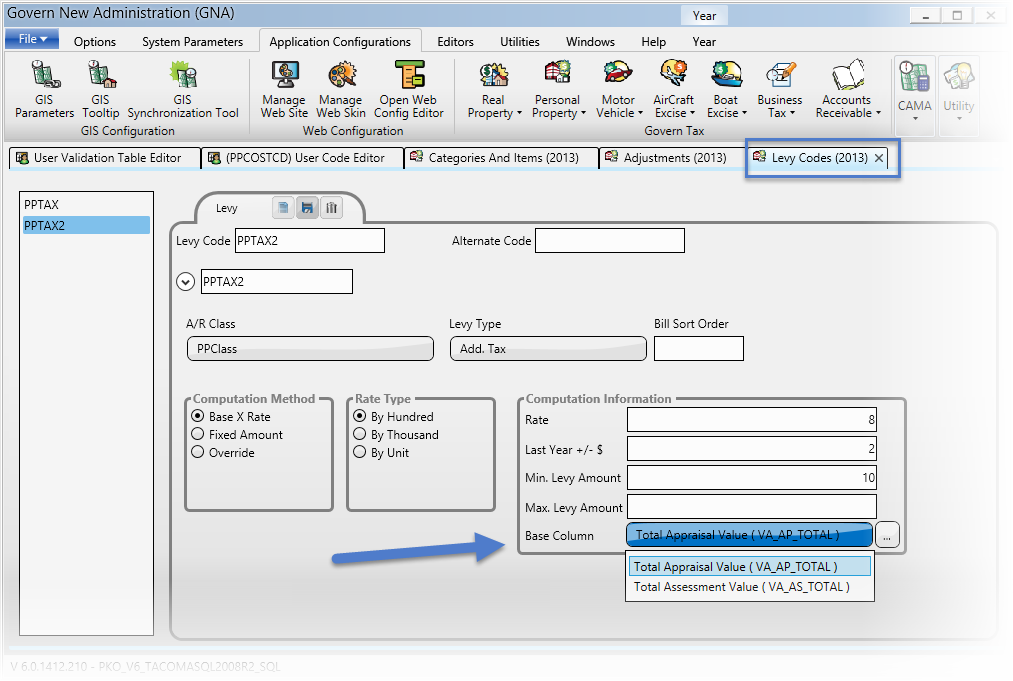
Personal Property Levies

Overview

The same features and standards apply to personal property levies.

101_pp_ui_ParmLevy.png
Personal Property Levies


103-pp-parm-Levy


0 votes, average: 0.00 out of 50 votes, average: 0.00 out of 50 votes, average: 0.00 out of 50 votes, average: 0.00 out of 50 votes, average: 0.00 out of 5 (0 votes, average: 0.00 out of 5)
You need to be a registered member to rate this.
Loading...