Standard A/R Controller Configuration (101-ar-fea-022-ofr)

Standard Accounts Receivable (A/R) Controller – Create A/R (Configuration)

Overview

This standard OpenForms Controller can be added to a form to provide an Action Button to create Accounts Receivable for new accounts.
This controller is available in GA Release 1606

  • For more information on the functionality, see Product Information (101-ar-fea-022).

Configuration

Prerequisites

The following conditions are required in order to enable the Controller in OpenForms Designer Setup

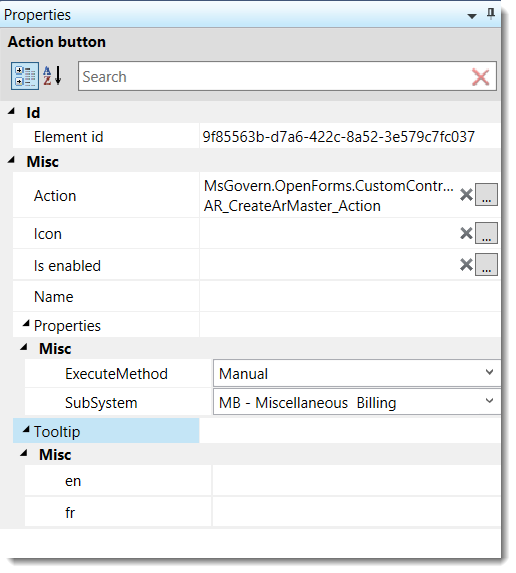
Action Button Controller Properties

Read More...

Profile Security

  • The organization is licensed for the Accounts Receivable Sub-System to setup
  • The configuration for the Accounts Receivable has been completed
  • The Form’s ID Setters Properties must contain the …
  • The Govern ID must be …
  • The user must have security access (GSM) to the profile’s form.

Controller Setup

Adding a Custom Control to a Form

  • In OFD, drag the Action Button Control Icon to the Account Entity Tab on the form.

Custom Control Form Configuration

Once the Custom Control is displayed on the form, click on the object to configure the:

  • Assembly Name = Msgovern.OpenForms.CustomControls.dll (by default)
  • Class Name = AR_CreateARMaster_Action

User Interface (UI)

  • Icon
  • Is enable: An expression can be added to control the enabling (Can be executed) of the button.

Controller Properties

The following controller properties need to be set:

Execute Method

There is 2 options for the Action Button Controller

  • Manual: The user will need to click on the button
  • After Save: As soon as the record is saved, the A/R will be created automatically

Sub-System

  • Select the sub-system for which the A/R Summary Record needs to be created.

Related Topics

For more information, see:

Troubleshooting

  • The Organization must be a licensed user of the A/R Sub-System selected.


101-ar-fea-022-ofr


0 votes, average: 0.00 out of 50 votes, average: 0.00 out of 50 votes, average: 0.00 out of 50 votes, average: 0.00 out of 50 votes, average: 0.00 out of 5 (0 votes, average: 0.00 out of 5)
You need to be a registered member to rate this.
Loading...

Standard AR Controller – Create A/R (101-ar-fea-022)

Standard Accounts Receivable (A/R) Controller – Create A/R

Overview

This new standard controller can be setup on different Account Forms (Real Property, Misc. Billing, Self-Reported Tax…) in order to provide the user with an Action Button to create an A/R summary record on demand. With the A/R record, it will be possible for the users to enter deposits or voluntary payments against this Account.

  • The Create A/R button can be used for all Sub-Systems (Real Property, Self-Reported Tax, Personal Property, Miscellaneous Billing, etc.)
  • The Create A/R button is only available after an Account is created and saved where no A/R records associated to the account exists.
  • Once the Create A/R action has been executed, the button becomes disabled.
  • The A/R record created will match the System Registry A/R Sub-System rules (by name, by parcel, by year), etc. as configured in the A/R General Parameters Sub-System parameters.
  • This action button can be secured by profile user and role.

Configuration

This controller is used in different standard Forms distributed with the system. It can also be added and configured on a customized form.
To add or configure this controller on a form click below:


Related Topics

Standard A/R Controller Configuration (101-ar-fea-022-ofr)

Accounts Receivable Parameters (103-ar-parm-General)


101-ar-fea-022


0 votes, average: 0.00 out of 50 votes, average: 0.00 out of 50 votes, average: 0.00 out of 50 votes, average: 0.00 out of 50 votes, average: 0.00 out of 5 (0 votes, average: 0.00 out of 5)
You need to be a registered member to rate this.
Loading...

AR – Controller Config – Create AR Payment

Standard Accounts Receivable (A/R) Controller – Create A/R Payment (Configuration)

Overview

This standard OpenForms Action Button controller can be added to a form to provide an Action Button to create the Accounts Receivable payment.

This controller is available in GA Release 1706

  • For more information on the functionality, see Product Information (101-ar-fea-024).

Prerequisites

The following conditions are required in order to enable the Controller in OpenForms Designer Setup

  • The organization is licensed for the Accounts Receivable Sub-System to setup
  • The configuration for the Accounts Receivable has been completed
  • The Form’s ID Setters Properties must contain the …
  • The Govern ID must be …

Profile Security

  • The user must have security access (GSM) to the profile’s form.


101-ar-fea-022-ofr-UI.png
Action Button Controller Properties


Controller Setup

Adding a Custom Control to a Form

  • In OFD, drag the Action Button Control Icon to the Account Entity Tab on the form.

Custom Control Form Configuration

Once the Custom Control is displayed on the form, click on the object to configure the:

  • Assembly Name = Msgovern.OpenForms.CustomControls.dll (by default)
  • Class Name = AR_CreateARMaster_Action

User Interface (UI)

  • Icon
  • Is enable: An expression can be added to control the enabling (Can be executed) of the button.

Controller Properties

The following controller properties need to be set:

Sub-System

  • Select the sub-system for which the A/R Summary Record needs to be created.

Related Topics

For more information, see:

Troubleshooting

  • The Organization must be a licensed user of the A/R Sub-System selected.


101-ar-fea-024-ofr


0 votes, average: 0.00 out of 50 votes, average: 0.00 out of 50 votes, average: 0.00 out of 50 votes, average: 0.00 out of 50 votes, average: 0.00 out of 5 (0 votes, average: 0.00 out of 5)
You need to be a registered member to rate this.
Loading...


AR – CC – Allow Payment less than Payment Plan Amount

Accounts Receivable (AR) & Cash Collection (CC) – Allow Payment less than Payment Plan Amount

Overview

This feature allows the collection of a payment that is less than the predefined Payment Plan Amount.

User Interaction

In Cash Collection, when a user tries to make a payment that is less than the set minimum to collect, a pop-up message is displayed. This message will block the transaction and prevent the saving of the payment. If the permission is checked, the message will no longer be displayed to the user. The payment can then be saved even if the amount is less than the set minimum that is to be collected.

Setup

To configure this option, you must set the new security parameter in the OpenForms Designer (OFD). This option can be set by Profile or by user for the Cash Collection Form.

NOTE: The default setting for all users for this permission is, False (F) .

In the OFD select… Cash Collection > Payment Data Entry > CCPaymentDataEntry_Control (while in security mode), set the following parameter:

  • Allow to pay less than minimum to collect


101-ar-fea-038


0 votes, average: 0.00 out of 50 votes, average: 0.00 out of 50 votes, average: 0.00 out of 50 votes, average: 0.00 out of 50 votes, average: 0.00 out of 5 (0 votes, average: 0.00 out of 5)
You need to be a registered member to rate this.
Loading...


AR – Inquiry Detail

Accounts Receivable (A/R) Inquiry Detail

Overview

NOTE: The A/R Inquiry Detail form has been merged with the AR Inquiry form.


101-ar-frm-002


0 votes, average: 0.00 out of 50 votes, average: 0.00 out of 50 votes, average: 0.00 out of 50 votes, average: 0.00 out of 50 votes, average: 0.00 out of 5 (0 votes, average: 0.00 out of 5)
You need to be a registered member to rate this.
Loading...

AR – Inquiry Notes

Accounts Receivable (A/R) Inquiry Notes

Overview

Use the Notes tab of the A/R Inquiry form for adding comments and warning codes, additional information about delinquent charges, history, arrears, and ACH payment information to the selected record.

Documentation

For the complete reference guide, see 101-all-001-GovernAccountsReceivable-(man)-(6.0)
For the A/R Transaction Rules, see 101-ar-001-AR-TransRulesGL.

Prerequisites

The following Regular User Validation Tables are required for the A/R Alerts, Warnings, and Protest Codes.

  • ARALERT: for the A/R Alert Codes
  • ARWARNC: for the A/R Warning Codes
  • ARPROT: for the A/R Protext Codes
  • COLLAGCY: for the Collection Agencies used for A/R

To access these tables:

  1. Launch GNA.
  2. Select Editors > User Validation Table Editor.
  3. Select Regular from the Table Type drop-down list.
  4. Select the table.
  5. Click Codes to add, modify, or delete codes.
  6. Click Save.

Completing the Notes Form for Alerts and Warnings

The form contains the following sections:

  1. General Information
  2. ACH Information
  3. Notes and Comments

General Information

Alert Code: Select an Alert Code from the drop-down list (Table: VT_USR_ ARALERT). An Alert is more severe than a Warning. If an alert code is associated with the account, no payment entry can be made.
Warning Code: Select a Warning Code from the drop-down list (Table: VT_USR_ARWARNC). A Warning is less severe than an Alert, in that a notification is sent, but the user can make a payment entry.
Collection Agency: Select a Collection Agency for the account from the drop-down list (Table: VT_USR_COLLAGCY).
Notes and Comments: Enter any notes or comments for the account.

Additional Information

Not Subject to Delinquent Charges
Select this option if you don’t want any interest calculated on the current account. Otherwise, these charges are calculated automatically.
History / Inactive Account
Select this option to indicate the account is historical or inactive. No further Accounts Receivable transactions can be performed on the account.
Arrears
Select the calendar beside the Arrears date field to select the date that the account went into arrears. Depending on your organization, the date could be populated by a batch process.

ACH Information

Amount: This field displays the amount for the selected record. This can be the amount of the displayed installment or a fixed amount. To override this value, for example, for partial payments, modify the field directly and click Save.
Installment: If the displayed amount is an installment, this field displays first, second, third, fourth or total (Table: VT_SY_INSTALL).
Active Flag: The Prepare Data for ACH File process sets the Active Flag to Pending. In the Pending state, you can:

  • Modify the displayed amount.
  • Change the Active Flag to Manually Deactivated.

Records set to Manually Deactivated are not included in the ACH File. Use this state for accounts that cannot be prenoted; for example, invalid accounts.
ACH Date: This field displays the date the Prepare Data for ACH File process was run.
Fixed Amount: Select this option if the selected amount is a fixed amount.


101-ar-frm-003


0 votes, average: 0.00 out of 50 votes, average: 0.00 out of 50 votes, average: 0.00 out of 50 votes, average: 0.00 out of 50 votes, average: 0.00 out of 5 (0 votes, average: 0.00 out of 5)
You need to be a registered member to rate this.
Loading...


AR – Inquiry ACH Information

Accounts Receivable (AR) Inquiry ACH Information

Overview

The A/R Information tab of the A/R Inquiry form includes a section for ACH Information.

This is updated automatically when you run the Prepare Data for ACH and the ACH Generate File batch process. For details, see
ACH Batch Processes


101-ar-frm-004


0 votes, average: 0.00 out of 50 votes, average: 0.00 out of 50 votes, average: 0.00 out of 50 votes, average: 0.00 out of 50 votes, average: 0.00 out of 5 (0 votes, average: 0.00 out of 5)
You need to be a registered member to rate this.
Loading...