Accounts Receivable (A/R) OpenForms Reference
Overview
This information will be posted as it becomes available.
101-ar-ofr
 (0 votes, average: 0.00 out of 5)
You need to be a registered member to rate this.
 Loading...

This information will be posted as it becomes available.
101-ar-ofr
(0 votes, average: 0.00 out of 5)Loading...
| Error Code | Description |
|---|---|
| 1 | Invalid AR ID Property |
| 2 | Save without Append (No A/R Detail found) |
| 3 | Invalid A/R Class Code Property |
| 4 | Invalid Subsystem code in A/R Parameters |
| 5 | Missing Required PID Property |
| 6 | Missing Required NAID Property |
| 7 | Missing Required Cycle Code |
| 8 | Missing Required Key ID Or Key Type |
| 9 | Missing Required UBID |
| 10 | Move Next After EOF |
| 11 | Invalid Transaction Type |
| 12 | Detail Object Contains Existing Transactions |
| 13 | Missing Required CCID Property |
| 14 | Missing Required A/R ID Property |
| 15 | Missing Subsystem Property |
| 16 | Missing Installment |
| 22 | Class Code and Transaction Type Incompatible |
| 25 | Invalid Fiscal Year |
| 26 | Invalid Amount |
| 27 | Can’t get a system key index |
| 28 | Invalid G/L Distribution Amount |
| 29 | Transaction Already Posted |
| 30 | Cannot delete because the subsequent transaction is not posted |
| 32 | Invalid or Missing PP_ID |
| 33 | Invalid or Missing MV_ID |
| 34 | Invalid or Missing BT_ID |
| 35 | This A/R record is inactive and unavailable |
| 36 | No Right of Access |
101-ar-ref-ErrorPostingCodes
(0 votes, average: 0.00 out of 5)Loading...
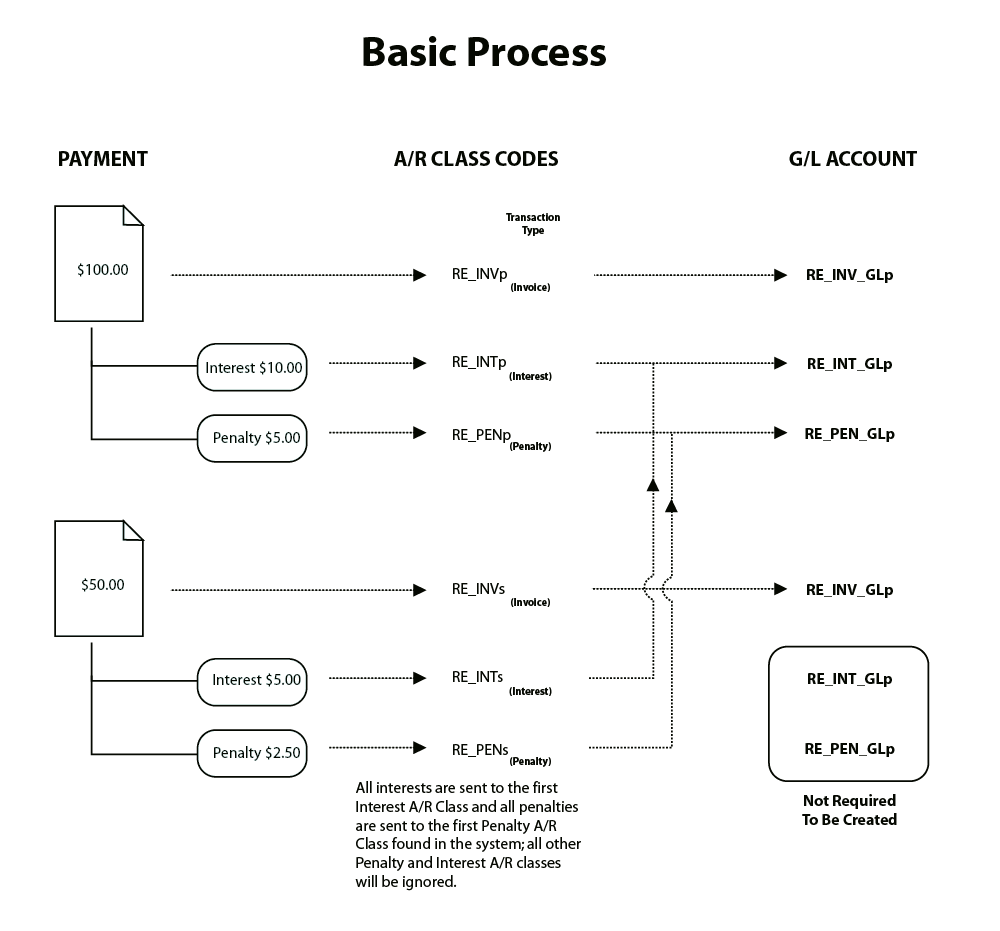
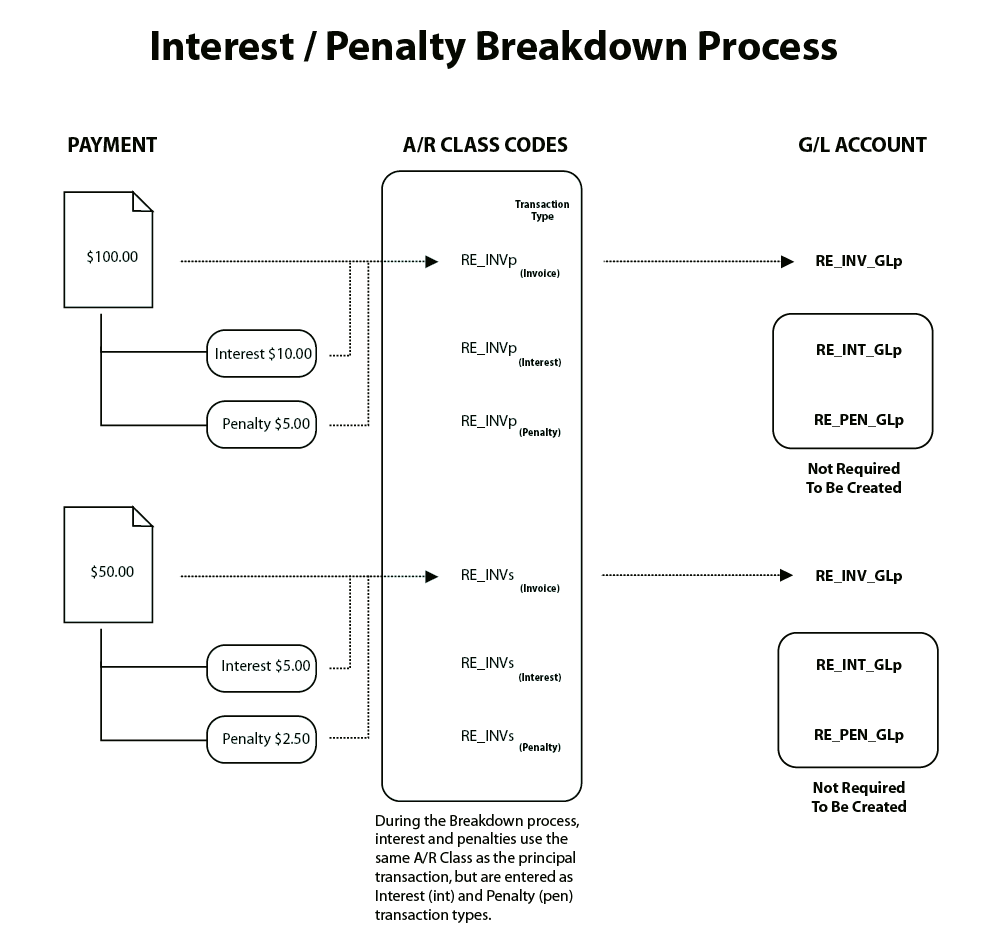
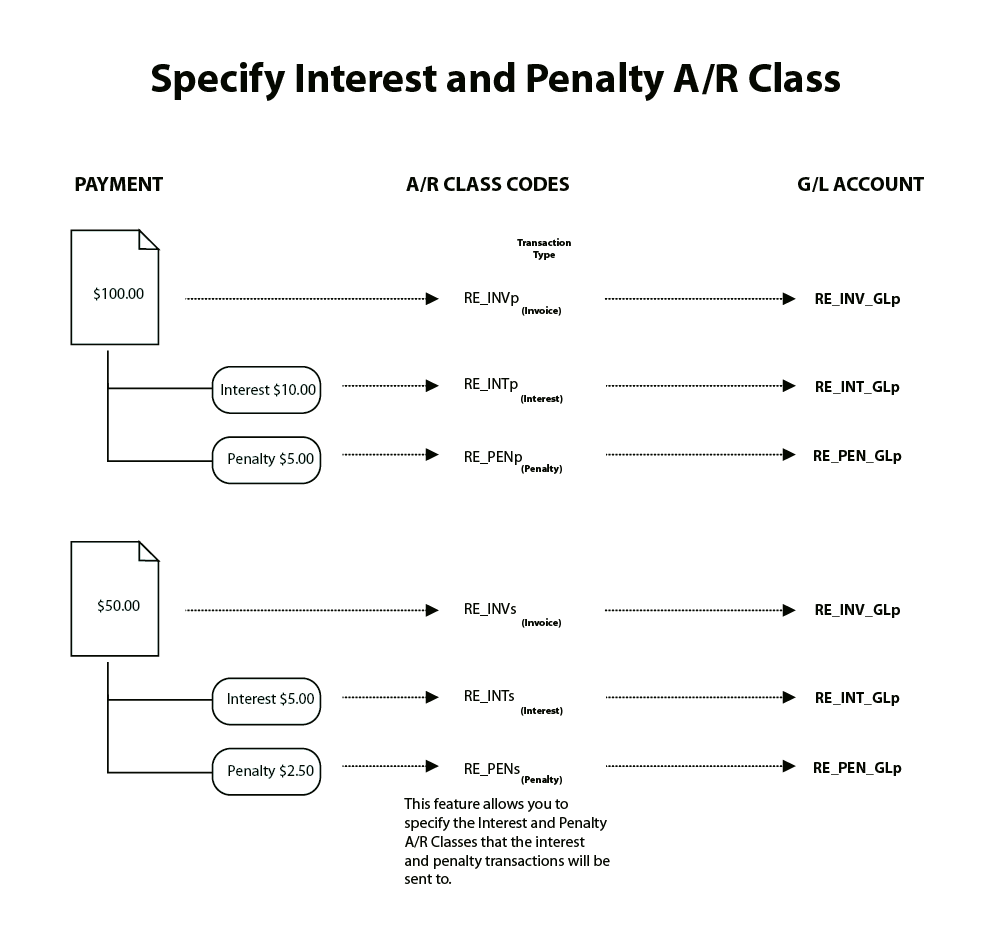
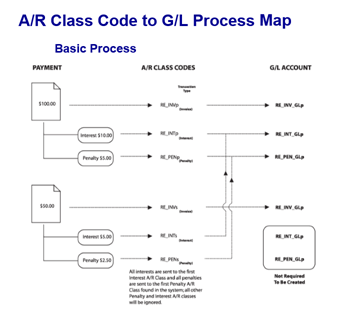
When an AR transaction is posted (confirmed), G/L entries are created for accounting and audit purposes.
For each transaction, a debit and a credit is created.
For each posting, Total Debit = Total Credit
The debit and credit entries generated depend on the nature of the transaction, and on the:
The following shows the different processes (basic, interest/penalty breakdown, specific A/R Class and penalty). Click on the thumbnails to enlarge or click here for a printable version.
|
|
|
G/L Accounting Business Rules by AR Transaction Type
This table lists the valid G/L Accounts for each transaction type. Click here for a PDF copy.
| Transaction Type | G/L Accounting |
| Abatement | Accounts Receivable, Revenue, Deferred Revenue |
| Adjustment | Cash, Accounts Receivable, Revenue, Deferred Revenue |
| Adjusted Bill | Cash, Accounts Receivable, Revenue, Deferred Revenue |
| Charge | Cash, Penalty: Accounts Receivable, Penalty: Revenue, Penalty: Deferred Revenue |
| Discount | Accounts Receivable, Revenue, Deferred Revenue, Discount |
| Deposit | N / A * |
| Demand | Cash, Penalty: Accounts Receivable, Penalty: Revenue, Penalty: Deferred Revenue |
| Duplicate Payment | Cash, Accounts Receivable, Revenue, Deferred Revenue |
| Fee | Cash, Penalty: Accounts Receivable, Penalty: Revenue, Penalty: Deferred Revenue |
| Interest | Cash, Penalty: Accounts Receivable, Penalty: Revenue, Penalty: Deferred Revenue |
| Billed / Invoice | Cash, Accounts Receivable, Revenue, Deferred Revenue |
| Miscellaneous Cash Receipt | Cash, Accounts Receivable, Revenue, Deferred Revenue |
| Open Cash Credit | Cash, Accounts Receivable |
| Open Credit | Accounts Receivable, Revenue, Deferred Revenue |
| Over Payment | Cash, Accounts Receivable, Revenue, Deferred Revenue |
| Postdated Payment | N / A * |
| Penalty | Cash, Penalty: Accounts Receivable, Penalty: Revenue, Penalty: Deferred Revenue |
| Payment | N / A * |
| Payment Reversal | Cash, Accounts Receivable, Revenue, Deferred Revenue |
| Refund | Cash, Accounts Receivable, Revenue, Deferred Revenue |
| Over & Short | Cash, Accounts Receivable, Revenue, Deferred Revenue |
| Tax Deferral | Cash, Accoutns Receivable, Revenue, Deferred Revenue |
| Transfer to Tax (Interest, Penalty) | Cash, Penalty: Accounts Receivable, Penalty: Revenue, Penalty: Deferred Revenue |
| Tax Title Lien | Cash, Accounts Receivable, Revenue, Deferred Revenue |
| Tax Title Lien (Interest) | Cash, Penalty: Accounts Receivable, Penalty: Revenue, Penalty: Deferred Revenue |
| Transferred Principal | Cash, Accounts Receivable, Revenue, Deferred Revenue |
| Trans.(Interest, Penalty) | Cash, Penalty: Accounts Receivable, Penalty: Revenue, Penalty: Deferred Revenue |
| Transfer to Tax | Cash, Accounts Receivable, Revenue, Deferred Revenue |
| Sales Tax 1 | Cash, Accounts Receivable, Revenue, Deferred Revenue |
| Sale Tax 2 | Cash, Accounts Receivable, Revenue, Deferred Revenue |
| Voluntary Payment | N / A * |
| Note(s): The Deposit, Postdated Payment, Payment and Voluntary Payment transaction types are not distributed to Govern’s G/L |
 |
 |
| AR G/L Accounting Process Schema (click to enlarge) |
AR Transaction Type |
101-ar-ref-GLAccountingRules
(0 votes, average: 0.00 out of 5)Loading...
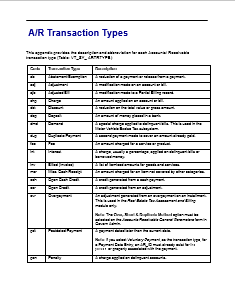
The following table provides a description and abbreviation for each A/ R transaction type. The transaction types are saved to VT_SY_ ARTRTYPE in the Govern database. They are used to populate the Transaction Type fields, on the A/R Class Parameters form on the A/R Transaction forms.
Click here for the pdf version.
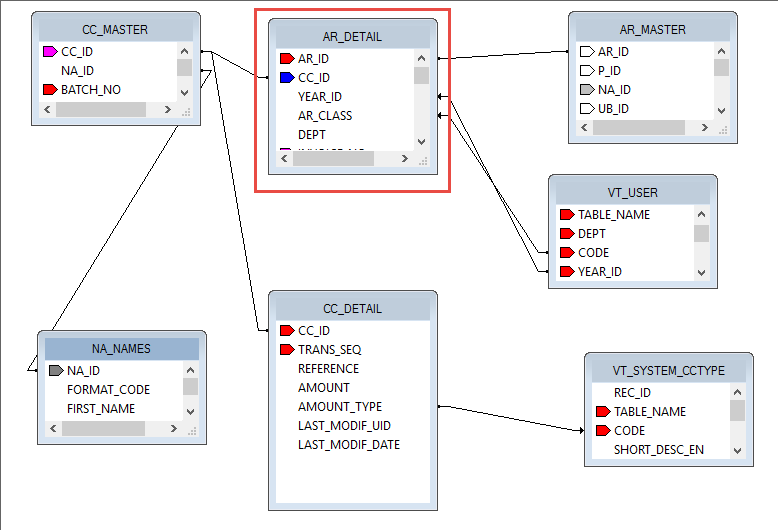
The Transaction Type Codes are recorded in the AR Detail records.
| Code | Transaction Type | Description |
|---|---|---|
| ab | Abatement/Exemption | A reduction of a payment or release from a payment. |
| adj | Adjustment | A modification made on an account or bill. |
| ajb | Adjusted Bill | A modification made to a Partial Billing record. |
| chg | Charge | An amount applied on an account or bill. |
| dct | Discount | A reduction on the total value or gross amount. |
| dep | Deposit | An amount of money placed in a bank. |
| dmd | Demand | A special charge applied to delinquent bills. This is used in the Motor Vehicle Excise Tax subsystem |
| dup | Duplicate Payment | A second payment made to cover an amount already paid. |
| fee | Fee | An amount charged for a service or product. |
| int | Interest | A charge, usually a percentage, applied on delinquent bills or borrowed money. |
| inv | Billed (Invoice) | A list of itemized amounts for goods and services. |
| mcr | Misc. Cash Receipt | An amount charged for an item not covered by other categories. |
| och | Open Cash Credit | A credit generated from a cash payment. |
| ocr | Open Credit | A credit generated from an adjustment. |
| ovr | Overpayment |
An adjustment generated from an overpayment on an installment. This is used in the Real Estate Tax module only. Note: The Over, Short & Duplicate Method option must be selected on the Accounts Receivable General Parameters form in Govern Admin. |
| pdt | Postdated Payment | A payment dated later than the current date. |
| pen | Penalty | A charge applied on delinquent accounts. |
| pmt | Payment | Money given in exchange for goods or services. |
| rev | Payment Reversal | A correction made when an payment error has been entered and posted or a Not Sufficient Funds (NSF) check has been processed. |
| rf | Refund | An amount of money returned when an overpayment has been made. |
| sht | Over & Short | An amount generated from the Automatic Generation of Over & Short batch process. |
| td | Tax Deferral | A postponed tax payment. |
| tri | Transferred To Tax (I/P) | Interest and penalty charges transferred from the Special Assessment subsystem |
| tt | Tax Title Lien | A charge applied on property for the fulfillment of a debt or duty. |
| tti | Tax Title Lien Interest | The interest generated from the tax title. |
| tto | Transferred Principal | The amount of principal transferred to tax. |
| ttp | Transferred (Interest and Penalty) | The amount of interest and penalty transferred to tax. |
| ttx | Transferred To Tax | The total amount transferred, including principal and interest. |
| tx1 | Sales Tax 1 | A Sales Tax calculation method in which the first and second taxes are added together; then, applied to the bill. |
| tx2 | Sales Tax 2 | A Sales Tax calculation method in which the first tax is added to the bill; then, the second tax is calculated on this amount. |
| vp | Voluntary (Advanced) Payment |
An amount that is paid before the bill is received; for example, a taxpayer may forward a payment to cover bills during a predicted absence. Note: If you select Voluntary Payment, as the transaction type, on a Govern user form, an AR_ID is required for the NA_ID or P_ID associated with the record. |
| NOTE: The Deposit, Postdated Payment, Payment, and Voluntary Payment transaction types are not distributed to Govern’s G/L |
101-ar-ref-TransactionType
(0 votes, average: 0.00 out of 5)Loading...
The report code for the Cash Balancing report is: ar-rpt-004.rpt
Click to enlarge.
101-ar-rpt-004-CashBalancingReport
(0 votes, average: 0.00 out of 5)Loading...
Payment reversal transactions (rev) are adjustments that are used as corrections. They are run typically when NSF checks have been processed or records posted incorrectly
Run the Payment Reversal batch process in order to void a group of payment transactions. This is useful if there are payments that were made in error or that were paid from accounts with insufficient funds (NSF).
For the complete reference guide, see Govern Accounts Receivable.
For the A/R Transaction Rules, see A/R Transaction Rules.
Read More... Payment reversal transactions (rev) are used as corrections. They are run typically when NSF checks have been processed or records posted incorrectly. Payment Reversal transactions can be created individually or in a batch. Both methods create Payment Reversal Transactions, which can be viewed or deleted from the A/R Inquiry form. After generating Payment Reversal transactions, whether individually or in a batch, you need to post them. To post a payment reversal, run the Payment Reversal Posting batch process. See Posting Payment Reversal Transactions. See All posted payment transactions can be reversed, with the following exceptions. The following payment transactions cannot be reversed: For details on transaction types, see Transaction Types To access the Payment Reversal form: The Payment Reversal form is divided into the following sections: Subsystem: The subsystem for the record or entry selected on the A/R Inquiry form is displayed. Date: This field displays the entry date for the payment reversal. By default, this is the current date. To change the date, click the calendar beside this field and select a new date. Justification Code: Select a Justification Code to explain the reason for the payment reversal (Table: VT_USR_ARREASON). Letter Code: Select a Letter Code that identifies the type of letter sent to the payer; for example, D: Duplicate Payment, O: Over Payment, RV: Payment Reversal (Table: VT_USR_LETER_C). 101-ar-frm-026
Payment Reversal Transaction Type
Creating Payment Reversal Transactions
It is faster to generate these transactions in a batch, especially if you have a large volume to process. However, if it is important to note the warnings that are described under the section. Running the Generate Payment Reversal Batch Process.
See Creating a Single Payment Reversal Transaction following this section.
See Generate Payment Reversal Batch Process: 101-ar-bp-041Posting Payment Reversals
Payment Reversal Posting: 101-ar-bp-026 Business Rules for Payment Reversals
Creating a Single Payment Reversal Transaction
Accessing the Payment Reversal Form
General Information
Year: This field displays the fiscal year of the record.
Bill Number: This field displays the bill number for the selected record.
Cycle Code: This field displays the Cycle Code associated with the record (Table: VT_USR_ ARCYCLE).
The Cycle Code is mandatory for the Real Property and Person Property Tax modules. It is used for tax billing cycles and is linked to the A/R Class Code in GNA.Detail
Effective On: By default this field is blank. If an effective date is applicable, click the calendar beside the field and select a new date. For example, you may want to enter the posting date.
Amount: This field displays the amount of the reversal.
Full Payment Reversal: A full payment reversal can be used when there are multiple records associated with a single name. For example, Bob’s Building Supplies owns three properties. Bob has made an overpayment of $10,000.00 on each property for a total of $30,000.00. You can create a full payment reversal to include all properties in the same payment reversal.
Select the Full Payment Reversal option. This displays the total for all property records.Comment
Deposit Number: Depending on the options selected in GNA, deposit numbers can be automatically generated or user-defined.
Automatically generated deposit numbers are composed of one or two of the following fields: date, last deposit, and user ID. This number can be modified if security permissions allow.
If Deposit Management is activated, a drop-down list is added to the Deposit Information parameter. This is populated by the deposit numbers created in the Deposit Management form. See Deposit Management.
Do one of the following:
NOTES: Enter any notes or comments applicable to the payment reversal.
Payer Information
Payer’s Name and Address: This field is displays the payer’s name and address.
Click R to remove the displayed name and address record.
Click C to add a different name and address record. This opens the Name Search screen. (0 votes, average: 0.00 out of 5)
You need to be a registered member to rate this.Loading...
Payment transfers are used to transfer posted payments from one account to another. Typically, they are used to correct an error such as a payment made and posted to the wrong account. For example, a client could make a payment intended for a utility bill that is somehow processed on a tax bill. To correct this error, you can create a Payment Transfer.
| NOTE: Payment Transfers can be created on posted payments only. |
If you transfer the full amount of the original payment, all the associated discounts and interest are transferred. However, if you transfer only part of the original payment, no discounts or interest are transferred.
When you create a Payment Transfer:
The Payment Transfer (trp) and Payment (pmt) transaction types are the same, as are the Payment Transfer Reversal (rev) and Reversal (rev) types. Separate transaction types can be useful for reviews and reports.
The transaction types are created automatically when the Payment Transfer record is saved. Whether the Payment Transfer (trp) and Payment Transfer Reversal (trr) or Payment (pmt) and Reversal (rev) transaction types are created depends on the setup in GNA.
Read More... For the complete reference guide, see Govern Accounts Receivable. To see the information on this page as a pdf, click on the following link: The Payment Transfer (trp) or Payment (pmt) can be viewed in the Detail section of the A/R Inquiry form when you select the account to which the payment is transferred. In the example, this is the utility account. In the Link To column, you can click on a direct link to the Payment Transfer Reversal (trr) or Reversal (rev) in account from which the original payment was transferred, the tax account in the example. Similarly, the Payment Transfer Reversal (trr) or Reversal (rev) can be viewed in the A/R Inquiry Detail section when you select the tax account. In the Link To column, you can click on a direct link to the Payment Transfer (trp) or Payment (pmt) in the account to which it was transferred. To access the Payment Transfer form: The Payment Transfer form is described in the following sections: The Original Payment Information provides general information about the original payment and includes the following fields: The Transfer Amount section displays details about the transferred payment. To modify the amount of the payment that you are transferring: The amount displayed beside Remaining Balance is automatically updated. Select one of the following options for the destination account; i.e., the account to which you want to transfer the payment: Depending on the options selected in the GNA, deposit numbers can be automatically generated or user-defined. Automatically generated deposit numbers are composed of one or two of the following fields: date, last deposit, and user ID. This number can be modified if you have the required security permissions. If Deposit Management is activated, a drop-down list is added to the Deposit Information parameter. This is populated by the deposit numbers created in the Deposit Management form. Do one of the following: Select a Justification Code to explain the reason for the transfer (Table: VT_USR_ARREASON). When this option is not selected, which is the default, both the principal and interest are transferred. Select this option if you are transferring the payment to another system that is external to Govern. With this option, only the Payment Transfer Reversal (trr) or Reversal (rev) transaction is created. The Payment Transfer (trp) or Payment (pmt) transaction is not created. Select this option to transfer the payment to a different account, or barcode, associated with the selected name or tax map number. You can transfer a payment to any account in the Govern A/R system that has a balance. If you are using either the Different Account for Same Name / Tax Map Number or the Selected Accounts option, you can remove any of the listed accounts that you are not using, from the Payment Transfer form. To delete a selected account: If you are transferring the original payment to one or more selected accounts, you can modify the amount transferred to each account. This section describes two scenarios where a payment transfer would not be completed. A Payment Transfer would not be completed if the remaining balance is less than or greater than the amount transferred. The transfer is completed only if the remaining balance is equal to zero, calculated as (Transfer Amount) – (Transfers for all accounts) = 0. Similarly, if the amount transferred to all the selected accounts is less than the amount of the original payment, an error message is displayed.
For the A/R Transaction Rules, see A/R Transaction Rules.
PaymentTransfer.pdfPayment Transfer (trp)
Payment Transfer Reversal (trr)
Accessing the Payment Transfer Form
A context menu is displayed.
Original Payment Information
Subsystem: The subsystem for the record or entry selected on the A/R Inquiry form is displayed. This is the original payment record that will be transferred during this procedure.
Name / Tax Map: This field displays the name or tax map number associated with the account to which the original payment was posted.
Bar Code: This field displays the bar code or A/R ID associated with the original payment.
Year: This field displays the fiscal year of the original payment record.
Cashier ID: This field displays the ID of the cashier who processed the original payment.
Deposit Number: This field displays the deposit number of the original payment.
Amount: This field displays the amount of the original payment.
Entry Date: This field displays the date the original payment was entered.Transfer Amount
Entry Date: This field displays the entry date for the payment transfer, not the original payment. By default, this is the current date. To change the date, click the calendar beside this field and select a new date.
Effective On: This field displays the date that the payment transfer is effective. By default this is the effective date of the original payment. To change the default date, click the calendar beside the field and select a new date. For example, you may want to enter the posting date.
Amount: By default, this field displays the full amount of the payment that you are transferring, the original payment. You can modify the amount if you want to transfer only part of the original payment.
Note: If you transfer the full amount of the payment, all discounts and interest are transferred.
If you transfer only part of the original payment, no discounts or interest are transferred.
Transfer Destination
Transfer Options
Deposit Number
Justification Code
Just transfer credit amount
When this option is selected, only the principal is transferred. This option is useful if the penalty and interest are calculated separately. There was a client that had that need.
This applies to full payments, only. For partial payments, the interest is not transferred, only the principal.Out of System
To transfer the payment outside the Govern system:
Different Account for Selected Name or Tax Map Number
To transfer the payment to a different account associated with the same name or property:
All the accounts for the selected name or property are loaded to the form.
Account details include the balance; interest; other amounts, such as discounts and penalties; and the amount to be transferred. These are displayed under the Balance, Interest, Other Charges, and Transfer columns.
By default, the amount displayed in the Transfer Amount text box is used to pay each account that is listed.
The amount that is transferred to a selected account is displayed in the Transfer column. This is subtracted from the total Transfer Amount and the result is displayed in the Remaining Balance text box.(Remaining Balance) = (Total Transfer Amount) – (Transfer per Account)
By default, all accounts, with a balance, that are listed for the selected name or tax map number are displayed.
If multiple accounts are listed, the Transfer Amount is used to pay the amount owing on each one. The final amount is displayed in the Remaining Balance text box.Selected Accounts
To transfer the payment to another account:
The A/R Inquiry Search screen opens.
All selected accounts are displayed in the grid.
The account details include the balance; interest; other amounts, such as discounts and penalties; and the amount to be transferred. These are displayed under the columns: Balance, Interest, Other Charges, and Transfer.
By default, the amount displayed in the Transfer Amount text box is used to pay each account that is listed.
The amount that is transferred to a selected account is displayed in the Transfer column. This is subtracted from the total Transfer Amount and the result is displayed in the Remaining Balance text box.(Remaining Balance) = (Total Transfer Amount) – (Transfer per Account) If multiple accounts are listed, the Transfer Amount is used to pay the amount owing on each one.
The final amount is displayed in the Remaining Balance text box.Removing a Displayed Account
Modifying the Amount Transferred to a Selected Amount
To modify the amount in the Transfer column for an account:
Payment Transfer Troubleshooting
Remaining Balance is Less Than Zero
The transfer column displays the amount to be transferred to the selected account. This amount is subtracted from the Transfer Amount. The result is displayed in the Remaining Balance text box.
If the amount transferred to the selected accounts is greater than the original payment, the Remaining Balance is less than zero and a message is displayed.
Note: The Remaining Balance must be zero in order for the transaction to be completed.Amount Transferred Is Less Than Amount Owed
This could occur if you manually enter an amount in the Transfer text box that is less than the Transfer Amount.
NOTE: The Remaining Balance, must be zero in order for the transaction to be completed.
Accounts Receivable (A/R) Inquiry
Accounts Receivable (AR) – What’s New
101-ar-frm-027
(0 votes, average: 0.00 out of 5)Loading...