GNA – Formula Editor

Formula Editor

Overview

The Formula Editor (A) creates customized formulas that can be used in, Mass Appraisal, or Permit fee calculations. These calculations can be added to a logical expression created through the Logical Expression Block Editor, and added to a customized database field or linked to any field. See Logical Expression Editor on page 186 for details.

Command Buttons

New
Click New to clear the form so that you can enter new data.

When you click on New the button changes to Cancel ; this will allow you to cancel the creation of the current record. The Cancel button is present until the new record is saved.

Save
To save a new record or any modifications to an existing one, click Save .

Delete
Click Delete to remove the current record from the database.

Closing the Editor

Read More...

To close the editor, click the close window button in the upper right hand corner of the form.

Formula Tab Parameters

Name of Formula
Enter a name for the new formula.

Only alphanumeric entries are permitted incode parameters. This means that names for codes can only be made up of letters and or numbers. Special characters such as the underscore “_”, the dash “-”, the ampersand “&” , etc. are not recognized.

English Short Description
Enter a short description for the formula.

English Long Description
Enter a long description for the formula.

Second Language Fields

When there is a 2nd language, or multiple languages, ensure that these description fields are also completed.
Is System
This flag / option is reserved for constants that are designated as Govern.NET system records.

System Reserved Values

Only users with Super-User access will be able to select and deselect the Is System option. In addition Super Users can also create new values and flag them for Govern.NET system use.

System constants are reserved for use by the Govern.NET system and as such should not be modified or deleted without a full understanding of the implications. Deletions of system values can damage the Govern.NET system, rendering it inoperable. Modifications that are made to System values should always be noted. When a system wide update is performed, these modifications may be overwritten.

Algebraic Formula
The Algebraic formula is created as the information is entered. This formula can also be modified in this space.

Add Function group

The following functions can be used to create formulas:

ABS Absolute Value Function ATN Arc Tangent Function COS Cosine Function
EXP Exponential of e Function (e= 2.718282) FIX Integer part of a number (not rounded) INT Integer part of a number (rounded)
LGN Natural Logarithm Function LOG Base 10 Logarithm Function SGN Sign Function (results to 1 or –1)
SIN Sinus Function SQR Square Root Function TAN Tangent Function
RN0 Rounded to 0 decimal places RN2 Rounded to 2 decimal places RN6 Rounded to 6 decimal places


Add Operator group

The following digits and operators can be used when creating formulas.To add any of the functions or operators, ensure that your cursor is placed in the Algebraic Formula parameter.

BS Back Space CE Clears Last Entry C Clear the Algebraic Formula Textbox
7 Inserts the Digit 7 8 Inserts the Digit 8 9 Inserts the Digit 9
4 Inserts the Digit 4 5 Inserts the Digit 5 6 Inserts the Digit 6
1 Inserts the Digit 1 2 Inserts the Digit 2 3 Inserts the Digit 3
0 Inserts a zero . Inserts a decimal point


Integer Division Operator / Division Operator * Multiplication Operator
Subtraction Operator + Addition Operator ^ Exponential Operator
( Insert an Opening Parenthesis ) Insert a Closing Parentheses
[ Insert an Opening Bracket
The Brackets are used for enclosing
database tables and fields.
] Insert a Closing Bracket


TUTORIAL

Create a Custom Formula with the Formula Editor

In the following example we will create a formula that will be used to convert Square Footage into Acres. After some research, we find that the formula for this conversion is as follows:

Acres = (Area) / 43560

Where… Area = Length x Width (i.e. Size of the lot)

For this conversion we will need to include a SQL query that will retrieve the Lot Size for our calculation. A query called LOTSIZE was created in a SQL Definition Setup example. See Create a Simple SQL Query on page 248 in the SQL Definition Setup section of this guide for instructions.

To create a custom formula…

  1. In the Govern New Administration (GNA), select Setups/Editors > Editors > Formula Editor…
  2. In the Formula Editor form click New.
  3. Enter CNVRTACRS (i.e. Convert Acres), in the Name of Formula field (2).
  4. Click the Expand button to display the hidden parameters that need to be completed.
  5. For the Short Description field, enter Convert Acres (3).

Consider Null as 0
Select this option to consider Null as 0 during the calculation process. Null represents the absence of a value and normally if one operand within the formula is Null, the result of the formula is Null. When this option is selected, Null is recognized as 0 and the formula returns a numeric value.

NOTE: The location of this option is outside of any of the groups in the form.

Is System
This flag / option is reserved for constants that are designated as Govern.NET system constants.

About System Reserved Values

Only users with Super-User access will be able to select and deselect the Is System option. In addition Super Users can also create new values and flag them for Govern.NET system use.

NOTE: System constants are reserved for use by the Govern.NET system and as such should not be modified or deleted without a full understanding of the implications. Deletions of system values can damage the Govern.NET system, rendering it inoperable. Modifications that are made to System values should always be noted. When a system wide update is performed, these modifications may be overwritten.

6. Click in the Long Description field (4) to copy the Short Description; you may add additional descriptive information to the name.
7. Under the Algebraic Formula field (5), click inside; you will see your flashing cursor.

NOTE: Ensure that your cursor is placed inside the field before selecting the Add Query field.

8. In the Insert in Formula group, look for the Add Query: field; click the drop-down menu and select LOT_SIZE from the list; the LOT_SIZE variable will be added to the Algebraic Formula field.
9. Under Add Operator click the Divide symbol “/”.
10. Next, manually type 43560 into the field or enter it with the numeric pad in the Add Operator group.

Your formula will now look like the following… {LOT_SIZE}/43560

The resulting value from this calculation will need to be rounded; the rounding will be dependent upon the number of decimal places required. In this instance we will round to two (2) decimal places.

11. Place your cursor at the beginning of the formula and click RN2 in the Add Function group. The following character will be added RN2(.

NOTE: When functions are added, ensure that opening and closing brackets are matching.

12. Enter a closing bracket “)” at the end of the equation.
13. The final requirement is to add an additional bracket around the whole equation so as to avoid any errors when it is used with other formulas that may not have brackets around them.
14. The final formula will look like this, (RN2({LOT_SIZE}/43560)) (5); click Save (6)

The formula will appear on the left hand side under the Formulas List (B). These formulas can be added to a logical expression created through the Logical Expression Block Editor, and added to a customized database field or linked to any field. See Logical Expression Editor on page 186 for details.

Insert in Formula group

To include a value from a database field, query, keyword or constant, in a formula, select the item from the drop-down list in the Insert In Formula group. You can include as many of these values as needed, by making multiple selections. The item is added where the cursor is placed in the Algebraic Formula edit box. For example, you could retrieve two values from the database, using Selection Queries, and add these values together.

The following restriction applies:

All fields, selected from the Fields list, must be associated with the same function.

Add Function

You can include functions to your formula by selecting the drop down menu (A) for a list of available functions.

The queries need to be defined through the SQL Query Editor. To include a query, select it from the list. The query name is displayed in the Algebraic Formula edit box between braces, { }. To create a new query, click “…” beside the Add Query drop-down menu, and display the SQL Definition Setup form. See SQL Query Editor for more information.

Add Query

You can include one or more queries in a formula (B). These queries must be Selection queries; i.e., used to retrieve data from one or more fields.

For example, in the following formula:
{depr_year}-[MA_BUILDINGS.EYB]
The Effective Year Built (EYB) of the current building record is subtracted from the Depreciation Year, the year used in calculating the depreciation (depr_year).

The Depreciation Year query {depr_year} retrieves the depreciation year from the SY_RETRY table, by specifying values for the SECTION_ NAME and KEY_NAME fields:
Select KEY_VALUE From SY_RETRY Where SECTION_NAME=str(Year Id,4) and KEY_NAME=’depreciation year’
The queries need to be defined through the SQL Query Editor. To include a query, select it from the list. The query name is displayed in the Algebraic Formula edit box between brace brackets, { }. To create a new query, click “…” beside the Add Query drop-down menu, and display the SQL Definition Setup form. See SQL Query Editor on page 245 for more information.
Tables

To include a database field in a formula, you need to select the table first, from the Tables drop-down list.

Consider Null as 0
Select this option to consider Null as 0 during the calculation process. Null represents the absence of a value and normally if one operand within the formula is Null, the result of the formula is Null. When this option is selected, Null is recognized as 0 and the formula returns a numeric value.

NOTE: The location of this option is outside of any of the groups in the form.

When there is a 2nd language, or multiple languages, ensure that these description fields are also completed.

Add Keywords
Select a keyword from the drop-down list to include it in the formula. Keywords are used to retrieve a value currently in memory; such as ~ parcel id ~ to retrieve the parcel id of the current record. Keywords are displayed in lowercase, between tildes, ~ ~.
For example, to include the building sequence for the current building record, in the formula, select the ~building sequence~ keyword.

Govern Keywords

The following table lists the available keywords for the formulas.

Code Keyword Description
ar_id Account Receivable ID Unique identification number of the current Account Receivable record
key_counter Activity ID Identification number of the current Activity record
ac_id Aircraft ID Unique identification number of the current Aircraft Excise Tax record
br_id Bankruptcy ID Identification number of the current Bankruptcy record
bt_id Boat ID Unique identification number of the current Boat Excise Tax record
bldg_id Building ID Identification number of the current Building
bldg_seq Building Sequence Sequence number of the current Building
cc_id Cash Collection ID Identification number of the current Cash Collection record
co_id Complaint ID Identification number of the current Complaint record
*date Current Date The Current Date
dept Department The Department code
frozen_id Frozen ID Identification number of the current Frozen record
haz_id Hazard ID Identification number of the current Hazard record
h_id Hearing ID Identification number of the current Hearing record
in_id Inspection ID Identification number of the current Inspection record
land_id Land ID Unique identification number of the current Land
mb_id Misc. Billing ID Identification number of the current Miscellaneous Billing account
misc_id Miscelleaneous ID Identification number of the current Miscellaneous Billing account
mv_id Motor Vehicule ID Identification number of the current Motor Vehicle Account
na_id Name ID Unique identification number of the current Name
of_id Offence ID Unique identification number of the current Offense record
p_id Parcel ID Unique identification number of the current parcel
pm_id Permit ID Unique identification number of the current Building Permit, Electrical Permit, General Permit, Plumbing Permit, Permit to Name, Animal License, Business License, License to Name, Approval, Bond, Decision, Prosecution or Appeal record
pp_id Personal Property ID Identification number of the current Personal Property account
pp_det_id PP Detail ID Unique identification number of the current Personal Property Item
folio_id Project Folio ID Identification number of the current Project Folio
prj_id Project ID Identification number of the current Project record
tax_id Real Estate ID Identification number of the current Real Estate Tax record
sale_id Sale ID Identification number of the current Sale record
st_acct_id Self Reported Tax Acct ID Identification number of the current Self Reported Tax Account record
st_id Self Reported Tax ID Identification number of the current Self Reported Tax record
si_id Site ID Identification number of the current Site
sa_id Special Assessment ID Identification number of the current Special Assessment record
tax_map Tax Map Number Tax Map Number of the current record
usr_id User ID Unique identification number of the current user
ub_id Utility Billing ID Unique identification number of the current Utility Billing account
year_id Year ID Year identification of the current record

Add Constants
Select a constant from the drop-down list, to include it in the formula or click “…” to create a new constant. Constants are displayed between ampersands (& &). See Constant Value Editor on page 157 for more information.
Fields
After selecting the table, select the field from the Fields drop-down list. The value of this parameter for the current record is included in the formula. These selected tables and fields are displayed in uppercase, between square brackets; for example, [AC_ EXEMPTIONS.FROZEN_ID].

Executing Formulas and Logical Expressions

When formulas and logical expressions that include keywords or database columns, are executed, all the applicable functions need to be open.
Alternately, you can add a Selection Query to the formula or logical expression, in order to retrieve values from database fields.

Business Entity Developers and Defining Formulas

Developers that are designing Business Entities should note that when defining a formula, take note all fields used in the formula. These fields will need to be included when designing the Entity in the Business Entity Designer (BED). For example, you are designing a formula that will use the following 6 fields from the MA_BUILDINGS table:

Appearance in Formula (Fields) Table Attribute Name Used

Appearance in Formula (Fields) Table Attribute Name Used
[MA_BUILDINGS.BA8010_VA] MA_BUILDINGS BA8010_VA
[MA_BUILDINGS.BA8020_VA] MA_BUILDINGS BA8020_VA
[MA_BUILDINGS.BA8030_VA] MA_BUILDINGS BA8030_VA
[MA_BUILDINGS.BA8040_VA] MA_BUILDINGS BA8040_VA
[MA_BUILDINGS.BA8050_VA] MA_BUILDINGS BA8050_VA
[MA_BUILDINGS.BA8061_VA] MA_BUILDINGS BA8061_VA

In the BED you will need to enter each of the 6 field names as Attributes, and configure each one accordingly.
Refer to the Business Entity Designer Release 5.0 user guide for details about designing Entities.

Best Practices for Creating Formulas

When creating formulas in the Formula Editor, constants should be defined in the Constant Value Editor rather than entered as a “hard coded” value. This methodology allows constants, to be quickly updated when a rate change is authorized. In addition as a constant, there are no issues with using it in other formulas.

Troubleshooting Business Tax Formulas

When creating formulas that are to be configured for use in the SRT module, issues may arise with formulas that explicitly use floating point numbers, i.e. numbers with decimal points. For example the number “0.07”, as a result of the presence of the decimal point has been known to cause issues in SRT calculations.

Workaround for Decimal Point error in SRT Formula

For a situation where a floating point number must be used in an SRT formula, a practical workaround is to define the number as a fraction. For example, the number (0.07) can be represented fractionally as (7/100).

i.e. (7/100) = 0.07

The formula to calculate the value of the item after Sales Tax can be written as follows…
totItemVal = [itemVal + (itemVal * (0.15))]

where…
Sales Tax = 15% Value of Item = itemVal Total Value of Item = totItemVal

This formula, when rewritten in the prescribed workaround format, would appear as follows:

totItemVal = [itemVal + (itemVal * (15/100))] Note: 15/100 = 0.15

Alternate Method using Constants

The above example of defining constants as a fixed number is often referred as “hard-coding”. Instead of “hard-coding” a constant it is recommended that the constant be expressed with a name; in the above example the name salesTax would be used. If a value is to be reused in numerous locations, it is preferable to define it as a constant.

The formula would then be written as follows:
totItemVal = [itemVal + (itemVal * salesTax)]

Now salesTax is defined in the system with a value. Constants are defined in Govern with the Constant Value Editor that is found in the Govern New Administrator (GNA).

The salesTax constant would be defined in the Constant Value Editor as having a value of “0.15”.

NOTE: Fractional values are not accepted by the Value field in the Constant Value Editor.

The end result of using constants is that the formula will be easier to “read”. In addition, when a change to the salesTax value is required, the change to the value is made in one location in the Constant Value Editor; all locations that use the constant will be automatically adjusted. Refer to the section for the Constant Value Editor of the Govern New Administration (GNA) release 5.1 user guide.


103-ED-005


0 votes, average: 0.00 out of 50 votes, average: 0.00 out of 50 votes, average: 0.00 out of 50 votes, average: 0.00 out of 50 votes, average: 0.00 out of 5 (0 votes, average: 0.00 out of 5)
You need to be a registered member to rate this.
Loading...

GNA – Logical Expression Editor

Logical Expression Editor

Overview

Create customized logical expressions, using the Govern New Administration (GNA) Logical Expression Block Editor. Logical expressions can be used in Mass Appraisal and Permit Fee calculations; when created they can then be linked to any field.

Uses for Logical Expressions

In the previous generation of Govern, i.e. Govern for Windows, Logical Expressions were used in two (2) principal areas, on calculated values, and
for validation. Logical Expressions may now also be used to obtain the status of a control in the OpenForm Designer (OFD).

Read More...

Calculated Values and Logical Expressions

When a logical Expression is used on a calculated value, the logical expression is attached to a field. The expression is interpreted and returns a value. For example, you could say that if a user selects a check box in the application, the Logical Expression could return one value, but if the check box

is not selected, then another value is returned.

Using Logical Expressions in Validations

In the Business Entity Designer (BED), you are able to attach a Logical Expression to a field. The result of the Logical Expression can be TRUE or
FALSE. Any condition can be entered in the Condition section, The IF section is used to validate one field against another. These sections are strictly for Field Values. After constructing your Logical Expression, it will return a TRUE, 1, or FALSE, 0; when TRUE the field is valid, If FALSE the field is invalid.

Logical Expressions in the Model Designer (MoD)

This is the third way to use Logical Expressions, and is only possible with the NET architecture. In the Model Designer (MoD), we can get the status of a control. Controls that are updated or executed can be made to return a value as part of the Business Rules. The returned values can be attached to a Logical Expression that can say that if there is a value in a field, set that field to be viewable. This is similar to the status flags that are set in the Govern Security Manager (GSM).

NOTE: These flags, when set, override any flags that may be set by the Govern Security Manager (GSM). For example if an entity is set not to be visible through a flag in the OFD, if this entity is used in a Business Model that is now set to be visible through the GSM, parameters that are attached to that entity will still not be visible.


In the OFD there are flags specifically for Logical Expressions. Flags such as, CanAddLogExp, CanExecuteLogExp, CanUpdateLogExp, CanDeleteLogExp allow for User Interface (UI) validation.

For example, inspections with a status of complete, i.e. all data parameters have been completed, a Logical Expression query can be used to say that the status of the inspection is FALSE. If parameters are incomplete, the status can be set to TRUE. In this example, the Logical Expression can be used to enable or disable a UI field.

To access the Logical Expression Editor, in the Govern New Administration (GNA)…

  1. Select Setups/Editors > Editors > Logical Expression Editor…

In a Logical Expression, a Temporary Field can be specified that can hold any value. For example, a temporary field can be used to hold a value generated from a query, a database field, or from user input. See Using a Temporary Field on page 199.

Logical Expression Editor Command Buttons

New: Click New to clear the form so that you can enter new data.

NOTE: When you click on New, the button changes to Cancel; this will allow you to cancel the creation of the current record. The Cancel button is present until the new record is saved.


Save: Click Save to save a new Logical Expression or any modifications to an existing one. Logical expressions are saved to VT_USR_LOGEXP.
Delete: Click Delete to remove the current record from the database.

Closing the Editor

To close the editor, click the close window button in the upper right hand corner of the form.

Logical Expression Editor – Expression Tab Parameters

Expression Name: Enter a name or code for the logical expression.

NOTE: Only alphanumeric entries are permitted incode parameters. This means that names for codes can only be made up of letters and or numbers. Special characters such as the underscore “_”, the dash “-”, the ampersand “&” , etc. are not recognized.


English Short Description: Enter a short description. This is used for fast data entry and look-ups if space is limited on forms.
English Long Description: Enter a long description. This is displayed during look-ups and on forms and reports.

Second Language Fields

When there is a 2nd language, or multiple languages, ensure that these description fields are also completed.
Is System: This flag / option is reserved for constants that are designated as Govern.NET system data.

About System Reserved Values

Only users with Super-User access will be able to select and deselect the Is System option. In addition Super Users can also create new values and flag them for Govern.NET system use.

NOTE: System constants are reserved for use by the Govern.NET system and as such should not be modified or deleted without a full understanding
of the implications. Deletions of system values can damage the Govern.NET system, rendering it inoperable. Modifications that are made to System values should always be noted. When a system wide update is performed, these modifications may be overwritten.

Message: If required, when your logical expression returns an error enter a text string that will be displayed on the error message.
Logical Expression Block: Compose your logical expressions in this edit box. There is no limit to the number of statements you can add.
The following operators can be used:

Insert in Formula group – Add Query

It is under the add query parameter that the types of query to be inserted into the expression block is selected.
Add Query: There are two (2) drop-down menus under the Add Query parameter. The first parameter acts as a filter for the types of queries that will be displayed in the second parameter. The displayed queries can then be added to the Logical Expression Block.
Selection options for the filter are:

  • All – Select this option to display all queries that are available.
  • Select – When selected, this option will display only selection queries.
  • Action – This option display only action queries, i.e. update and delete type queries.

Building Logical Expressions

You can compose your logical expressions in the Logical Expression Block edit box, or copy and paste an expression from another file. Your logical
expression can be made up of an unlimited number of statements, constants, formulas, keywords, queries, database fields, numeric values and strings.

Logical Expression Statements

The logical expression can be built from the following types of statements: IF… THEN… ELSE, DO, RETURN and IN.

IF… THEN… ELSE… Statements

This type of statement executes a group of statements, conditionally, depending on the value of the logical expression.

The following rules apply:
1. IF, THEN and ELSE must be written in uppercase.
2. A space must be entered between the statement and the action.
3. Only Select Queries can be used with the IF statement. For more information on queries, see SQL Query Editor on page 243.

The syntax is as follows:

IF condition THEN
statement
ELSEIF elseifcondition THEN
elseifstatement
ELSE elsestatement
ENDIF

DO Statement

This type of statement executes an action.
The following rules apply:
1. DO must be written in uppercase.
2. A space must be entered between the statement and the action.
3. It must be followed by an action.
4. The action must be followed by a “;” (semi-colon).
5. Only Action Queries can be used with the DO statement. For more information on queries, see SQL Query Editor on page 243. Also refer to the Insert in Formula group – Add Query on page 188 for selection options.

The syntax is as follows:

IF condition THEN
DO action;
ELSEIF elseifcondition THEN
DO action;
ELSE
DO action;
ENDIF

RETURN Statement

This type of statement returns a value.
1. RETURN must be written in uppercase.
2. A space must be entered between the statement and the action.
3. The action must be followed by a “;” (semi-colon).

The syntax is as follows:

IF condition THEN
RETURN value;
ELSEIF elseifcondition THEN
RETURN value;
ELSE
RETURN value;
ENDIF

You can enter any of the following, after the RETURN:

  • Select Query: from the Add Query group drop down list. The query name must be entered between braces, { }; Refer to the Insert in Formula group – Add Query on page 188 for selection options.
  • Formula: from the Formulas drop down list. A formula must be entered between bar delimiters, “| FORMULA |”.
  • String: ‘text’. A string is entered between single quotation marks,” ‘ ‘ ”.
  • Date: #2004#
  • Value: 999
  • Keyword: from the Keywords drop down list. A keyword must be placed between tildes, ” ~ ~”.
  • TRUE: in uppercase
  • FALSE: in uppercase
  • A database field name must be entered, with the table, between square brackets, [TABLE.FIELD]. IN Statement

The following rules apply to the IN Statement:

1. An item list separated with a comma (,) must be placed after the IN operator.
2. The item list must be delimited with quotation marks (“)
3. The item list must contain at least two items.
4. The items in the list must be of the same type; i.e., numeric OR string
5. If the list contains items of different types, the items must be delimited with single quotation marks, noting that the type will be converted to a string.
6. All lists must be terminated with a semicolon in order to be valid.

Logical Expression Comparison Operators

<TABLE>

Logical Operators

<TABLE>

Adding Formulas, Database Fields, Queries, Keywords and Constants
To include a value from a formula, database field, query, keyword or constant, in a logical expression, select the item from the drop-down list. You can include as many of these values as needed, by making multiple selections. The item is added where the cursor is placed in the Logical Expression
Block edit box. For example, you could make a comparison of two values, retrieved through Selection Queries.

The following restriction applies:

All fields, selected in the Fields list, must be associated with the same function.

To create a new formula, query or constant, from the Logical Expression Block Editor, click the drop-down list for the item.
Add Formula: To include a value calculated through a formula, select the formula from the drop-down list. Formulas are displayed between bar delimiters, ex. |FORMULA_NAME|.

IF |IMP_VALUE| > 0 THEN
RETURN |IMP_VALUE|;
ELSE
RETURN 0;
ENDIF

To create a new formula, click “…” to display the Formula Editor. See Formula Editor on page 162 for more information.

NOTE: When the logical expression is run, the functions, associated with the formula must be open.

Add Keyword: Select a keyword from the drop-down list to include it in the logical expression. Keywords are used to retrieve a value currently in memory; such as ~ parcel id ~ to retrieve the parcel id of the current record. Keywords are displayed in lowercase, between tildes, ~ ~.

For example, to include the building sequence for the current building record, in the logical expression, select the ~building sequence~ keyword.

For example,
IF ~parcel id~ > 0 THEN
RETURN ~parcel id~;
ELSE
RETURN 0;
ENDIF

You can also include the keyword, ~textbox value~, in a logical expression, to include a value entered by the user in a text box:

For example,
IF ~textbox value~ > 100000 THEN
RETURN False;
ELSE
RETURN TRUE;
ENDIF

The following table lists and describes available keywords.

<TABLE>

NOTE: To validate data entry in a Logical Expression, you can use the keyword ~text box value~

For example,
IF ~textbox value~ > 100000 THEN
RETURN False;
ELSE
RETURN TRUE;
ENDIF

Tables: To include a database field in a logical expression, you need to select the table first, from the Tables drop-down list.

Add Query: You can include either Action Queries, i.e., queries that perform some action, such as updating records in one or more tables, adding records to a table or deleting records from a table, or Selection queries; i.e., used to retrieve data from one or more fields, in a logical expression.

For example, in the following logical expression:
IF {APP_VALUE} > 0 THEN
RETURN |APP_VALUE|;
ELSE
RETURN 0;
ENDIF

The Appraised Value of the current record is retrieved, through the {APP_VALUE} Selection query, and if the value is positive it is returned by the
logical expression.

The queries need to be defined through the User-Defined Queries Setup form. To include a query, select it from the list. The query name is displayed in the Logical Expression Block edit box between braces, { }. For example, {AG_ VALUE}.

To create a new query, click “…”. This opens the SQL Definition Setup form. See SQL Query Editor on page 243 for more information.

The following conditions apply:

  • Only Select Queries can be used with the IF statement.
  • Only Action Queries can be used with the ACTION statement.

Fields: After selecting the table, select the field from the Fields drop-down list. The value of this field for the current record is included in the logical expression. These selected table and field are displayed in uppercase, between square brackets; for example [AC_ EXEMPTIONS.FROZEN_ID].

IF [PC_PARCEL.P_ID] > 0 THEN
RETURN [PC_PARCEL.P_ID];
ELSE
RETURN 0;
ENDIF

Add Constants: Select a constant from the drop-down list, to include it in the formula or click “…” to open the Constant Value Editor and create a new constant. Constants are displayed between ampersands (& &). See Constant Value Editor on page 155 for more information.

IF &TAX_RATE& > 0 THEN
RETURN &TAX_RATE&;
ELSE
RETURN 0;
ENDIF

Message: Enter a message to be displayed if the validation fails.

Dates, Numeric Values and Strings: You can also include dates, numeric values and strings, as follows:

  • Dates are displayed between crosshatches: IF A = #2004111# THEN
  • Numeric values are displayed: IF A = 999 THEN
  • Strings are displayed between single quotation marks: IF A = ‘text’ THEN

Using a Temporary Field

You can include a temporary field in a logical expression. This field can hold any value, such as one generated from a query, database field or user input.

To include a temporary field, add the following to the beginning of the logical expression:

SET ?TMP1? = <value>, where <value> is the value you are using

To include multiple temporary fields, enter each value separately:

SET ?TMP1? = <value1>
SET ?TMP2? = <value2>
where <value1> and <value2> represent the values you enter

In the following example we see that within our IF/ELSE block, we have the following:
The following logical expression is based on a keyword and database field:

IF (~year id~ – [MA_BUILDINGS.YEAR_BUILT]) <= 10 THEN
RETURN 6;
ELSEIF (~year id~ – [MA_BUILDINGS.YEAR_BUILT]) <= 20 THEN
RETURN 5;
ELSEIF (~year id~ – [MA_BUILDINGS.YEAR_BUILT]) <= 30 THEN
RETURN 4;
ELSE
RETURN 3;
ENDIF

When written as above, the statement line is executed repeatedly. Should the IF statement contain one or more queries system performance could be severely impacted.

The above logical expression can be written using temporary fields, as follows:

SET ?TMP1? = ~year id~
SET ?TMP2? = [MA_BUILDINGS.YEAR_BUILT] IF (TMP1 – TMP2) <= 10 THEN
RETURN 6;
ELSEIF (TMP1 – TMP2) <= 20 THEN
RETURN 5;
ELSEIF (TMP1 – TMP2) <= 30 THEN
RETURN 4;
ELSE
RETURN 3;
ENDIF

Best Practices for Logical Expressions

Logical Expression Structures

For our example we would like to execute a logical expression with the following structure…

IF |FORMULA| > {Query} THEN
RETURN |FORM2|;
ELSEIF |FORMULA| < {Query} THEN
RETURN |FORM2|;
ELSEIF |FORMULA| = {Query} THEN
RETURN = 3;

Best Practices dictates that the above structure be rewritten as follows:

SET ?Formula_Result? = |FORMULA|;
SET ?Query_Result? = {Query};
IF ?Formula_Result? > ?Query_Result? THEN
RETURN |FORM2|;
ELSEIF ?Formula_Result? < ?Query_Result? THEN
RETURN |FORM2|;
ELSEIF ?Formula_Result? = ?Query_Result? THEN
RETURN = 3;

When the logical expression is written using temporary fields as above, the initial results are “cached”, as a result the same query and results are not run repeatedly in each statement line. As a result of this method, system performance is not impacted.

Improve Performance by Improving Design

When a Logical Expression is not written to run efficiently, the design of the expression could potentially impact the performance of the Govern application.

EXAMPLE:
IF ({BA1} = -1) AND ({BA2} = -1) AND ({BA8240} = 0) THEN RETURN
|PBR1|;
ELSEIF ({BA1} = -1)
AND ({BA2} = -1)
AND ({BA8240} > 0)
THEN RETURN |BA_PARK|;
ELSEIF ({BA1} = -1)
AND ({BA2} > -1)
AND ({BA8240} > 0)
THEN RETURN |BA_PRK_OV|;
ELSEIF ({BA1} = -1)
AND ({BA2} > -1)
THEN RETURN |PBR2|;
ELSEIF ({BA2} = -1)
AND ({BA1} > -1)
THEN RETURN |PBR3|;
ELSEIF ({BA2} > -1)
AND ({BA1} > -1)
THEN RETURN |PBR4|;
ENDIF

In the above example, although the logical expression is valid and will run, as a result of the design, the {BA1} and {BA2} queries are run six (6) times, and the {BA8240} query three (3) times. Each time a query is run, system resources are required, this potentially impacts system performance. To prevent this situation from occurring, instead of calling the queries directly, Variables can be declared to hold the result of the queries.

Using Variables when constructing Logical Expression

The above example can be rewritten is as follows:

EXAMPLE:
SET ?V_BA1?={BA1};
SET ?V_BA2?={BA2};
SET ?V_BA8240?={BA8240};
IF (?V_BA1? = -1) AND (?V_BA2? = -1) AND (?V_BA8240? = 0)
THEN RETURN |PBR1|;
ELSEIF (?V_BA1? = -1)
AND (?V_BA2? = -1)
AND (?V_BA8240? > 0)
THEN RETURN |BA_PARK|;
ELSEIF (?V_BA1? = -1)
AND (?V_BA2? > -1)
AND (?V_BA8240? > 0)
THEN RETURN |BA_PRK_OV|;
ELSEIF (?V_BA1? = -1)
AND (?V_BA2? > -1)
THEN RETURN |PBR2|;
ELSEIF (?V_BA2? = -1)
AND (?V_BA1? > -1)
THEN RETURN |PBR3|;
ELSEIF (?V_BA2? > -1)
AND (?V_BA1? > -1)
THEN RETURN |PBR4|;
ENDIF

In the above optimized version of the original example, using the SET statement the results of the three (3) queries were declared as variables called ?V_BA1?, ?V_BA2?, and ?V_BA8240?. The queries would be run once, the results would then be cached in memory and reused. An advantage here is that should the value be changed in the system by another user the result of our code fragment would not be impacted as we are still using the cached result.

NOTE: In release 5.1 of the Logical Expression editor in GNA, when a variable is used multiple times in a query, formula, or data field, the system will display a warning.

Executing Formulas and Logical Expressions

NOTE: When executing formulas and logical expressions that include keywords or database columns, ensure that all database columns have been mapped to an attribute.
Alternatively, you can add a Selection Query to the formula or logical expression, in order to retrieve values from database fields. See Selection Queries.


103-ed-006


0 votes, average: 0.00 out of 50 votes, average: 0.00 out of 50 votes, average: 0.00 out of 50 votes, average: 0.00 out of 50 votes, average: 0.00 out of 5 (0 votes, average: 0.00 out of 5)
You need to be a registered member to rate this.
Loading...

GNA – External Command Editor

External Command Editor

Version 6.0 | Version 6.1

Overview

The External Commands Editor is used for opening an external application and passing a parameter from Govern directly to that application. Parameters include Govern attributes, Govern IDs, such as the parcel ID, P_ID, and e-mail addresses. External commands can be linked to the Profile Editor, and added to the Govern Ribbon, or added as a link to a Govern form, through the OFD.

  • Examples include:
    • Opening Google Maps to a specific address from the Govern Ribbon in the Property Control Profile.
    • Opening a Real Estate application to a specific address from the Sales Information form in Govern.
    • Sending an e-mail to a property owner directly from the Tax Billing form in Govern.
    • Opening a saved map in Google Drive to a specific location from the Govern Ribbon in the Appraisal Profile.
  • The syntax for these commands is provided under Examples of Commands . In Govern OpenForms, version 6.1, external commands are added through expressions. In version 6.0, the syntax is different and in version 5.1, both the syntax and the setup are different.

Creating a Command

Read More...

To create a new external command in 6.1:

  1. Launch GNA.
  2. Select Editors > External Commands Editor.
  3. Enter a code in the Code field to uniquely identify the command.
  4. The code must start with a letter.
  5. Enter descriptions in the English and FrenchShort and Long Description fields.
  6. Enter the command in the Command list box.
  7. You can select predefined Govern IDs, Contants, Formulas, Logical Expressions, Queries, Entities, and Attributes from the respective combo boxes in the Insert section of the form.
  8. Click Save.
  9. Follow the instructions for adding the command to the ribbon or to a form. When the command is added to a form or to the Ribbon, it is displayed in the Used In text box.

Examples of Commands

  • The following example provides the syntax for opening Google Maps to a specific location. Enter the following expression in the Expression Selector:
cmGglMaps ‘https://maps.google.com/maps/?q=’+query(‘syMaps‘)


NOTE: The query must be predefined in the Select Queries Editor in GNA. The query for this expression is:
SELECT ISNULL (PC_ADDRESS.FORMATED_ADDRESS,’aa’) +’ ‘+ ISNULL
(PC_ADDRESS.CITY,”) +’ ‘+ ISNULL (PC_ADDRESS.ZIP_POSTAL,”), ‘”Map this Location”‘ as Label
FROM PC_ADDRESS INNER JOIN PC_PARCEL ON PC_PARCEL.P_ID=PC_ADDRESS.P_ID WHERE PC_PARCEL.P_ID=Parcel ID

Adding an External Command to the Govern Ribbon

External Commands are added to the Govern Ribbon through the Profile Editor in GNA. To add a command to the Govern Ribbon:

    1. Launch GNA.
    2. Select Editors > Profile Editor.
    3. Select the Profile to which you want to add the command.
    4. Select the Links tab.
    5. Click the Add button in the External Commands list box.
    6. Select the command or commands that you want to add from the Select the External Commands window.
    7. Click Save.
  • The command appears in the Tools menu in the Govern Ribbon for the Profile.
  • Adding an External Command to a User Form
  • External commands are added to a Govern user form through the OpenForms Designer, as a link. To add a command to a Govern form.
    1. Launch the Govern OpenForms Designer (OFD).
    2. Select the Link control from the tree view on the left.
    3. Drag it to the required position on the form. The link is displayed in the selected cell in the OFD Editor.
    4. The Action property is automatically selected and outlined in red. This is a required property.
    5. Configure the properties as described in this section.
    6. Click Save.
NOTE: If the logged-in user does not have the required security permissions for the application, form, or batch process, a message appears and the item does not appear.

Defining Properties for a Link in the OFD

  • Select the link on the OFD Editor and modify the properties in the Properties Explorer. When the Link is selected the word Link appears at the top of the Properties Explorer. Element ID: As with all items, the User Tab Item has an element ID property. This provides reference in the log files. Layout: Adjust the height and width of the label in the Layout property under Properties. Display Type: You can display the link in one of the following formats:
    • Hyperlink
    • Button
  • Action: Select Execute Command from the drop-down list. Link to: Select the command from the drop-down list. Icon: Click the ellipsis button and select the icon, you want to add, from a computer or network directory. The icon is saved to the database. There is no need to retain a copy of it. Is enabled: Click the ellipsis button to open the Expression Selector. Enter an expression to make the link read-only under certain conditions. Is visible: Click the ellipsis button to open the Expression Selector. Enter an expression to hide the link under certain conditions. Expressions evaluate to true or false. You could write False in the Expression Selector to make the link read-only or invisible under all conditions. Alternatively, you could write an expression to do this under certain conditions, such as when another value on the form is equal to a certain amount. Text: The text entered in this field appears on the form. By default, it reads Link. You can modify this with an expression. Click the ellipsis button to open the Expression Selector. To display text, you need to enter it inside single quotation marks; for example, ‘Your Text’. You can add other expression syntax to the text in order to make it more specific. Tooltip: Enter a tooltip, in English, French, or both, to display additional information when the mouse hovers over the link. The command is launched from a link on the form.

Documentation

For complete details on external commands see:

version 6.1

External Commands, version 6.1

version 6.0

External Commands, version 6.0

version 5.1

External Commands, version 5.1

Technical Information for Developers

For Technical Information also refer to govern DEVELOPER’S 101-std-fea-020

| Technical Information for Developers


103-ED-007-V6-0


0 votes, average: 0.00 out of 50 votes, average: 0.00 out of 50 votes, average: 0.00 out of 50 votes, average: 0.00 out of 50 votes, average: 0.00 out of 5 (0 votes, average: 0.00 out of 5)
You need to be a registered member to rate this.
Loading...

103-ED-007

External Command Editor version 6.1

Version 6.0 | Version 6.1

Overview

The External Commands Editor is used for opening an external application and passing a parameter from Govern directly to that application. Parameters include Govern attributes, Govern IDs, such as the parcel ID, P_ID, and e-mail addresses. External commands can be linked to the Profile Editor, and added to the Govern Ribbon, or added as a link to a Govern form, through the OFD.

Examples include:

  • Opening Google Maps to a specific address from the Govern Ribbon in the Property Control Profile.
  • Opening a Real Estate application to a specific address from the Sales Information form in Govern.
  • Sending an e-mail to a property owner directly from the Tax Billing form in Govern.
  • Opening a saved map in Google Drive to a specific location from the Govern Ribbon in the Appraisal Profile.

The syntax for these commands is provided under Examples of Commands .
In Govern OpenForms, 6.1, external commands are added through expressions. In version 6.0, the syntax is different and in version 5.1, both the syntax and the setup are different.

Creating a Command

To create a new external command in 6.1:

  1. Launch GNA.
  2. Select Editors > External Commands Editor.
  3. Enter a code in the Code field to uniquely identify the command.The code must start with a letter.
  4. Enter descriptions in the English and French Short and Long Description fields.
  5. Click the ellipsis button beside the Expression field and enter an expression.This is a required field. See the examples for some expressions that can be added.
  6. An icon is displayed with the command in the Govern Ribbon or on the form.
  7. Do one of the following:
    If you are adding the command to the Ribbon, click the ellipsis button beside the Icon field, navigate to the directory where the icon is stored, and select it.
    The icon is saved in the database; so, you do not need to keep a copy of it.A preview of the icon is displayed beside the field.To delete the icon, click Delete beside the field.If you are adding the command to the form, add the icon in the OFD.
  8. Click Save.
  9. Follow the instructions for adding the command to the ribbon or to a form. When the command is added to a form or to the Ribbon, it is displayed in the Used In text box.


Examples of Commands

The following example provides the syntax for opening Google Maps to a specific location.
Enter the following expression in the Expression Selector:

cmGglMaps
https://maps.google.com/maps/?q=’+query(‘syMaps‘)
Note: The query must be predefined in the Select Queries Editor in GNA. The query for this expression is:

SELECT ISNULL (PC_ADDRESS.FORMATED_ADDRESS,’aa’) +’ ‘+ ISNULL
(PC_ADDRESS.CITY,”) +’ ‘+ ISNULL
(PC_ADDRESS.ZIP_POSTAL,”), ‘”Map this Location”‘ as Label
FROM PC_ADDRESS INNER JOIN PC_PARCEL ON
PC_PARCEL.P_ID=PC_ADDRESS.P_ID
WHERE PC_PARCEL.P_ID=Parcel ID

Adding an External Command to the Govern Ribbon
External Commands are added to the Govern Ribbon through the Profile Editor in GNA.
To add a command to the Govern Ribbon:

  1. Launch GNA.
  2. Select Editors > Profile Editor.
  3. Select the required Profile.
  4. Select the Links tab.
  5. Click the Add button in the External Commands list box.
  6. Select the command or commands that you want to add from the Select the External Commands window.
  7. Click Save.

The command appears in the Tools menu in the Govern Ribbon for the Profile.

Adding an External Command to a User Form

External commands are added to a Govern user form through the OpenForms Designer, as a link.
To add a command to a Govern form.

  1. Launch the Govern OpenForms Designer (OFD).
  2. Select the Link control from the tree view on the left.
  3. Drag it to the required position on the form. The link is displayed in the selected cell in the OFD Editor.
  4. The Action property is automatically selected and outlined in red. This is a required property.
  5. Configure the properties as described in this section.
  6. Click Save.

Note: The logged-in user must have the required security permissions for the application, form, or batch process. Otherwise, an error message appears.

Defining the Properties for a Link

Select the link on the OFD Editor and modify the properties in the Properties Explorer. When the Link is selected the word Link appears at the top of the Properties Explorer.
Element ID: As with all items, the User Tab Item has an element ID property. This provides reference in the log files.
Layout: Adjust the height and width of the label in the Layout property under Properties.
Display Type: You can display the link in one of the following formats:

  • Hyperlink
  • Button

Action: Select Execute Command from the drop-down list.
Link to: Select the command from the drop-down list.
Icon: Click the ellipsis button and select the icon, you want to add, from a computer or network directory.
The icon is saved to the database. There is no need to retain a copy of it.
Is enabled: Click the ellipsis button to open the Expression Selector. Enter an expression to make the link read-only under certain conditions.
Is visible: Click the ellipsis button to open the Expression Selector. Enter an expression to hide the link under certain conditions.
Expressions evaluate to true or false. You could write False in the Expression Selector to make the link read-only or invisible under all conditions. Alternatively, you could write an expression to do this under certain conditions, such as when another value on the form is equal to a certain amount.
Text: The text entered in this field appears on the form. By default, it reads Link. You can modify this with an expression. Click the ellipsis button to open the Expression Selector.
To display text, you need to enter it inside single quotation marks; for example, ‘Your Text’. You can add other expression syntax to the text in order to make it more specific.
Tooltip: Enter a tooltip, in English, French, or both, to display additional information when the mouse hovers over the link.
The command is launched from a link on the form.

Documentation
For complete details on external commands see:

version 6.1

External Commands, version 6.1

version 6.0

External Commands, version 6.0

version 5.1

External Commands, version 5.1

Information for Govern Users

See also External Command in Govern.

Information for Developers

For Technical Information also refer to govern DEVELOPER’S 101-std-fea-020

Overview | Information for Govern Users | Information for Developers


GNA – Number Format Editor

Number Format Editor

Overview

The Number Format Editor is new in Govern OpenForms, version 6. It is used for creating formats, such as currency symbols, one thousand separators, and negative symbols, for the values that are displayed on Govern user forms.

The formats are created in the Number Format Editor in GNA. As described in the documentation, they can be selected in the Business Entity Designer (BED) and applied to any numeric attribute of the data type integer or real. Once they are applied, they are displayed on the user form in Govern.

The formats can also be used in the definition of Mass Appraisal Tables (Land, Building, MRA, Site, Income).

Features & Benefits

With the Govern OpenForms Number Format Editor, you can:

  • Create formatting for numeric attributes
  • Create multiple formatting types
  • Preview formats as you are create them
  • Keep track of the attributes that use each format type


Number Format Editor UI

The Number Format Editor is available under the GNA > Editors menu. It has three panels. On the left, all the number formats in your deployment are listed. The list includes the default formats and the formats that you created.When you select a format, you can see the details in the center panel, and a list of the entities and attributes that use the format on the right.

Documentation

For details about setting up and using a number format, see the Number Format Editor 6.0


103-ed-008


0 votes, average: 0.00 out of 50 votes, average: 0.00 out of 50 votes, average: 0.00 out of 50 votes, average: 0.00 out of 50 votes, average: 0.00 out of 5 (0 votes, average: 0.00 out of 5)
You need to be a registered member to rate this.
Loading...

Style Editor (Technical Specification)

Style Editor – Technical Specification

Version 6.0 (In Development)

Overview

Examples of how the style editor can be used withing expressions.

Here are some examples of the expressions for the new Text Style property in the OFD:

  • In this case, the style with ‘Header’ is always applied:

‘Header’

  • This expression applies the Style ‘Recent’ for properties built after 2000, ‘Normal’ for properties built after 1980 and the style ‘Old’ in the rest of cases:

Case(True,
@ attrYear_Built > 2000, ‘Recent’,
@attrYear_Built > 1980, ‘Normal’,
‘Old’)

  • This expression applies the style ‘Level1’ when the attribute Level=1, and the style ‘Level2’ when the attribute Level=2.

‘Level’ + Str(@attrLevel)


101-std-fea-037-spec


0 votes, average: 0.00 out of 50 votes, average: 0.00 out of 50 votes, average: 0.00 out of 50 votes, average: 0.00 out of 50 votes, average: 0.00 out of 5 (0 votes, average: 0.00 out of 5)
You need to be a registered member to rate this.
Loading...

Text Style Editor

Text Style Editor

Version 6.1

Overview

Adding Text and Foreground / Background Styles to User Forms

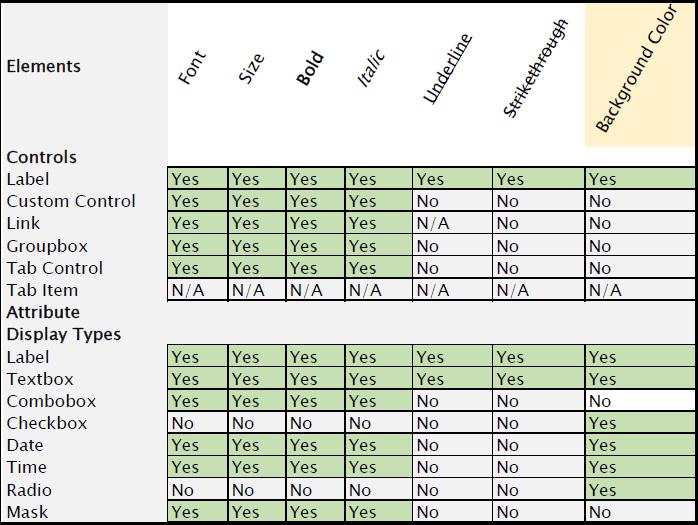
Use the Text Style Editor in GNA to create styles for the text that appears on your forms as headings or labels, and to create foreground and background colors. These are applied to the elements on the user form in the OpenForms Designer (OFD). The following chart lists the elements and the corresponding styles they support:

TextStyleChart.png

Read More...

Documentation

To read or download this information as a pdf, cick on the following link:
101-std-fea-037-TestStyleEditor.pdf


Accessing the Text Style Editor

To access the Text Style Editor:

  1. Launch GNA.
  2. Select Editors > Text Style Editor.

The styles that are already created are listed in the tree view on the left.

Creating a New Text Style

To create a new Text Style:

  1. Click New on the Text Style Editor.
  2. Enter a unique code in the Code field.
    The Code is required in the expression that you use to apply the style.
  3. Enter short and long descriptions in the English and French Short and Long Description fields.
    The descriptions make it easier for users to search through existing styles.
  4. Select a font and font size from the Font drop-down lists.
  5. Select the Bold, Italic, Underline, or Strikethrough buttons to apply character styling.
  6. Select a color from the Foreground drop-down list.
    The foreground color is applied as follows.

    • Labels, Attributes: To the text in the label
    • Groupbox or Tab control: All the text, for example all the labels, within the groupbox, tab, or other item
  7. Select a color from the Background drop-down list.
    The background color is applied as follows.

    • Labels, Attributes: To the area behind the text.
    • Groupbox or Tab Control, Custom Controls: To the area within the item, excluding the attributes
      Note:Background color can be applied to attributes separately.
    • Rows, Columns, Grids, Tab Items, Custom Entities: No background color is applied to these items.
  8. Click Save.

Applying the Text Styles

To apply a Text Style, add an expression to the Text Property in the Open Forms Designer, as described in the following procedure.
To apply a Text Style:

  1. Launch the Govern OpenForms Designer (OFD).
  2. Open the applicable form.
  3. Select the entity.
  4. Select the item to which you want to apply the text style.
  5. Select the Text Style property in the Property Explorer on the right.
  6. Click the ellipsis button to open the Expression Selector.
  7. Enter the expression in the Expression text box.
    The simplest expression is the code for the text style within single quotation marks, such as ‘Header’ to apply the Text Style identified by the Code Header. You can make the expression more complex in order to apply a text style only under a certain condition.
    For example, you could highlight parameters that a user needs to update based on the current data input.
  8. Click OK on the Expression Selector.
  9. Click Save on the OFD form.

Scenario: Applying a Text Style to a Heading

You can apply a Text Style in order to create a Heading that stand out above a groupbox or gird.
To apply a text style to a heading:

  1. Launch the Govern OpenForms Designer (OFD).
  2. Open the form on which you want to add the heading.
  3. Select the entity.
  4. Select the Label in the Controls list box.
  5. Drag it above the groupbox or grid.
  6. Select the label.
  7. Enter a name for the label in the Text property.
  8. Select the Text Style property in the Property Explorer on the right.
  9. Click the ellipsis button to open the Expression Selector.
  10. Enter the code for the heading surrounded by single quotation marks, or apostrophes, as in the following example:
    BoldHeading
  11. Click OK on the Expression Selector.
  12. Click Save on the OFD form.

The same procedure can be used to add a text style to any item on the form.

Scenario: Applying a Text Style Based on a Condition

You can add a Text Style to any expression in order to apply a text style under a condition. For example, you could use a text style to highlight a group box that contains fields that need to be filled only under certain conditions.
In the following example, the Correlated Values group box is highlighted when the Correlated Values method is selected on the CAMA Property Information form.
To apply a text style under a condition:

  1. Launch the Govern OpenForms Designer (OFD).
  2. Open the form on which you want to add the heading.
  3. Select the entity.
  4. Select the Correlated Values groupbox.
  5. Select the Text Style property in the Property Explorer on the right.
  6. Click the ellipsis button to open the Expression Selector.
  7. Enter the following expression:
    If(@attrMETHOD_IN_USE=5, ‘YellowBack’, ‘’)’
  8. This expression is added to a Case statement.
    The code for the text style is enclosed in single quotation marks.
    It is applied if the Correlated Values method, Code 5, is selected.
  9. Click OK on the Expression Selector.
  10. Click Save on the OFD form.

Scenario: Applying Different Text Styles Under Different Conditions

This scenario is the same as the previous one, except that different text styles are applied according to the method selected.
The expression for this is as follows:

Case(True,@attrMETHOD_IN_USE=1,’BlueBackground’,@attrMETHOD_IN_USE=2,’RedBackground’,@attrMETHOD_IN_USE=3,’GreenBackground’)

This expression applies the following backgrounds, or highlights, to items in a groupbox according to the method selected:

  • Appraisal Cost: Blue Background
  • Comparable Sales: Red Background
  • Income DIR: Green Background

What’s New

In the OpenForms Designer (OFD), you can work in Preview Mode to see how styles are applied on the user form, as you work.


101-std-fea-037


0 votes, average: 0.00 out of 50 votes, average: 0.00 out of 50 votes, average: 0.00 out of 50 votes, average: 0.00 out of 50 votes, average: 0.00 out of 5 (0 votes, average: 0.00 out of 5)
You need to be a registered member to rate this.
Loading...