103-bt-parm-CopytoYear

Copy Parameters to Year
Overview

Note: Functionality available in version 6.0.1505

Overview

The main purpose of this option is to copy all Year base parameter to another year. It will validate if the destination year exist, and if so, the user will have a warning message to override the data before executing the copy.

Furthermore, the copy will be refused if an Original Audit record is found in the AUDIT information (Entry_code = ‘original’)

AR – Transaction Types

Accounts Receivable (A/R) – Transaction Types

Overview

The following table provides a description and abbreviation for each A/ R transaction type. The transaction types are saved to VT_SY_ ARTRTYPE in the Govern database. They are used to populate the Transaction Type fields, on the A/R Class Parameters form on the A/R Transaction forms.

Click here for the pdf version.

The Transaction Type Codes are recorded in the AR Detail records.


Code Transaction Type Description
ab Abatement/Exemption A reduction of a payment or release from a payment.
adj Adjustment A modification made on an account or bill.
ajb Adjusted Bill A modification made to a Partial Billing record.
chg Charge An amount applied on an account or bill.
dct Discount A reduction on the total value or gross amount.
dep Deposit An amount of money placed in a bank.
dmd Demand A special charge applied to delinquent bills. This is used in the Motor Vehicle Excise Tax subsystem
dup Duplicate Payment A second payment made to cover an amount already paid.
fee Fee An amount charged for a service or product.
int Interest A charge, usually a percentage, applied on delinquent bills or borrowed money.
inv Billed (Invoice) A list of itemized amounts for goods and services.
mcr Misc. Cash Receipt An amount charged for an item not covered by other categories.
och Open Cash Credit A credit generated from a cash payment.
ocr Open Credit A credit generated from an adjustment.
ovr Overpayment

An adjustment generated from an overpayment on an installment. This is used in the Real Estate Tax module only.

Note: The Over, Short & Duplicate Method option must be selected on the Accounts Receivable General Parameters form in Govern Admin.

pdt Postdated Payment A payment dated later than the current date.
pen Penalty A charge applied on delinquent accounts.
pmt Payment Money given in exchange for goods or services.
rev Payment Reversal A correction made when an payment error has been entered and posted or a Not Sufficient Funds (NSF) check has been processed.
rf Refund An amount of money returned when an overpayment has been made.
sht Over & Short An amount generated from the Automatic Generation of Over & Short batch process.
td Tax Deferral A postponed tax payment.
tri Transferred To Tax (I/P) Interest and penalty charges transferred from the Special Assessment subsystem
tt Tax Title Lien A charge applied on property for the fulfillment of a debt or duty.
tti Tax Title Lien Interest The interest generated from the tax title.
tto Transferred Principal The amount of principal transferred to tax.
ttp Transferred (Interest and Penalty) The amount of interest and penalty transferred to tax.
ttx Transferred To Tax The total amount transferred, including principal and interest.
tx1 Sales Tax 1 A Sales Tax calculation method in which the first and second taxes are added together; then, applied to the bill.
tx2 Sales Tax 2 A Sales Tax calculation method in which the first tax is added to the bill; then, the second tax is calculated on this amount.
vp Voluntary (Advanced) Payment

An amount that is paid before the bill is received; for example, a taxpayer may forward a payment to cover bills during a predicted absence.

Note: If you select Voluntary Payment, as the transaction type, on a Govern user form, an AR_ID is required for the NA_ID or P_ID associated with the record.


NOTE: The Deposit, Postdated Payment, Payment, and Voluntary Payment transaction types are not distributed to Govern’s G/L


101-ar-ref-TransactionType


0 votes, average: 0.00 out of 50 votes, average: 0.00 out of 50 votes, average: 0.00 out of 50 votes, average: 0.00 out of 50 votes, average: 0.00 out of 5 (0 votes, average: 0.00 out of 5)
You need to be a registered member to rate this.
Loading...

Standard AR Controller – Create AR Payment Action Button (101-ar-fea-024)

Standard AR Controller – Create A/R Payment Action Button

Overview

NOTE: The following specifications will change due to enhancements, and as such may change.

This standard controller can be setup on different Account Forms (Real Property, Misc. Billing, Self-Reported Tax…) in order to provide the user with an Action Button to create an A/R payment for the users to enter payments, deposits or voluntary payments against this Account.

  • The Create A/R Payment button can be used for all Sub-Systems (Real Property, Self-Reported Tax, Personal Property, Miscellaneous Billing, etc.)
  • The AR Record to pay is determined by the action button controller setup….
  • This action button can be secured by profile user and role.

Functionality

This controller is used in different standard Forms distributed with the system. It can also be added and configured on a customized form.

NEW! The action button will open a Cash Collection Form in a modal window. When the form is opened, the focus will be on the Cash Collection tab. Next, a new Data Payment Entry record is created. The Subsystem and Transaction Type will be set to the ones specified in the action button properties. Note that these fields will be disabled in the Cash Collection form. If there are any ID’s, or a payer name is specified, they will be auto-loaded and set. When the payment is saved, the AR Detail links will be added if needed. At the end of the process, if required, the Cash Collection is closed.

Configuration

To add or configure this controller on a a form see below:


Read More...


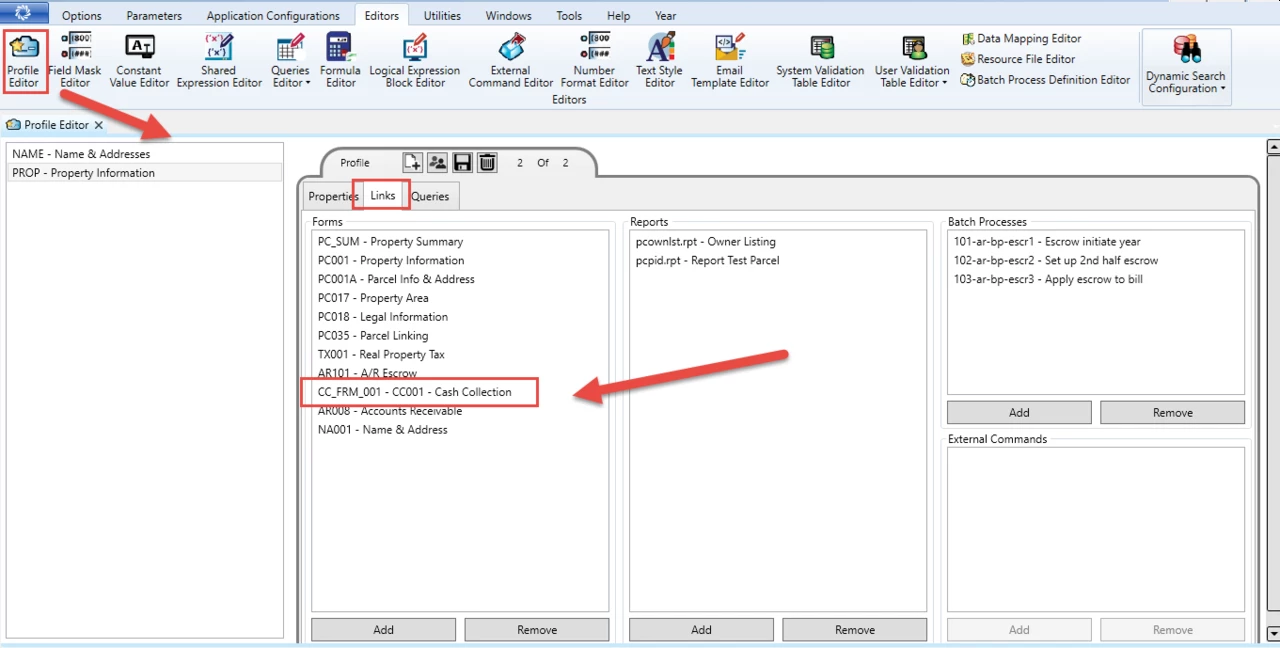
Govern New Administration (GNA)

To configure in GNA…

  1. On the GNA ribbon select Editors (tab) > Editors (group) > Profile Editor.
  2. In the Profile Editor, ensure that you have linked the cash collection form that will be opened by the AR Create Payment action button.
OpenForms Designer (OFD)

In the OFD, follow these steps…
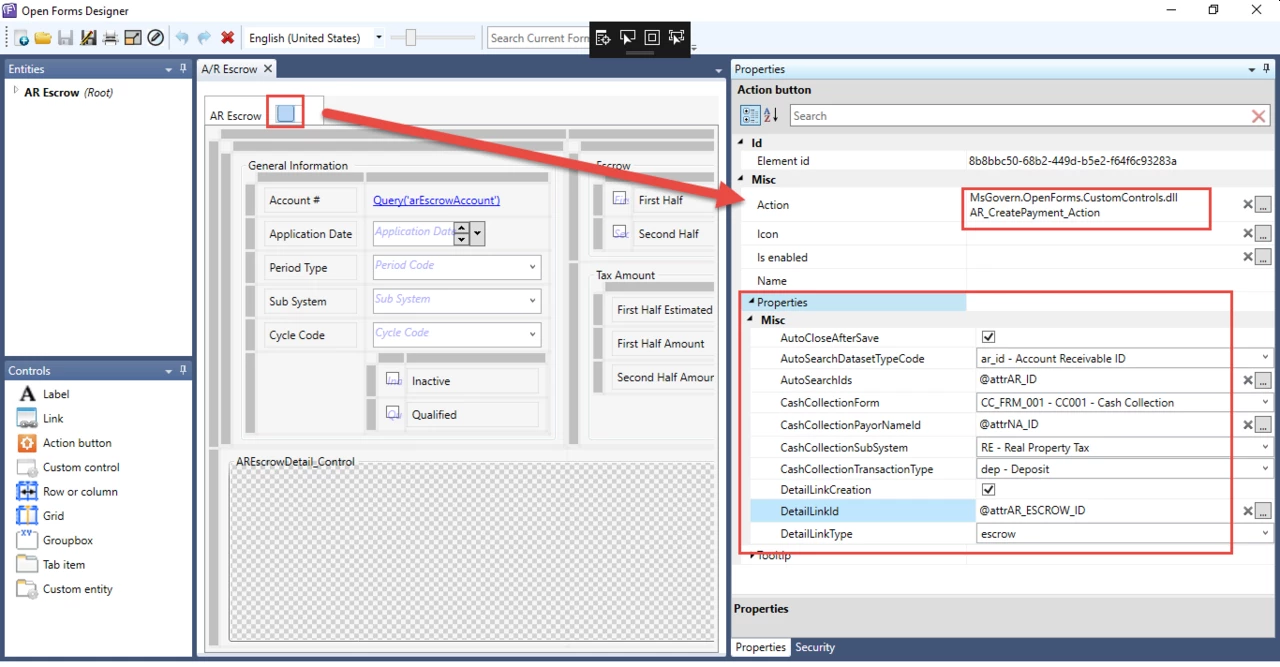
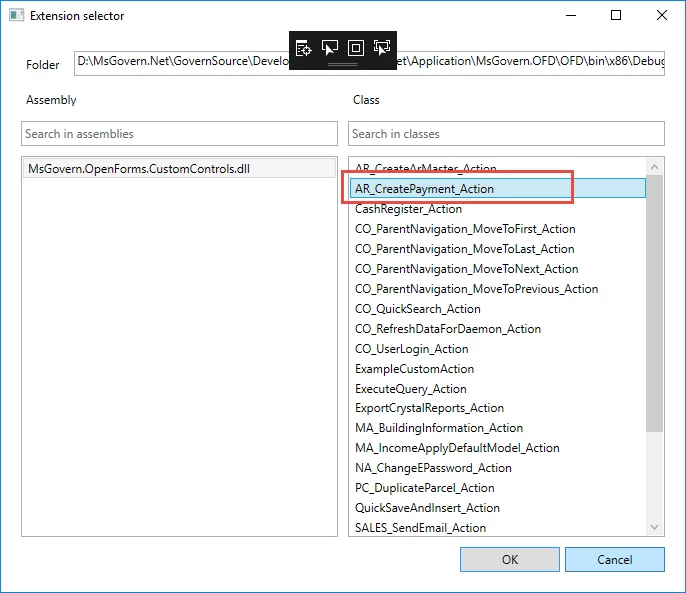
  1. Select the action for action button, i.e., the Ar_CreatePayment_Action.
The following are the available properties with their associated descriptions.

  1. AutoCloseAfterSave : When checked, the modal window in which the cash collection form was opened will be closed after the completion of the payment.
  2. AutoSearchDatasetTypeCode : Chose the Dataset Type code that defines the ids that you want to auto load (e.g ar_id, p_id)
    • If this is not set the Auto load will not function properly
  3. AutoSearchIds : An expression that returns a list of ids seperated by “;” that you want to load in the cash collection form automatically
    • E.g of a the output of a the expression = “10;30;100” or “20”
    • If this is not set the Auto load will not function properly
  4. CashCollectionForm : The form that you want to open for the payment.
    • This must be a form that is linked to the current profile
  5. CashCollectionPayorNameId : An expression that returns a na_id that you want to set as the default payor for the payment
  6. CashCollectionSubSystem : The subsystem for the payment transaction.
  7. CashCollectionTransactionType : The transaction type for the payment transaction (Note: The transaction field on the cash collection form will be disabled so you should use this property to set the correct transactiontype)
  8. DetailLinkCreation : If checked, a detail link will be created for all the Ar Details that are created for the payment transaction.
  9. DetailLinkId : An expression that returns the link id that will be inserted for the new ar details links (AR_DETAIL_LINK.LINK_ID)
    • If this is not set, no detail link will be created even if the DetailLinkCreation property was set to true.
  10. DetailLInkType : The type for the new detail links (AR_DETAIL_LINK.LINK_TYPE)
    • If this is not set, no detail link will be created even if the DetailLinkCreation property was set to true.


Contact your System Administrator or Business Analyst for more information on this feature implementation in OpenForms.


Related Topics


101-ar-fea-024


0 votes, average: 0.00 out of 50 votes, average: 0.00 out of 50 votes, average: 0.00 out of 50 votes, average: 0.00 out of 50 votes, average: 0.00 out of 5 (0 votes, average: 0.00 out of 5)
You need to be a registered member to rate this.
Loading...

AR – Inquiry ACH Information

Accounts Receivable (AR) Inquiry ACH Information

Overview

The A/R Information tab of the A/R Inquiry form includes a section for ACH Information.

This is updated automatically when you run the Prepare Data for ACH and the ACH Generate File batch process. For details, see
ACH Batch Processes


101-ar-frm-004


0 votes, average: 0.00 out of 50 votes, average: 0.00 out of 50 votes, average: 0.00 out of 50 votes, average: 0.00 out of 50 votes, average: 0.00 out of 5 (0 votes, average: 0.00 out of 5)
You need to be a registered member to rate this.
Loading...

101-ar-brules-techspec

Cash Collection Technical Specification

Version 6.0 – Version 6.1 (under construction – software not released)

Technical Specification

The following is intended for administrators, super users and business analysts.


What’s new

Batch ID version Batch Number


101-ar-brules-techspec


0 votes, average: 0.00 out of 50 votes, average: 0.00 out of 50 votes, average: 0.00 out of 50 votes, average: 0.00 out of 50 votes, average: 0.00 out of 5 (0 votes, average: 0.00 out of 5)
You need to be a registered member to rate this.
Loading...

101-ar-faq

Accounts Receivable (A/R) Frequently Asked Questions (FAQ)

Overview

When the AR_DETAIL.BK_RETURNED_CODE is populated with a value, when that field is populated, it will show up in the AR Inquiry with the Label of “Bank Returned Code”. When it is required to change the labels, see the following.

Resources File

Changing Labels in the Inquiry

To change the labels, see

  1. In the Resource File Editor, added a new Entry with the Key = ‘LBLBK_RETURNED_CODE_TX”.
  2. Fill in the Text for both English and French.

Example:

>key:AR,ARINQUIRY,BANK_PROCESSING_CODE
>>en:Bank Returned Code
>>fr:Code Ret Banq

>key:AR,ARINQUIRY,BANK_PROCESSING_DATE
>>en:Bank Returned Date
>>fr:Date Ret Banq


101-ar-faq


0 votes, average: 0.00 out of 50 votes, average: 0.00 out of 50 votes, average: 0.00 out of 50 votes, average: 0.00 out of 50 votes, average: 0.00 out of 5 (0 votes, average: 0.00 out of 5)
You need to be a registered member to rate this.
Loading...

AR – Using Protest Flags

Accounts Receivable (AR) – Using Protest Flags

Version 6.0 [In Development]

Overview

You can add a protest flag to a record listed in A/R Inquiry Detail in order to indicate that the bill has been contested by the recipient.

NOTE: When the recipient makes a payment, only the non-protested amount is paid. Any amount over this creates an open cash credit and interest continues to accrue on the unpaid entries.

This is illustrated in the following scenario:

Real Estate Tax Levies Under Protest

In this scenario, a taxpayer is billed for two levies, but protests the amount billed on the first.

Real Estate Levy 1 (RE1): 1,000. (Protested Entry)

Real Estate Levy 2 (RE2): 500.

The taxpayer protests RE1 but makes a payment of $800.00. This amount is used to pay RE2 and to create an open cash credit for $300.00. Interest continues to accrue on the $1,000. owed on RE1.

Adding a Protest Flag to a Record

To add a protest flag to a record:

  1. Open the A/R Inquiry form in Govern.
  2. Perform a search to retrieve the required record.
  3. Open the record in A/R Inquiry.
  4. Display the record in the Details grid.
  5. Select the Applied Records option.
  6. Right click on the transaction that is under protest. The following confirmation message is displayed:
    Set the protest flag for the select rows with the following Protest?
  7. Click OK
    The protested record is displayed in red and the Protest Code column is added to the A/R Inquiry Detail tab.
  8. Select the reason for the protest from the Protest Code drop-down list.

Removing a Protest Flag

To remove a protest flag from a record:

  1. Open the A/R Inquiry form in Govern.
  2. Perform a search to retrieve the required record and load it to tree view.
  3. Open the record in A/R Inquiry.
  4. Select a transaction in the Summary section to display it in the Details grid.
  5. Select the Applied Records option.
  6. Right click on the transaction that is under protest. Protested records are displayed in red.
    The following message appears if there is a due date in the database for the selected record.
    Do you want to remove the protest flag for the selected row?
  7. Click the calendar to select the new due date for the transaction.
    NOTE: The new date affects the interest calculation.
  8. Click OK to confirm.


101-ar-fea-002


0 votes, average: 0.00 out of 50 votes, average: 0.00 out of 50 votes, average: 0.00 out of 50 votes, average: 0.00 out of 50 votes, average: 0.00 out of 5 (0 votes, average: 0.00 out of 5)
You need to be a registered member to rate this.
Loading...
